
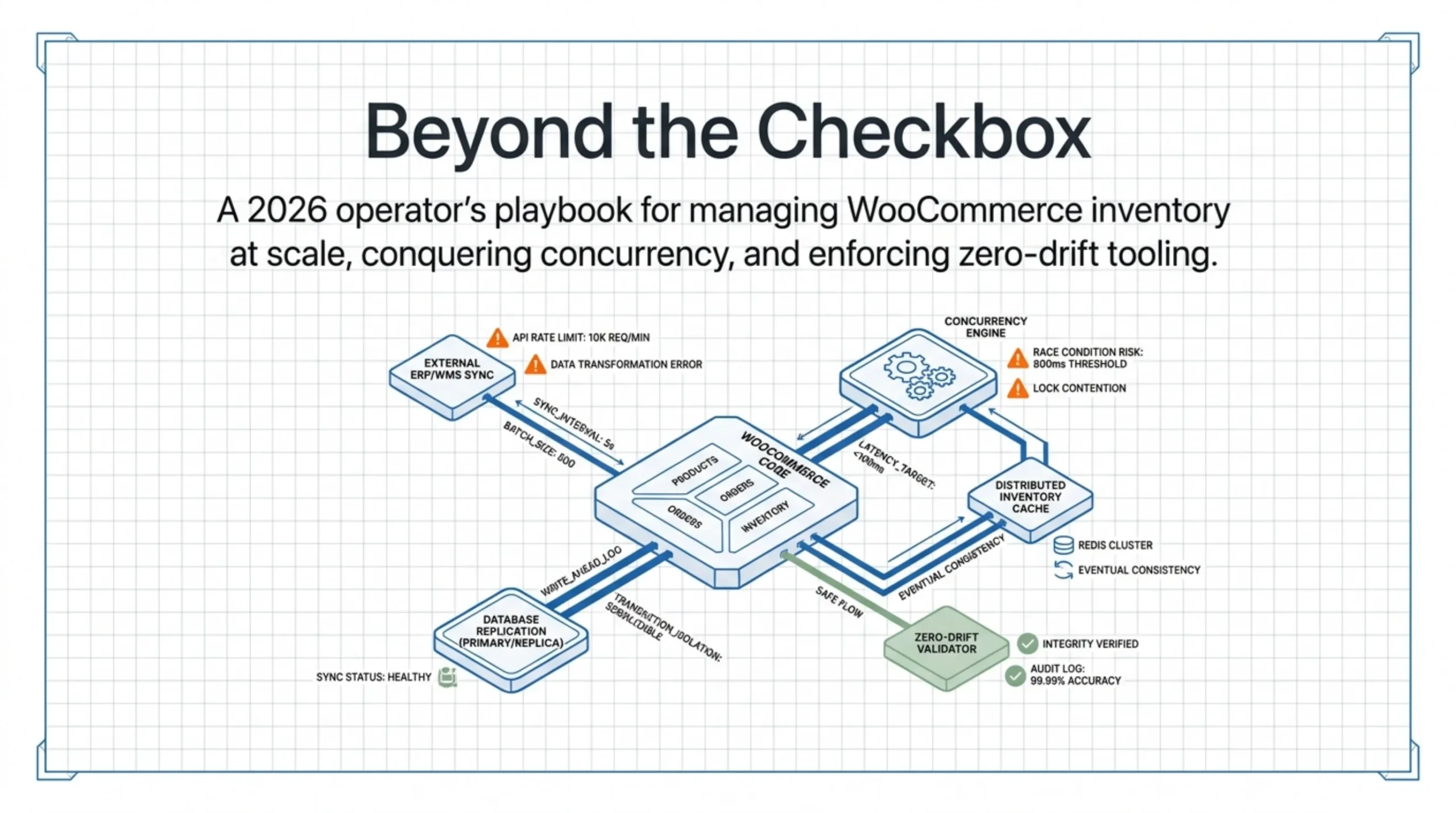
Last November, a client called me at 11pm on a Friday. Their store had oversold a limited-edition jacket by 47 units. Physical inventory: 32. Units sold on site: 79. The Products screen had been showing “in stock” all evening because three different sources were writing to the _stock post meta on the same product row: a CSV importer, a warehouse webhook, and a third-party sync plugin. None of them locked anything. That is what learning how to manage inventory in WooCommerce at scale actually looks like, not a tutorial about toggling the Manage Stock checkbox.
Most “how to manage inventory in WooCommerce” articles stop at that checkbox. The checkbox is the easy part. The hard parts are concurrency, variations, bulk operations, automation, and the recovery you need when one of those fails. This guide covers all of them.
How to manage inventory in WooCommerce when you’ve outgrown the dashboard
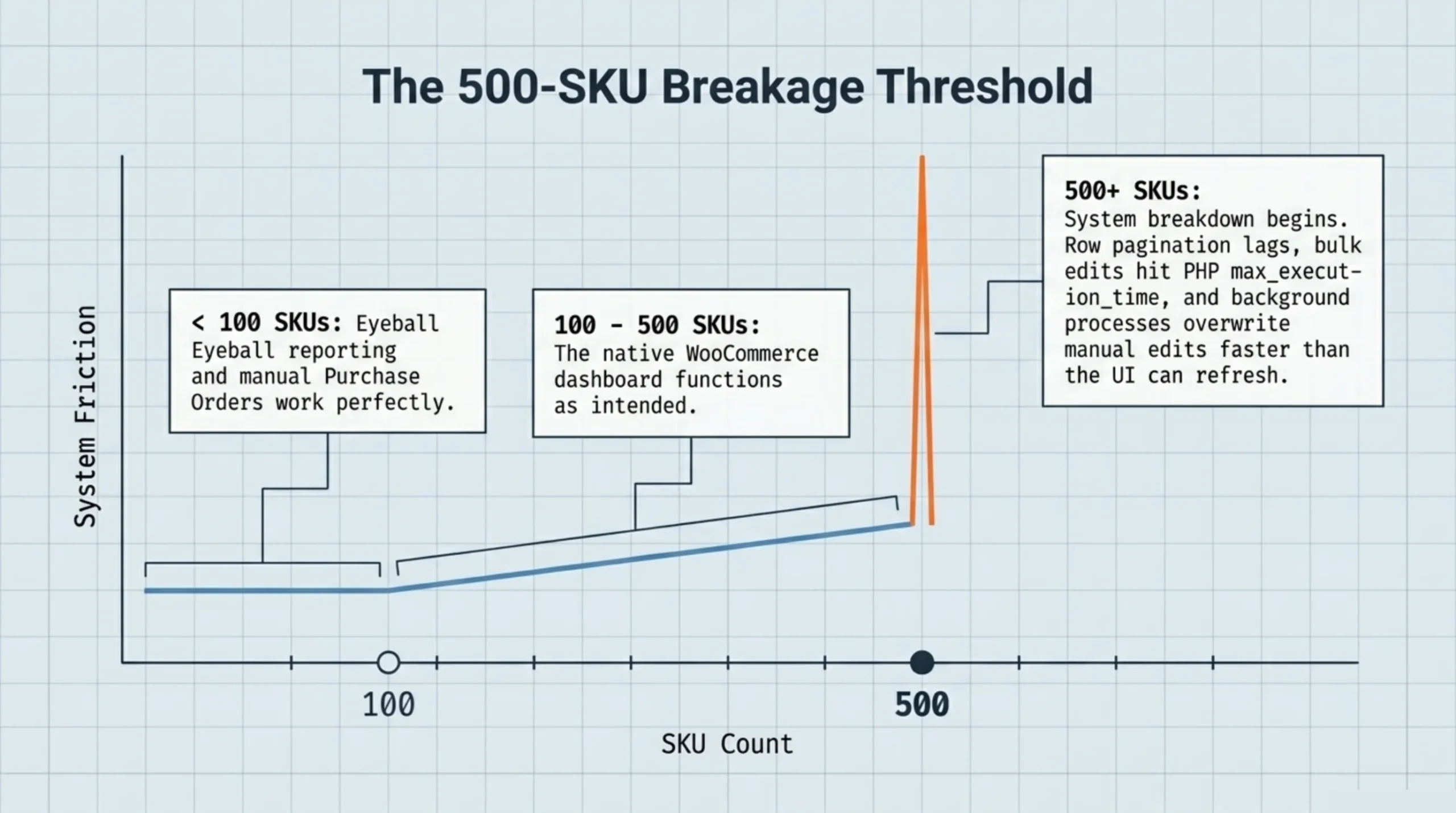
The native Products screen (woocommerce.com/document/managing-products) is fine until about 500 SKUs. Past that, three problems compound: row pagination becomes painful, bulk edits time out at PHP max_execution_time, and stock fields stop reflecting reality because background processes write faster than you can refresh.
Here is the unpopular take. Most stores under 100 SKUs do not need a stock management plugin. They need a habit: open one report on Monday morning, eyeball the low-stock list, ship purchase orders. Anything beyond that is over-engineering for the size of the catalog. But once you cross the threshold where you stop knowing every product by sight, you need real tooling. Knowing how to manage inventory in WooCommerce in the 500–5,000 SKU band is mostly about choosing the right surface to look at the data, not the right algorithm.
I usually start by enabling stock management globally under WooCommerce → Settings → Products → Inventory, then setting “Hold stock (minutes)” to a value that matches the payment provider’s authorization window. For Stripe with default settings, 60 minutes is too long; 15 covers virtually all approved authorizations (stripe.com/docs/payments/payment-intents). Long holds inflate “out of stock” appearances on synced channels. If your thinking around how to automate a WooCommerce store has not gotten this granular yet, this section is the foundation; the next ones cover specifics.
Stock fundamentals: managing inventory in WooCommerce correctly
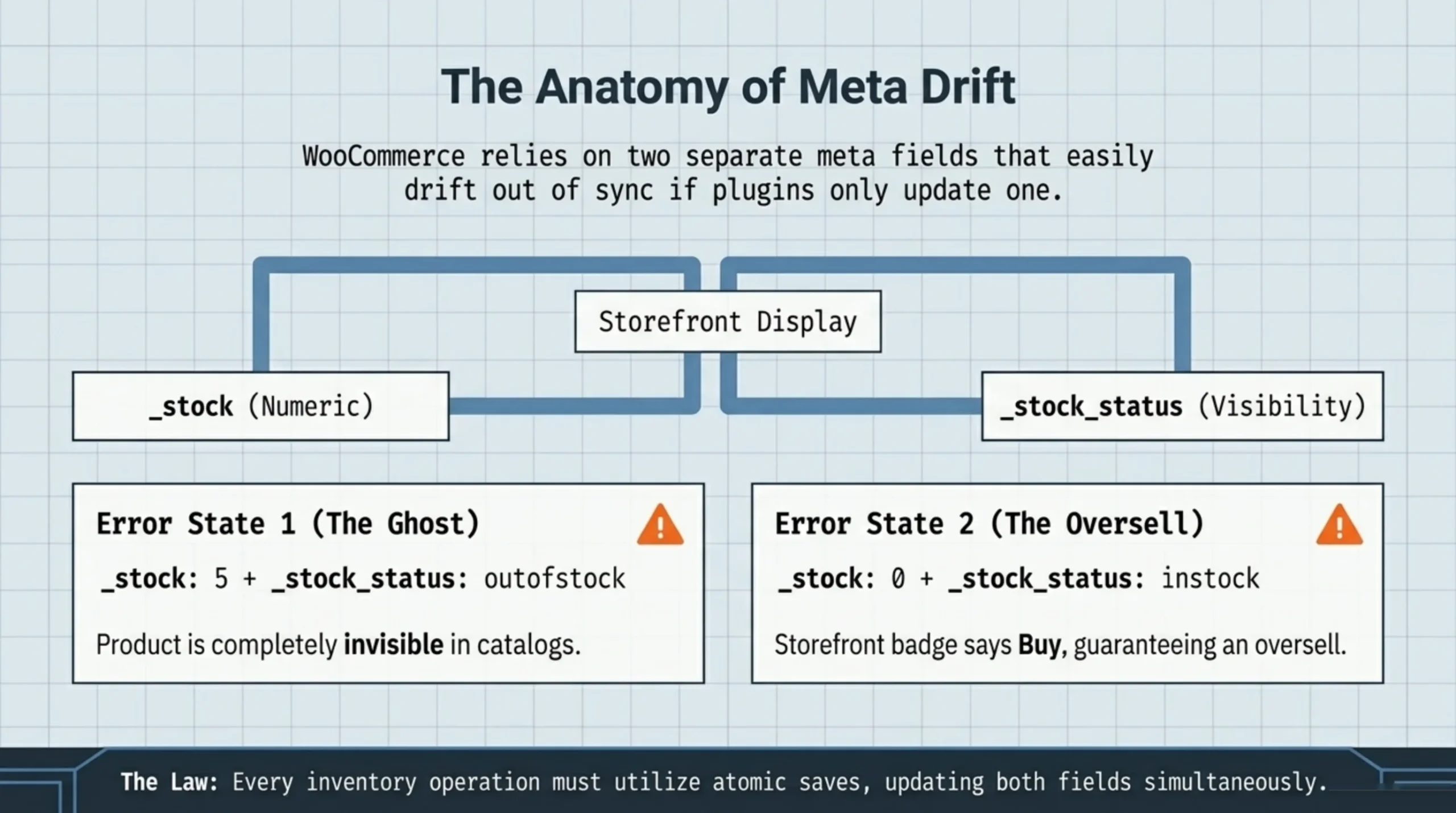
WooCommerce stores stock state in two places that drift if you are not careful: post meta _stock (numeric quantity) and _stock_status (one of instock, outofstock, onbackorder). Most plugins update one and forget the other. The result is the canonical “shows in stock but quantity is zero” bug that every WooCommerce engineer has spent at least one Saturday fixing.
The official documentation on managing product stock (woocommerce.com/document/managing-product-stock) lays out the per-product fields, but skips the gotcha that matters most: the _stock_status field is what Catalog filtering and the storefront badge actually read. If _stock says 5 but _stock_status says outofstock, the product is invisible. If _stock says 0 but _stock_status says instock, you are about to oversell.
Before any stock surgery, learn how to back up WooCommerce products with both database state and meta intact. WP-CLI handles this with wp db export --tables=$(wp db tables 'wp_posts,wp_postmeta,wp_woocommerce*' --format=csv) (developer.wordpress.org/cli/commands/db/export). One line. Dumps the post table, post meta, and the WooCommerce custom tables (orders, sessions, HPOS schema). Run it before every bulk edit. I have rolled back from this dump four times in the last 18 months. Twice on stores I did not personally break.
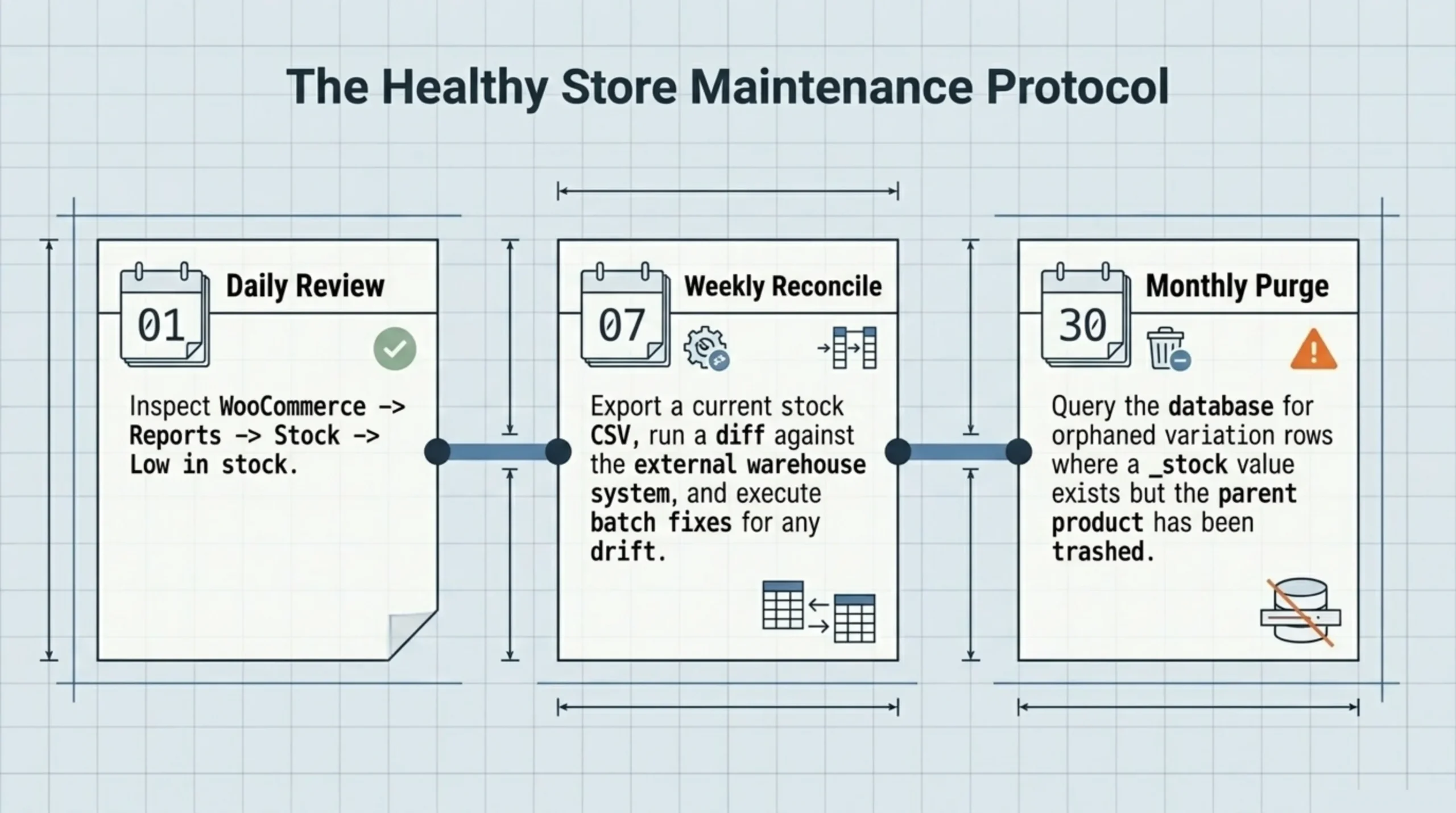
A real workflow for how to manage inventory in WooCommerce on a healthy store:
- Daily: review the Stock report at WooCommerce → Reports → Stock → Low in stock. Threshold values come from Settings → Products → Inventory.
- Weekly: reconcile against the warehouse system. Export current stock as CSV, diff against the external source, fix drift in batch.
- Monthly: check for orphaned variation rows where
_stockexists but the parent product is trashed. These are cleanup candidates.
That is it. Anything fancier is for a specific failure mode you have already seen.
How to manage WooCommerce product variations effectively
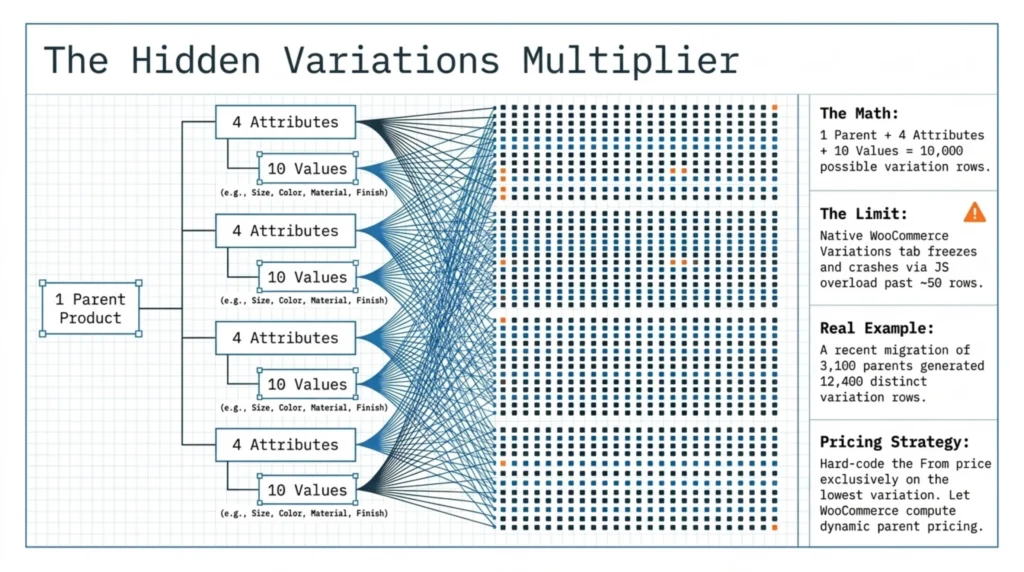
Variations are where the rules of how to manage inventory in WooCommerce break down. A parent product with 4 attributes and 10 values per attribute generates up to 10,000 possible variations, of which maybe 200 are actually valid SKUs. WooCommerce stores every variation as a separate product_variation post, with its own _stock and _stock_status post meta on its own row.
I migrated a fashion store off Magento in March 2024: 12,400 variations across 3,100 parent products. The native Variations tab on a single product can render maybe 50 rows before the JS becomes unresponsive. Editing variation prices in bulk through that interface is unworkable past 200 variations on the parent. The official extension docs (developer.woocommerce.com/docs/category/extension-development) describe the data model in full but offer no built-in path to bulk-edit variations across multiple parent products.
This is where how to manage WooCommerce product variations effectively comes back to tooling, not technique. You need a grid view that loads all variations across all products, supports inline editing on stock and price, and writes both _stock and _stock_status on save (the bug surface from the previous section). BrikPanel’s Variation Editor does exactly this — open it, filter by parent or by attribute, edit inline, save. I use it on every store with more than 200 variations because the alternative is custom SQL, and custom SQL on production at 11pm on a Friday is how you become the engineer in the opening anecdote.
For variation pricing strategy specifically: set the parent product’s “From” price using the lowest variation, and let WooCommerce compute it dynamically. Do not hard-code it. Half the “price showing wrong” support tickets I see are from stores that hard-coded the parent price and never updated it after a variation went on sale.
Bulk operations: how to manage inventory in WooCommerce at scale
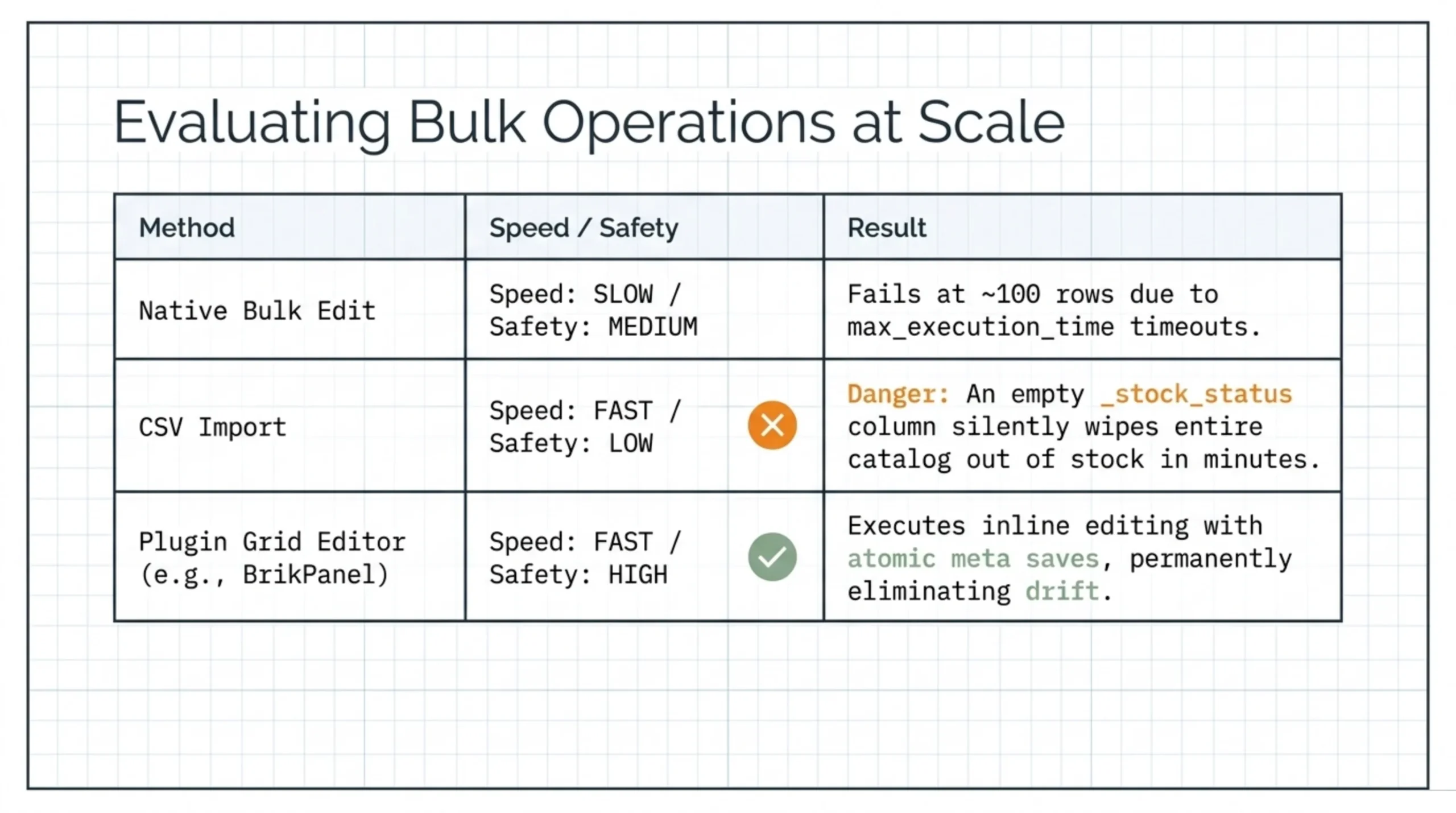
Native bulk edit on the Products screen handles maybe 100 rows before the request hits PHP max_execution_time and dies. The CSV import/export under WooCommerce → Products → Import handles more, but it has its own pain: the importer does not validate stock fields, so a malformed _stock_status value silently sets every imported row to whatever the default is. I once watched a 4,000-row import flip an entire catalog to outofstock because the CSV had an empty Stock status column. The store ran with zero visible products for 11 minutes.
Three approaches I rank by safety:
| Approach | Speed | Safety | When to use |
|---|---|---|---|
| Native bulk edit | Slow | Medium | Under 100 products, simple field changes |
| CSV import | Fast | Low | One-off migrations, with a fresh backup ready |
| Plugin grid editor | Fast | High | Routine bulk edits, daily ops, variations |
The grid-editor approach is what BrikPanel’s Inventory Management module gives you: every product on one page, every variation expanded, edit _stock, _stock_status, regular price, sale price, and SKU inline, save row-by-row or all-at-once. The save handler updates both stock fields atomically, so the drift bug from earlier does not happen. I am biased — I built it because I was tired of fixing the drift bug on client stores.
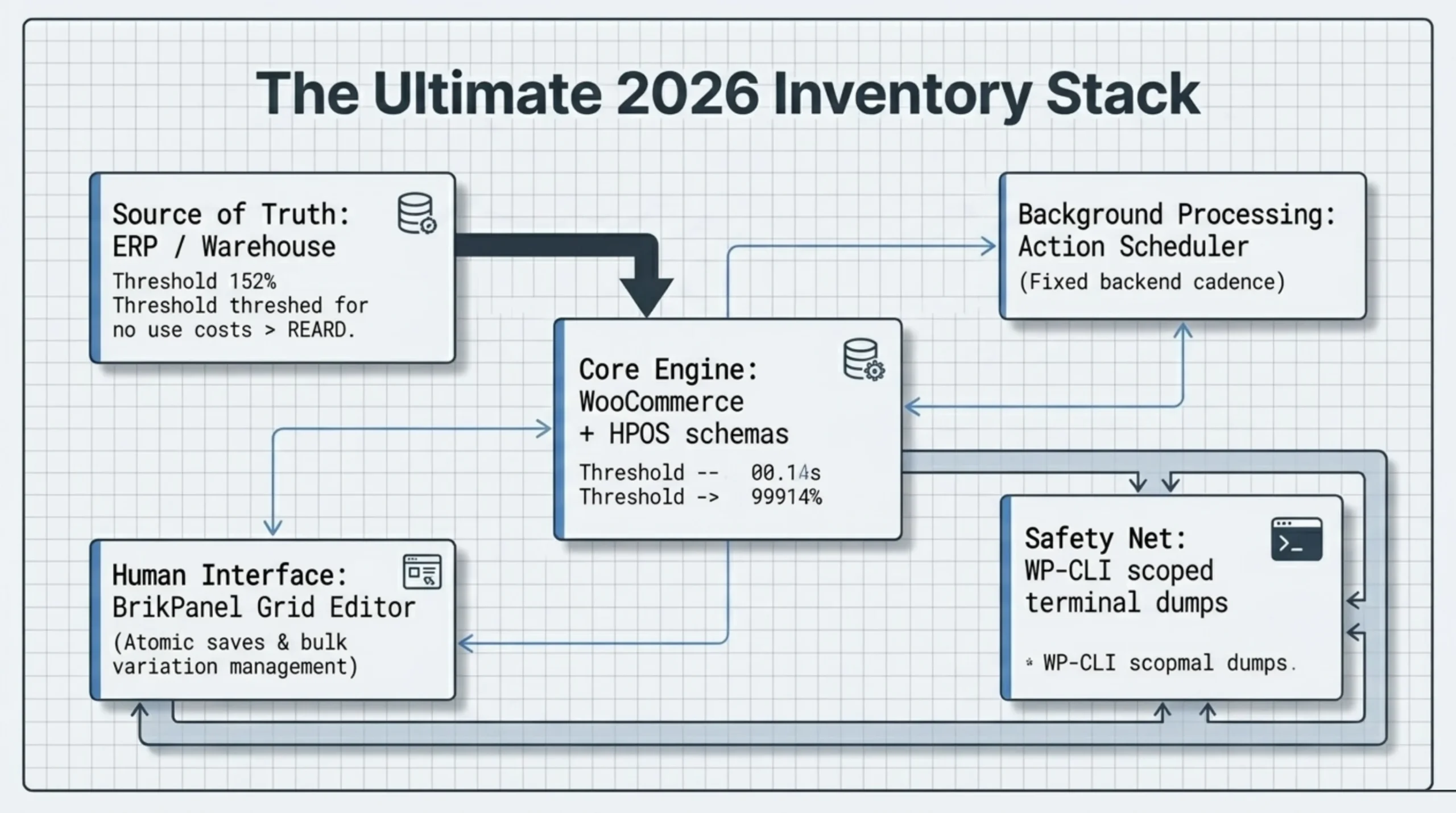
If you also want to know how to automate a WooCommerce store at the inventory layer, the underlying queue you need to understand is Action Scheduler (actionscheduler.org). WooCommerce ships with it. Schedule stock-sync jobs from external systems through Action Scheduler instead of WP-Cron alone. The status page at WooCommerce → Status → Scheduled Actions shows you exactly when each inventory job ran, what failed, and whether it was retried. Mastering how to manage inventory in WooCommerce at this layer is mostly mastering Action Scheduler.
How to automate a WooCommerce store without breaking stock
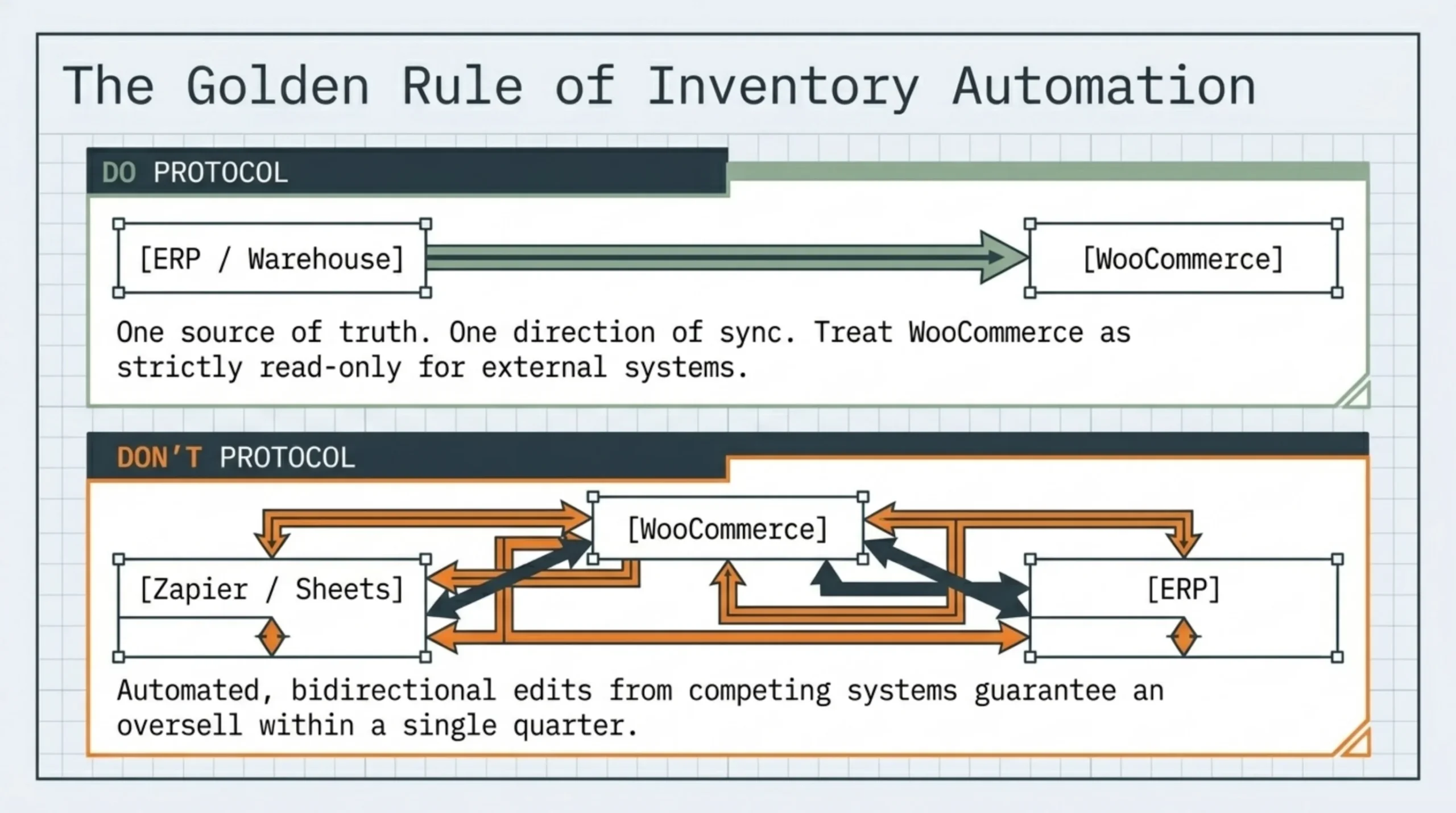
Automation is where stores break in interesting ways. The two patterns I see most: someone wires Zapier to write stock from a Google Sheet, then someone else wires the WooCommerce → ERP sync, and both run on different schedules. The most-recent-write wins, and the loser is whichever side had the truth. The other pattern: scheduled CSV imports that overwrite stock at 3am with last night’s snapshot, undoing every order placed overnight. Both end the same way — an oversell or an artificial out-of-stock.
If you are figuring out how to automate a WooCommerce store, the rule is simple: one source of truth for stock, one direction of sync. Pick the warehouse or ERP as canonical. Push from there to WooCommerce. Treat WooCommerce as effectively read-only for stock from outside systems. Manual edits in the admin are fine because they are infrequent and human-supervised. Automated edits from two systems are a guaranteed oversell within a quarter.
Knowing how to manage inventory in WooCommerce while running automation flows means picking that direction once and enforcing it. For abandoned cart recovery, low-stock alerts, and customer email flows, the cleaner pattern is to handle them inside WordPress with Action Scheduler rather than chaining through a third-party automator. The native woocommerce_low_stock and woocommerce_no_stock actions (woocommerce.com/document/managing-product-stock) fire on stock threshold crossings. Hook into those with a small custom plugin or use BrikPanel’s notification module to ship Slack and email alerts without a Zapier subscription.
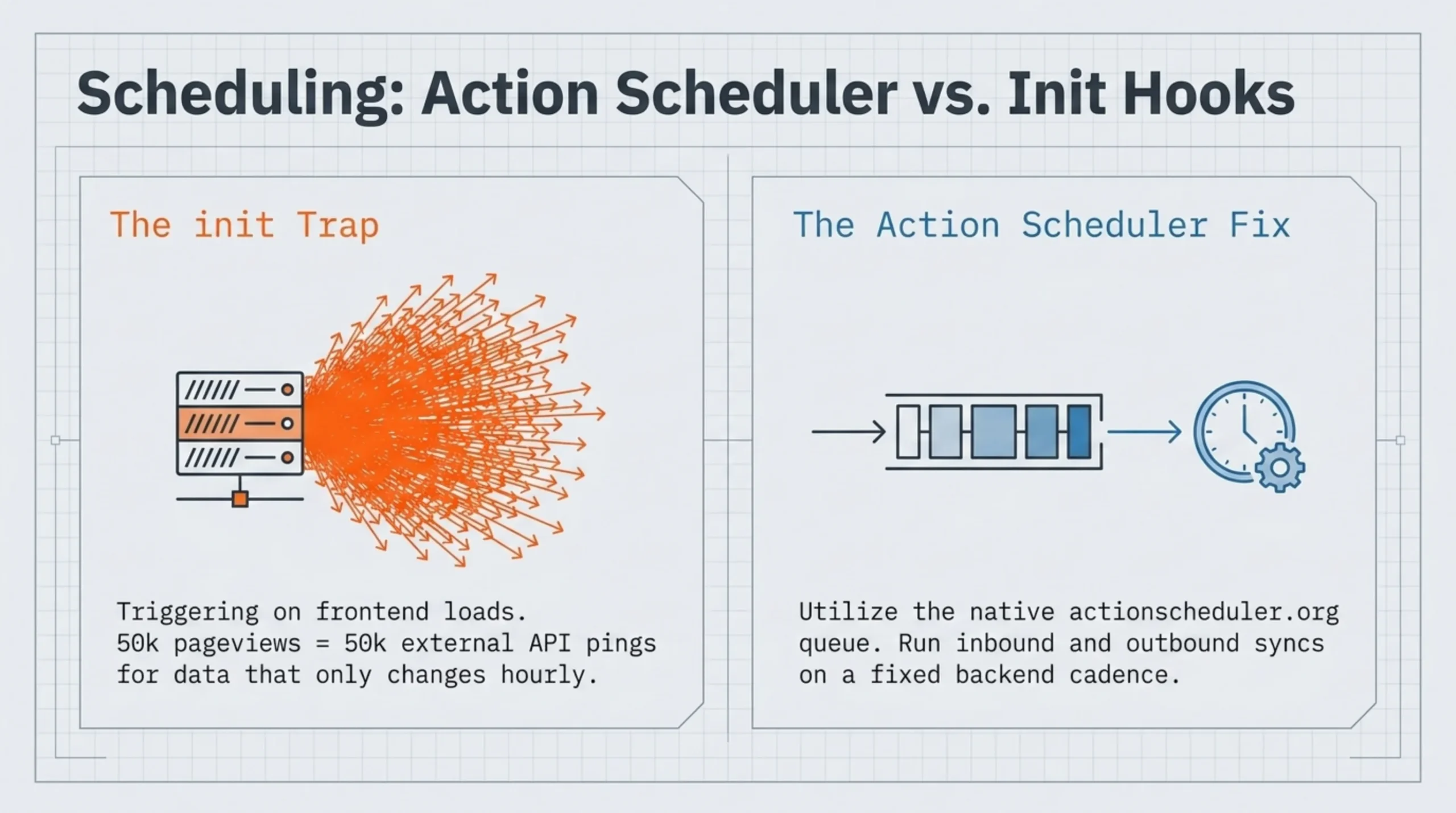
This is also where you should disable any stock-modifying plugin that runs on every page load. Some popular “stock sync” plugins hit external APIs on init, meaning every front-end request triggers an outbound API call. On a store doing 50,000 pageviews a day, that is 50,000 API calls a day for data that changes every 15 minutes. Move them into Action Scheduler and run on a fixed cadence. The patch is ugly. It works.
How to see abandoned carts in WooCommerce (and why it matters for stock)
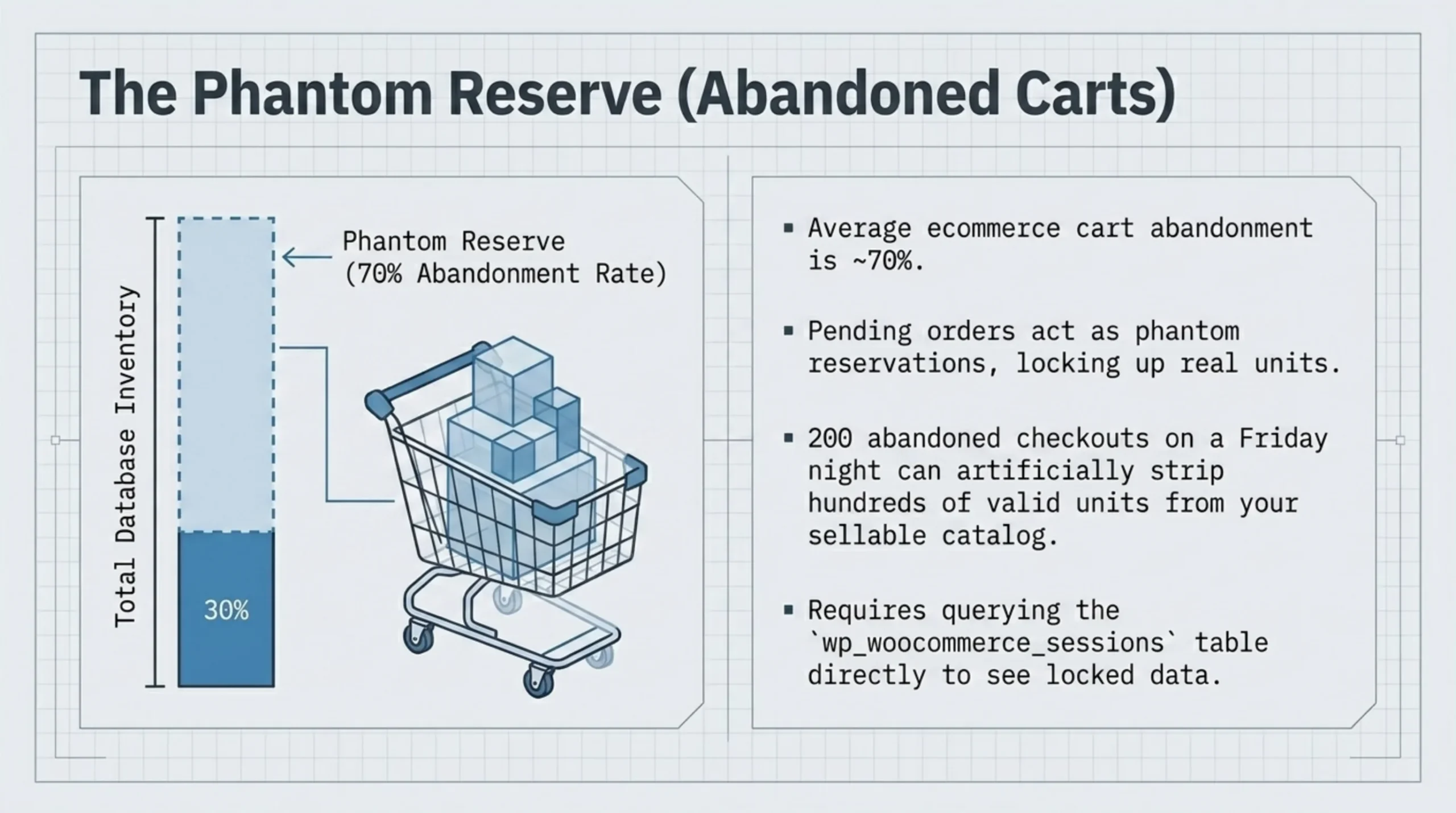
WooCommerce core does not surface abandoned carts. There is no admin screen for them, no report, nothing. Knowing how to see abandoned carts in WooCommerce in 2026 still means installing a plugin or reading the database directly.
The free-and-ugly option is to query the wp_woocommerce_sessions table for sessions with populated cart_contents and no matching order. Roughly:
SELECT session_key, session_value, session_expiry
FROM wp_woocommerce_sessions
WHERE session_value LIKE '%cart_contents%a:%'
  AND session_expiry > UNIX_TIMESTAMP();
The session_value column is a serialized PHP object, so to actually read what is in the cart you have to unserialize it on a worker, not in MySQL. Most stores end up using a plugin: WooCommerce Cart Abandonment Recovery (free, on wordpress.org), CartFlows, or Recapture for paid recovery email flows. Baymard’s research (baymard.com/lists/cart-abandonment-rate) puts average ecommerce cart abandonment around 70%, so this is not a trivial line item.
Here is where it ties back to inventory. When WooCommerce holds stock for pending orders (the “Hold stock (minutes)” setting from earlier), abandoned carts can phantom-reserve real units. A 60-minute hold across 200 abandoned checkouts on a Friday night drops your effective inventory by hundreds of units across the catalog. Watch the held-stock count when you tune that setting. Disagreement with the popular advice: every “set up cart abandonment recovery” tutorial tells you to enable a 60-minute hold for “safety”. Don’t. 15 minutes is enough for Stripe authorizations, and the inventory you free up matters more than the rare oversell that comes from a 14-minute payment confirmation delay.
How to back up WooCommerce products before any inventory operation
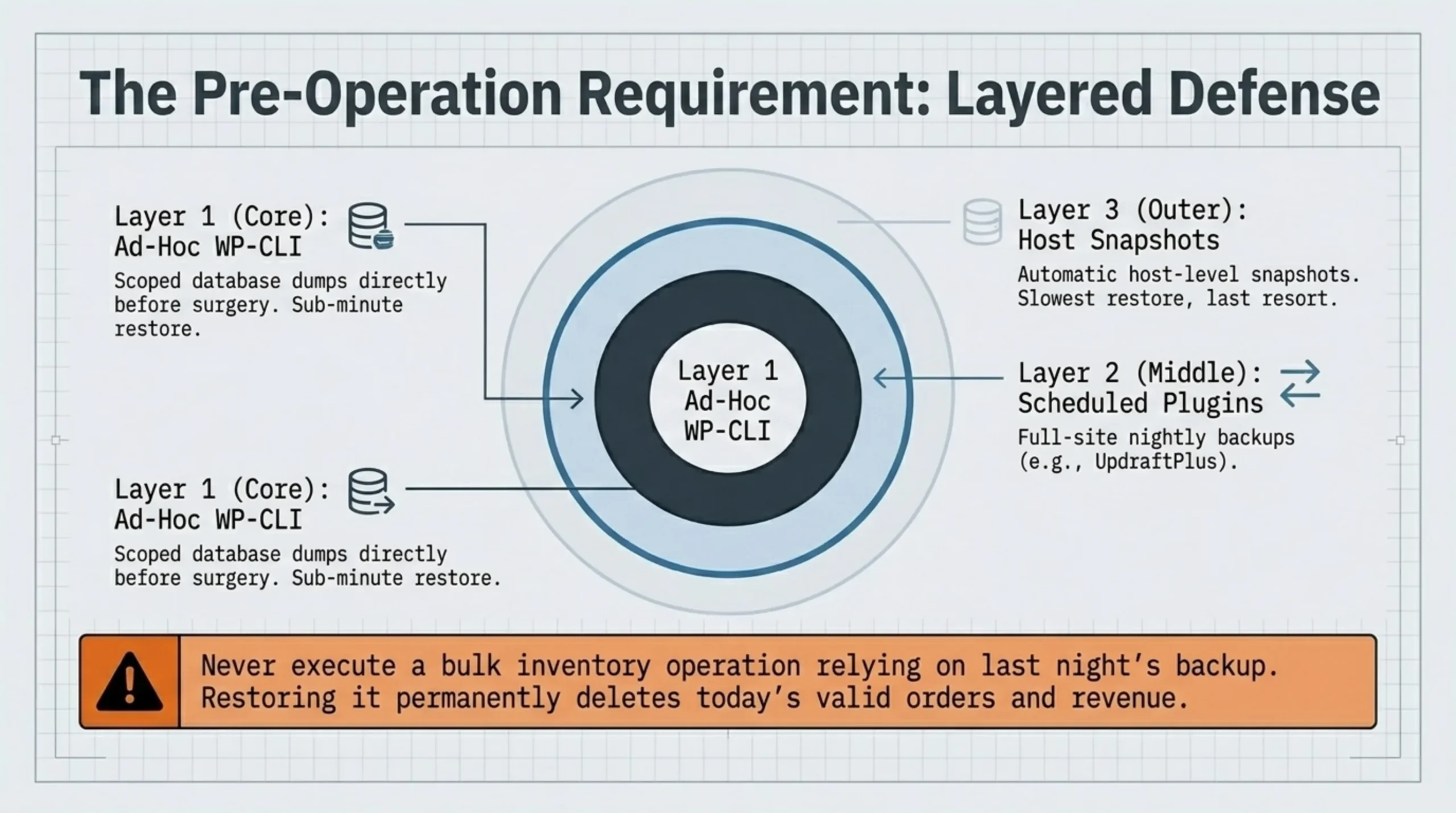
I do not let any client run a bulk inventory operation without a backup taken in the same session. The “I’ll restore from last night’s nightly” answer is wrong, because last night’s backup does not include today’s orders, customer notes, or stock movements. Restoring it loses real revenue data.
How to back up WooCommerce products properly, in order of how much I trust each:
- WP-CLI database export scoped to WooCommerce tables (the
wp db exportcommand from earlier). Fast, scriptable, runs from a deploy script. This is what I run before every bulk edit on production. - UpdraftPlus, walked through at kinsta.com/blog/wordpress-backup-plugins. Decent for full-site backups on a schedule. The free version writes to Dropbox or Google Drive.
- Host-level snapshots. Kinsta and WP Engine take automatic ones. Fine as a last line of defense, but slow to restore (usually an hour from request to live).
The combination I run on production stores: nightly full-site UpdraftPlus, plus an ad-hoc WP-CLI dump scoped to WooCommerce tables before any bulk operation. The scoped dump restores in under a minute. I have used it 11 times in the last 18 months across client work, and not once has the restore been the source of a problem.
For HPOS-enabled stores (woocommerce.com/document/high-performance-order-storage), make sure your backup tool covers the new wc_orders, wc_order_addresses, wc_order_operational_data, and wc_orders_meta tables. UpdraftPlus and most modern CLI exports do. Some older backup plugins missed them entirely as recently as mid-2024 and only restored the legacy wp_posts order rows, which on an HPOS store contain nothing useful. Test a restore on staging before you trust it in production.
FAQ
About BrikPanel
BrikPanel is a free WordPress admin plugin that consolidates Inventory Management, the Bulk Editor, and the Variation Editor into a single grid you can actually work in. If you are tired of the drift between_stockand_stock_status, or of variations that cannot be edited in bulk, install it from wordpress.org/plugins/brikpanel-admin-panel-dashboard-for-woocommerce and start with the Inventory Management module. That is the one that solves how to manage inventory in WooCommerce at scale without writing custom SQL on a Friday night.
WooCommerce reads the _stock_status post meta field, not the _stock quantity. A product with _stock set to 5 but _stock_status set to outofstock will display as out of stock on the storefront and be filtered out of catalog queries. This is the most common drift bug when learning how to manage inventory in WooCommerce, and always updating both fields together is the fix when writing custom code.
For Stripe-based checkouts, 15 minutes covers almost all authorizations. PayPal and bank transfer can need 30 to 60 minutes. Do not leave the setting at the WooCommerce default of 60 if you are running thin inventory; abandoned carts will phantom-reserve real stock and inflate your “out of stock” appearances on connected sales channels.
Not realistically. The native Variations tab on a single product becomes unusable past about 50 variations, and the bulk edit on the Products screen does not expand variations at all. You need a grid editor, a CSV import (with the validation risks above), or custom SQL. BrikPanel’s Variation Editor is the path I default to on stores with more than 200 variations.
Query the wp_woocommerce_sessions table directly for sessions where cart_contents is non-empty and there is no matching order in wp_wc_orders. The data is there, but session_value is a serialized PHP object, so you have to unserialize on a worker rather than in MySQL. A free plugin like WooCommerce Cart Abandonment Recovery is usually less work than building this yourself.
No, but it is the most reliable way for ad-hoc, scoped backups before risky operations. Full-site plugins like UpdraftPlus are fine for nightly schedules. Host snapshots are fine as a last line of defense. Use all three layers if the store revenue justifies it. They overlap, and overlap is what saves you.
HPOS only changes order storage, not product or stock storage. Stock fields still live in wp_postmeta attached to the product or variation post. But your backup process and any custom reporting need to include the new wc_orders* tables, or post-restore the order history will be missing while the products themselves look fine.
Sources Used
- woocommerce.com/document/managing-products — cited for the native Products screen behavior and the location of the Manage Stock checkbox.
- woocommerce.com/document/managing-product-stock — cited for the
_stockand_stock_statuspost meta fields, plus thewoocommerce_low_stockandwoocommerce_no_stockaction hooks. - stripe.com/docs/payments/payment-intents — cited for Stripe authorization hold windows that inform the recommended Hold stock minutes setting.
- developer.woocommerce.com/docs/category/extension-development — cited for the WooCommerce variation data model and the absence of native bulk-variation editing.
- actionscheduler.org — cited as the queue WooCommerce uses for background jobs, and the recommended host for inventory sync schedules.
- developer.wordpress.org/cli/commands/db/export — cited for the
wp db exportcommand used to take scoped WooCommerce backups before bulk operations. - baymard.com/lists/cart-abandonment-rate — cited for the ~70% average ecommerce cart abandonment rate.
- kinsta.com/blog/wordpress-backup-plugins — cited for UpdraftPlus and general WordPress backup plugin context.
- woocommerce.com/document/high-performance-order-storage — cited for the HPOS table schema (
wc_orders,wc_order_addresses,wc_order_operational_data,wc_orders_meta) that backup tooling must cover. - wordpress.org/plugins/brikpanel-admin-panel-dashboard-for-woocommerce — cited as the install location for BrikPanel.
