
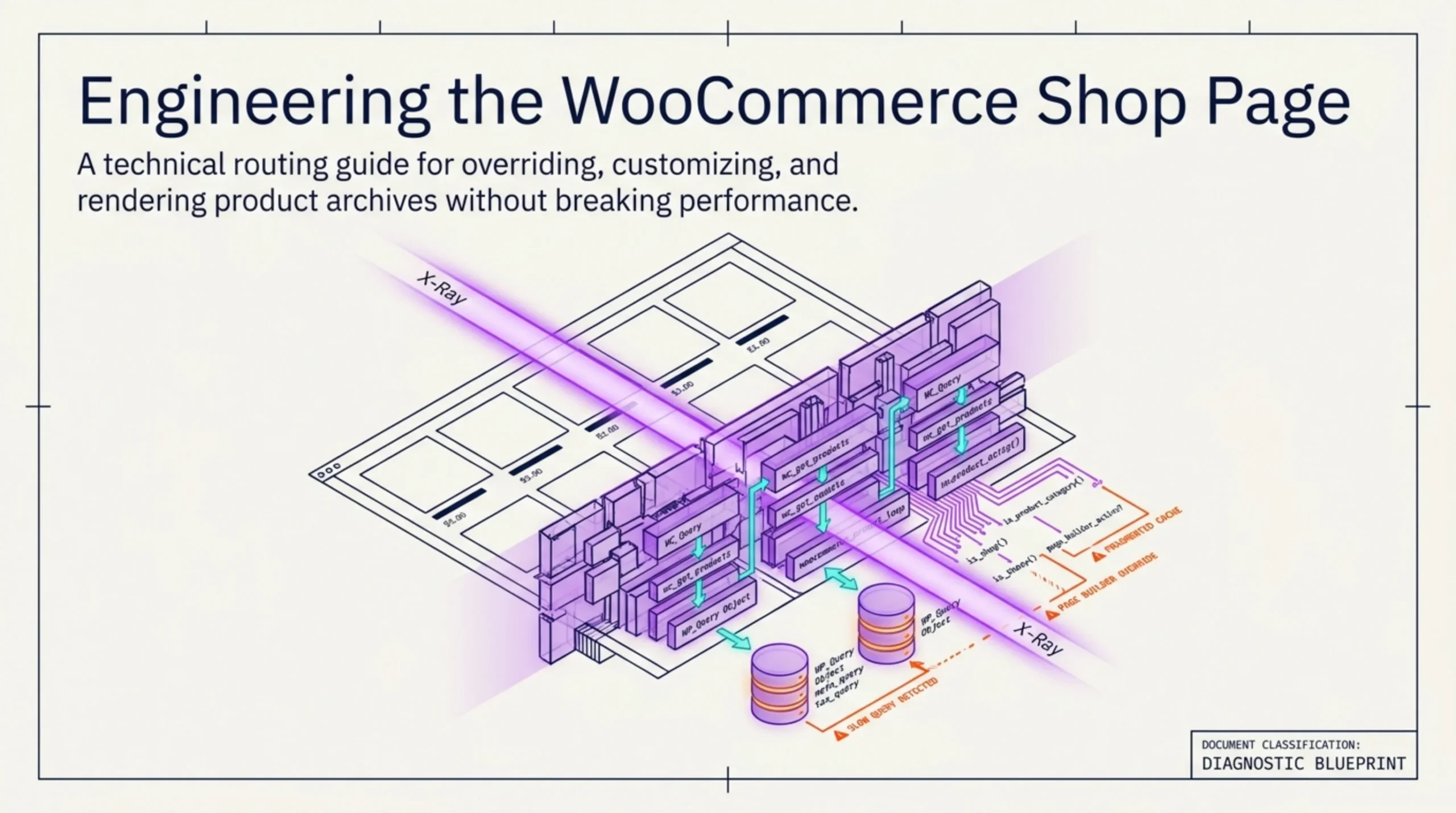
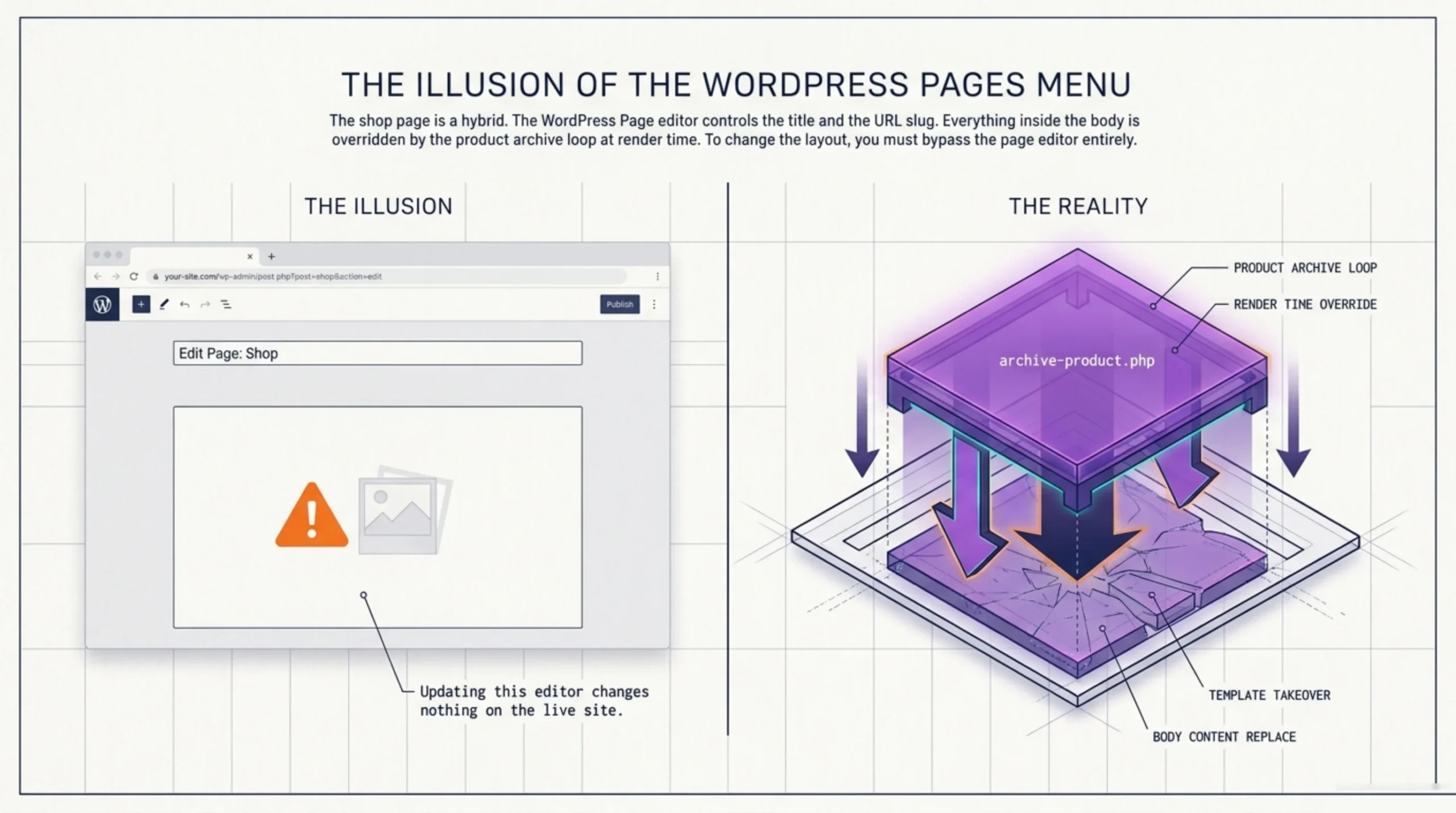
A client called me on a Saturday in February 2025 because they could not delete one image from the front end. They had opened Pages → Shop in WordPress, deleted the placeholder graphic inside the editor, hit Update, and nothing on the live site changed. The page title they edited that morning had stuck. The image had not. So they had a half-customized layout and were convinced WooCommerce was broken. It was not. The shop page is a hybrid: a regular WordPress page that WooCommerce overrides at render time with the product archive loop. The Page editor controls the title and the slug, and almost nothing else inside the body. Anyone learning how to edit WooCommerce shop page in 2026 has to start there, before they touch a single template or builder widget.
What Editing the WooCommerce Shop Page Actually Touches
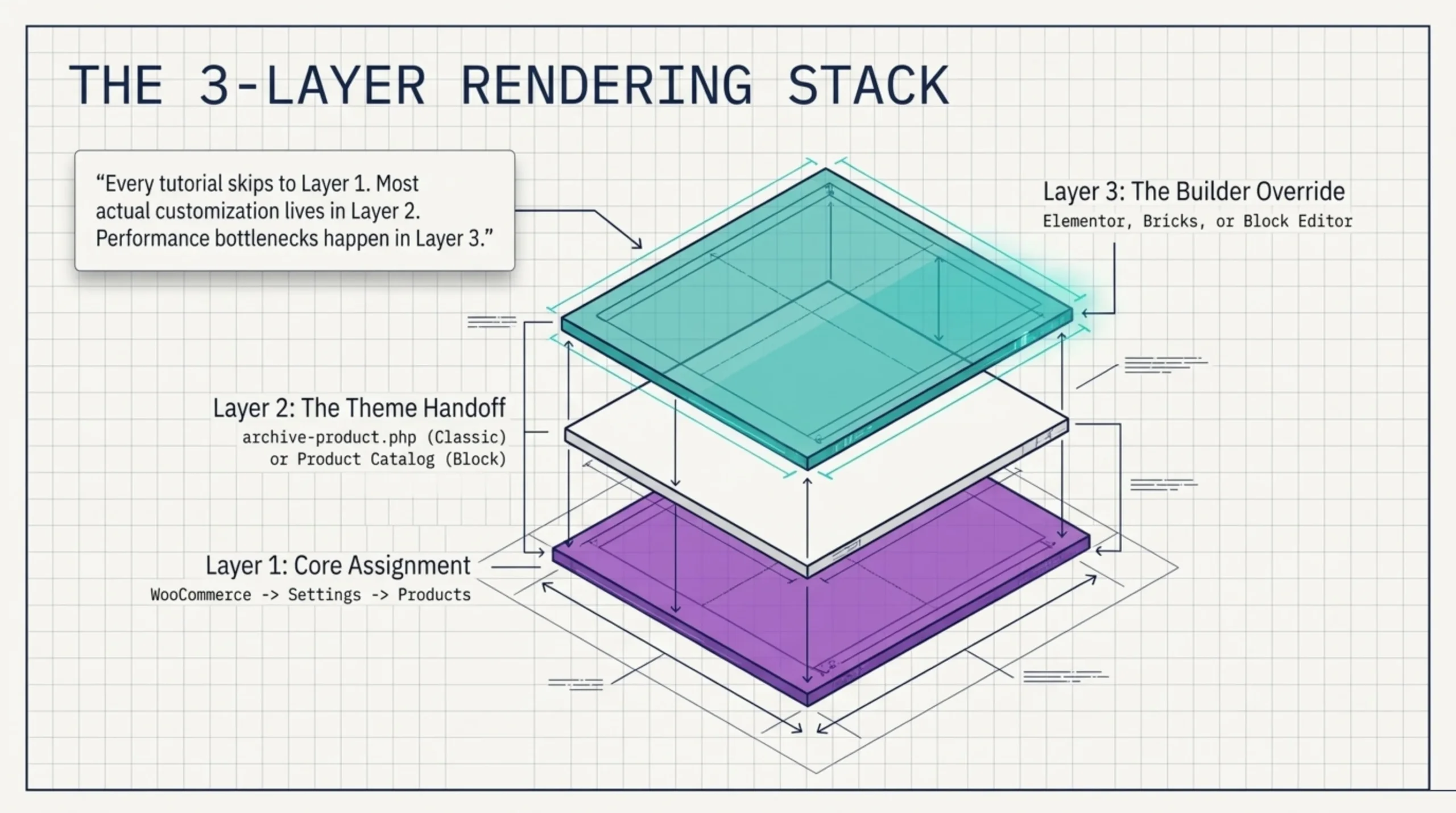
Three layers stack on top of each other when WordPress renders the shop archive. The first is the WooCommerce settings panel at WooCommerce → Settings → Products. That is where the official WooCommerce shop page documentation tells you the page is assigned. The second is the active theme’s archive-product.php template (or, on block themes, the Products archive template part). The third is whatever page builder is loaded: Elementor, Bricks, the native block editor, or none.
When someone asks how to customize WooCommerce shop page, my first question back is always the same. Which theme are you on, and is it block-based or classic? Storefront is classic. Astra and Kadence ship dual modes. Twenty Twenty-Four is full block. The answer changes the whole approach, because block themes give you a Site Editor route the classic theme does not have. The WooCommerce pages reference covers the assignment side but not the theme handoff, which is where most actual customization lives.
Pet peeve: every “edit shop page” tutorial on the first page of Google skips this triage and jumps to a settings screenshot. That is how you waste two hours editing a Page node that a theme template is overriding.
How to Edit the WooCommerce Shop Page Without a Page Builder
The cleanest path, and the one I recommend for stores under 200 SKUs, is the native route. No Elementor, no Bricks, just the page editor plus the WooCommerce display settings. This is the answer to how to edit WooCommerce shop page on a Storefront child theme without dragging in extra dependencies.
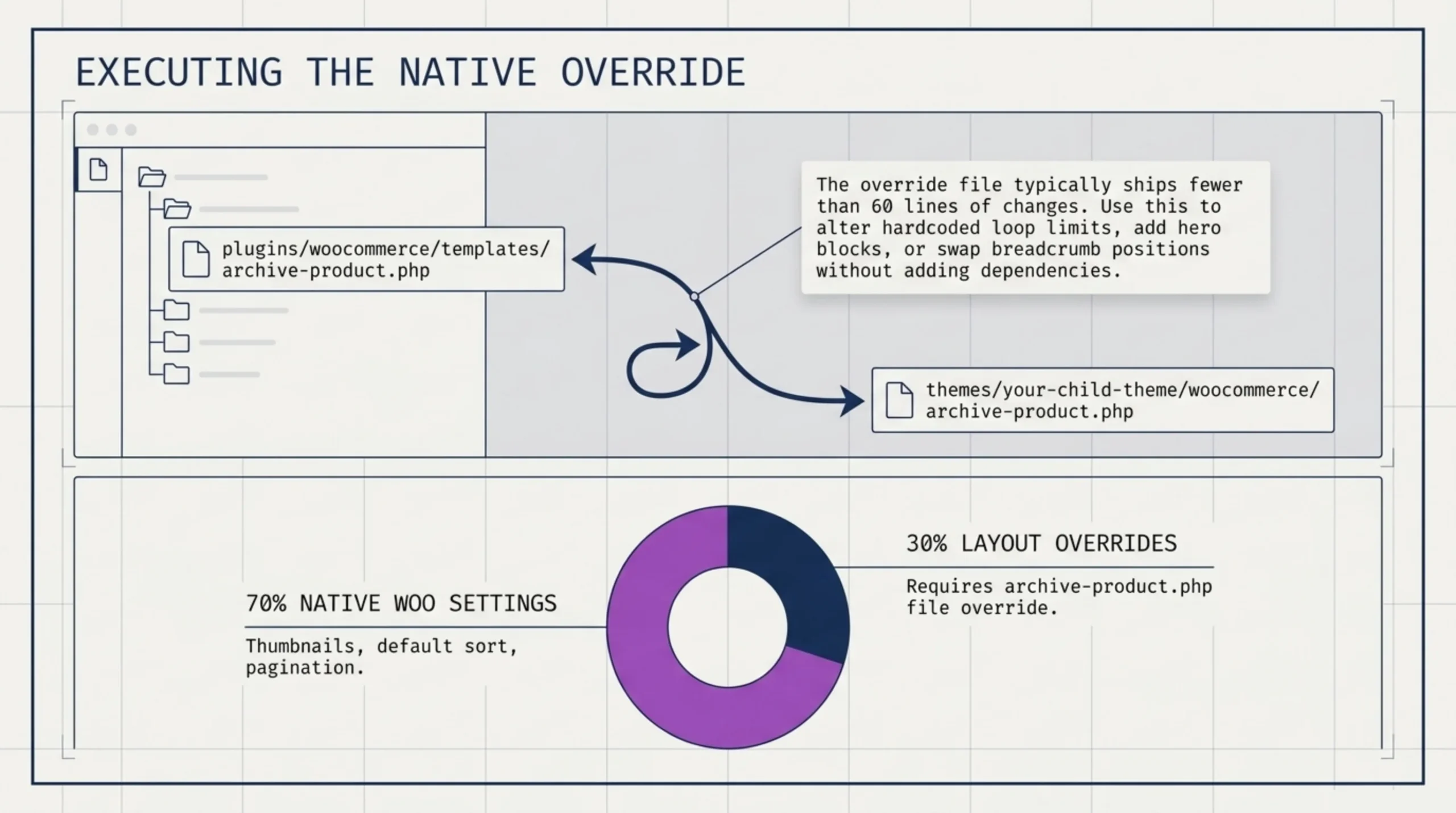
Open WooCommerce → Settings → Products → Display. You will see four controls that affect the shop archive directly: shop page assignment, default category, default product sort, and products-per-row at the theme level. Below that, in the Product Images sub-tab, you control thumbnail size and cropping. Those eight or so settings cover roughly 70% of the customization most stores need. The last 30% is layout, and that is where you either commit to a code override or pick a builder.
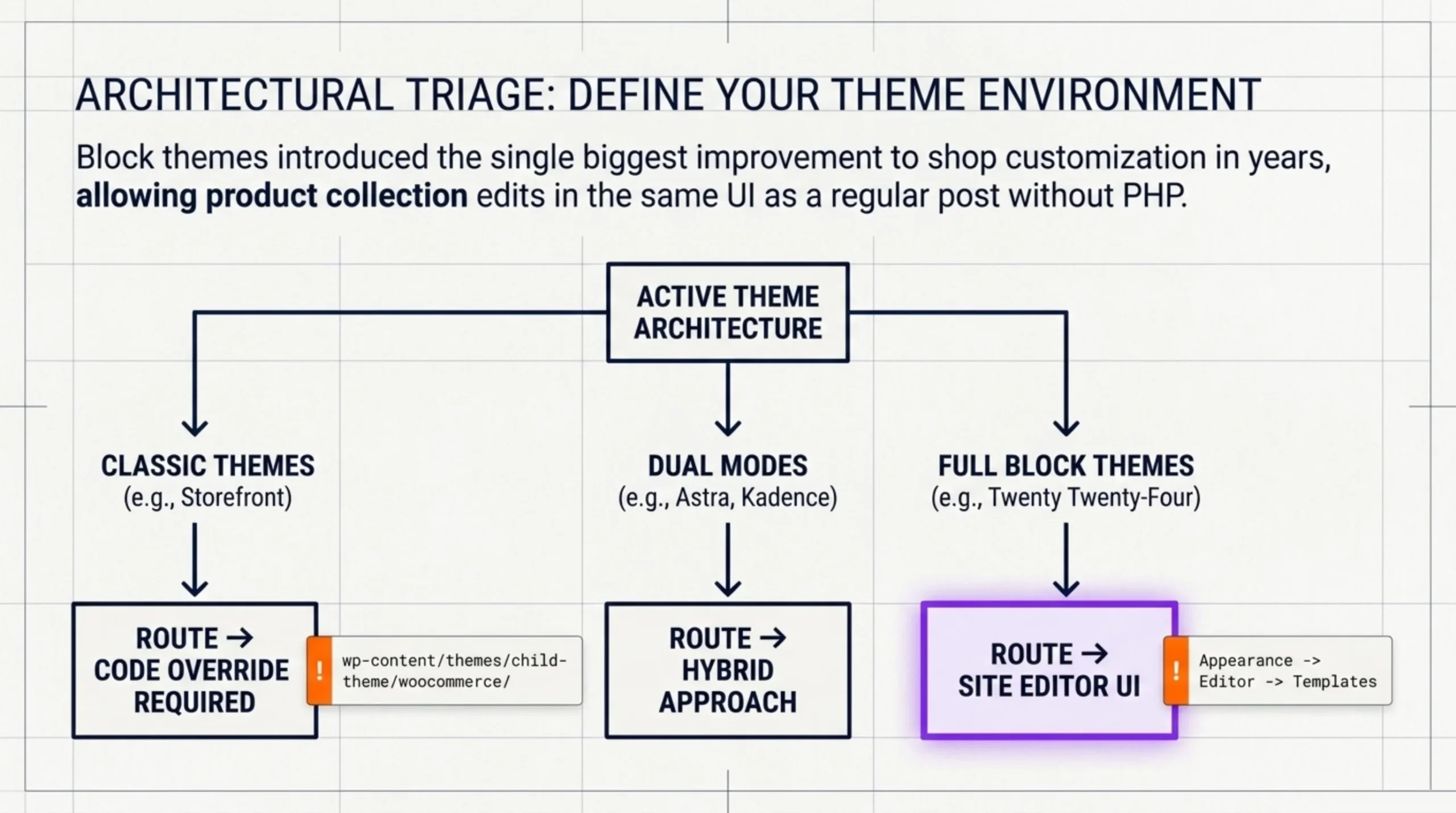
For a code override on a classic theme, copy wp-content/plugins/woocommerce/templates/archive-product.php into wp-content/themes/your-child-theme/woocommerce/archive-product.php and edit it there. The WooCommerce template structure docs explain the override hierarchy. This is also how you change the products-per-page hardcoded loop limit, add a custom hero block above the archive, or swap the breadcrumb position. I have done this on roughly 40 client stores. The override file ships fewer than 60 lines of changes 90% of the time.
If you are on a block theme, skip the PHP override. Go to Appearance → Editor → Templates → Product Catalog (or “Products by Category” depending on the theme). The block-based product collection is editable in the same UI as a regular post. That is the single biggest improvement to how to customize WooCommerce shop page that has shipped in WooCommerce in years.
How to Edit the WooCommerce Shop Page in Elementor
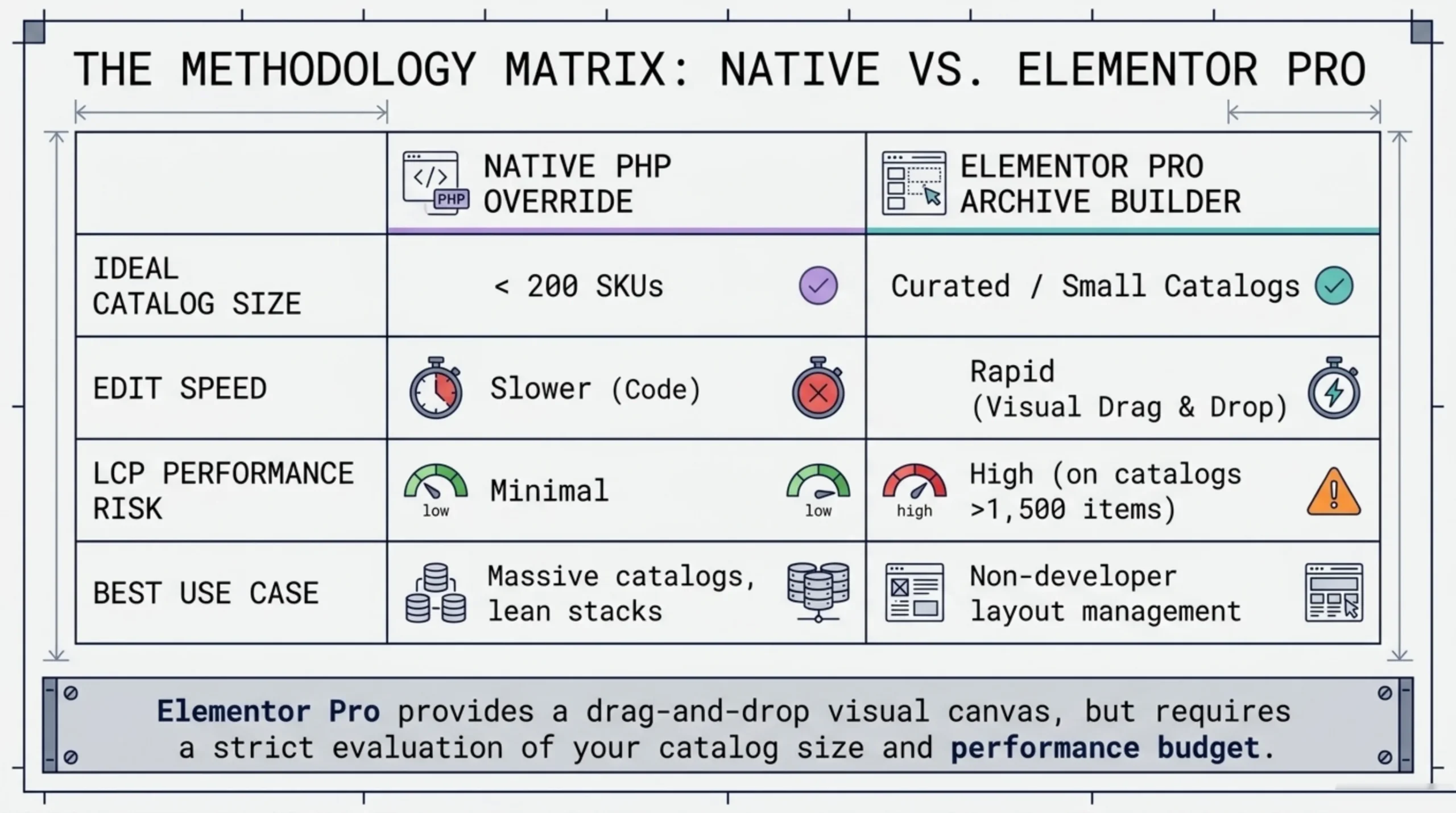
Elementor’s WooCommerce Builder, available on the Pro tier, gives you a drag-and-drop archive template editor. This is where most people who search how to edit WooCommerce shop page actually want to land. They want a visual canvas, not a templates folder.
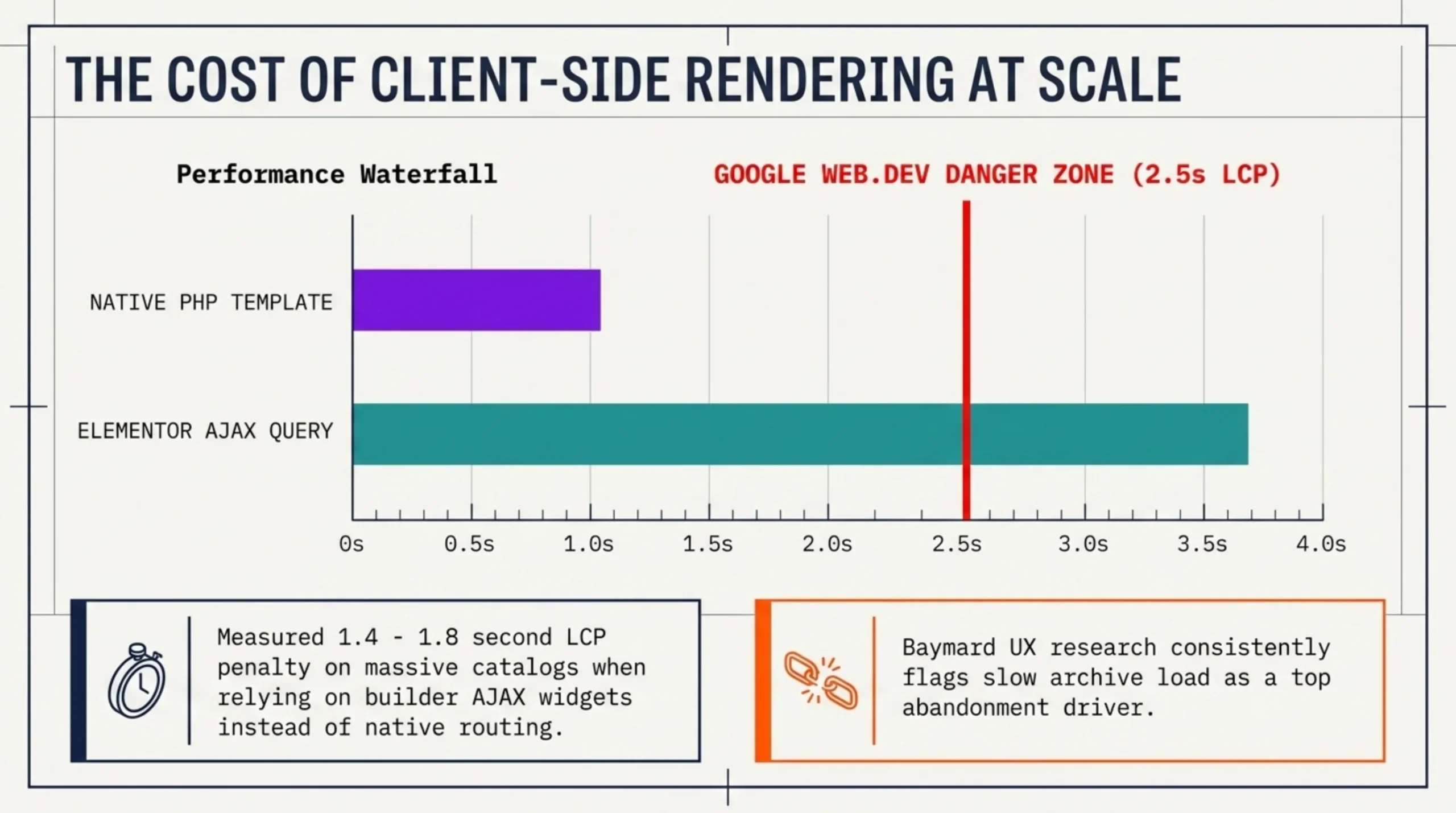
Unpopular opinion: Elementor is the wrong tool for shop archive editing on stores over about 1,500 products. The Products widget renders client-side after AJAX, and on a catalog of 8,000+ items I have measured 1.4–1.8 second LCP penalties versus a native template on the same hosting. Google’s LCP guidance on web.dev treats anything over 2.5 seconds as a problem, and Baymard’s e-commerce UX research consistently flags slow archive load as a top abandonment driver. If you are running a small catalog of curated products, Elementor wins on edit speed. At scale, the cost shows up in the Chrome devtools waterfall.
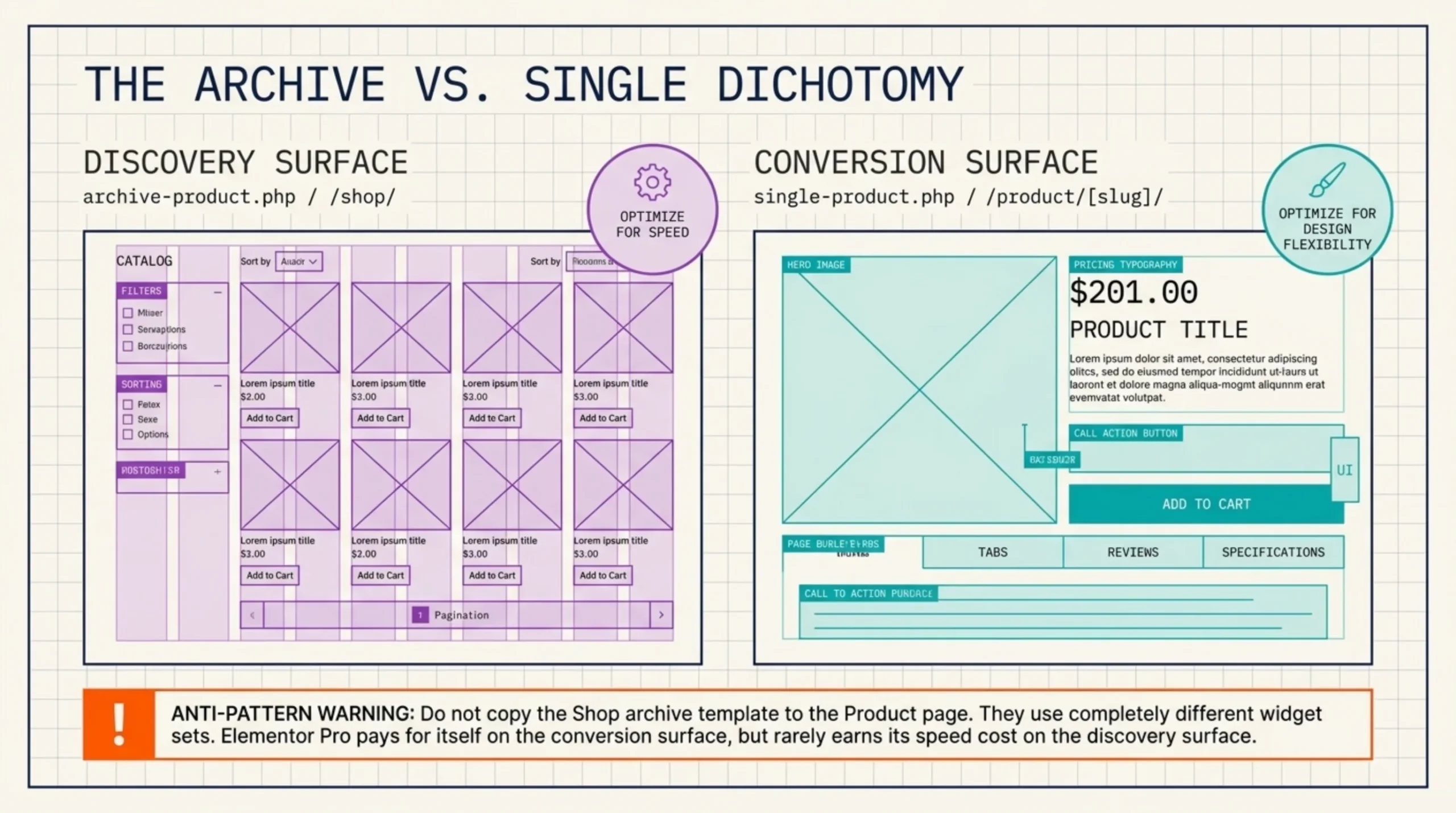
The same logic applies to how to edit WooCommerce product page Elementor users hit when they extend the same template approach to single products. The Single Product template in Elementor Pro is more useful than the archive template, because the single page is a conversion surface and the editing speed pays off. The archive is a discovery surface, and the speed cost rarely earns itself back.
Concrete steps for the archive (this is the flow for how to edit WooCommerce shop page in Elementor on stores where it makes sense):
- Templates → Add New → Product Archive.
- Choose “Product Archive” condition, then set conditions to “All Product Archives” or scope to a category.
- Drop in the WooCommerce Products widget. Set columns, gap, query source, ordering.
- Add filters via the Product Filter widget if you are on Elementor Pro 3.20+.
- Publish the template. Visit
/shop/. Confirm the new layout overrides the theme.
If step 5 fails, nine times out of ten the cause is a higher-priority template (for example, a category-specific archive) winning the condition match. Reorder Elementor’s template conditions and recheck.
How to Change WooCommerce Shop Page Cards, Columns, and Filters
The card itself, the image plus title plus price plus “Add to Cart” button, is rendered by content-product.php inside the WooCommerce templates folder. To change card layout (move price below the button, add a category label, swap the add-to-cart for a quick view), override that template the same way as archive-product.php. Most “how to change WooCommerce shop page card” tutorials skip this template name and tell you to install a third plugin. You usually do not need a third plugin.
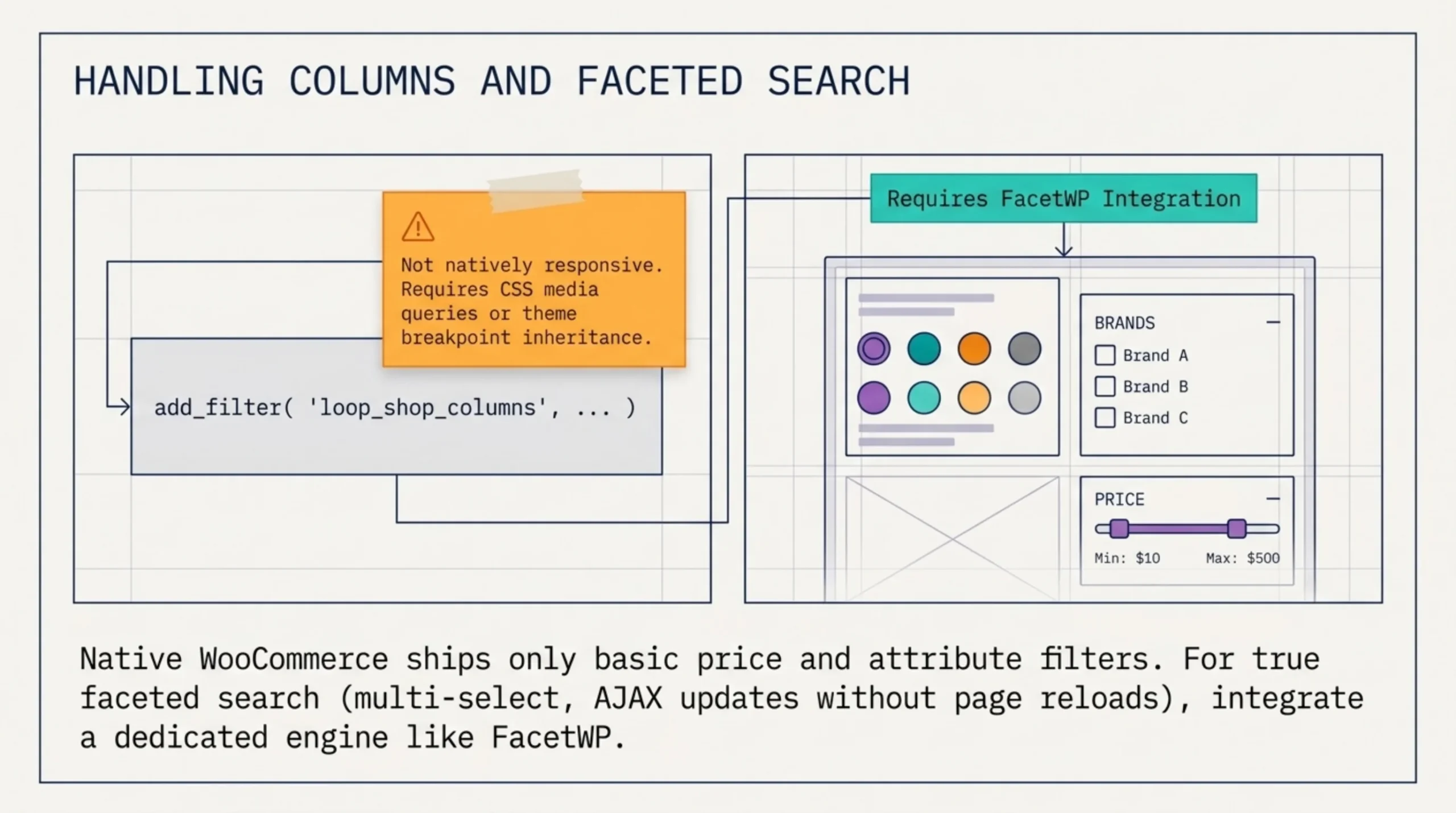
For columns, the per-row count is controlled by the loop_shop_columns filter on classic themes:
add_filter( 'loop_shop_columns', 'brk_shop_columns', 99 );
function brk_shop_columns( $columns ) {
    return wp_is_mobile() ? 2 : 4;
}
This is ugly. It works. The filter does not do responsive natively, so you either pair it with CSS media queries on the .products grid or you commit to a fixed column count and let the theme handle breakpoints.
Filters and faceted search are the harder problem. Native WooCommerce ships a basic price filter and an attribute filter. For real faceted search (color swatches, multi-select brands, AJAX result updates) you need either FacetWP or one of the SearchWP-style plugins. I have shipped FacetWP on six client stores and have not regretted it once.
How to Modify the WooCommerce Product Page Without Editing the Shop Template
Quick clarification because the two get conflated. The shop page (/shop/) is the archive. The product page (/product/[slug]/) is the single. Different templates, different settings. If a client says “I need to change the product page,” ask whether they mean the card on the archive or the full single-product layout. Half the time they mean the card.
For how to modify WooCommerce product page on a classic theme, the override file is single-product.php, dropped into your-child-theme/woocommerce/single-product.php. For block themes, the Single Product template lives under Appearance → Editor → Templates. For Elementor users, the Single Product builder is genuinely useful and worth the Pro license fee on stores where the product page does heavy conversion work.
Anti-pattern I see weekly: editing the shop archive in Elementor, then copying the same template to the product page. The widgets are different. The Product Archive template uses the Products widget; the Single Product template uses Product Title, Product Images, Product Price, Add to Cart. Two separate jobs.
The Backend Half: Managing the Catalog That Powers the Shop Page
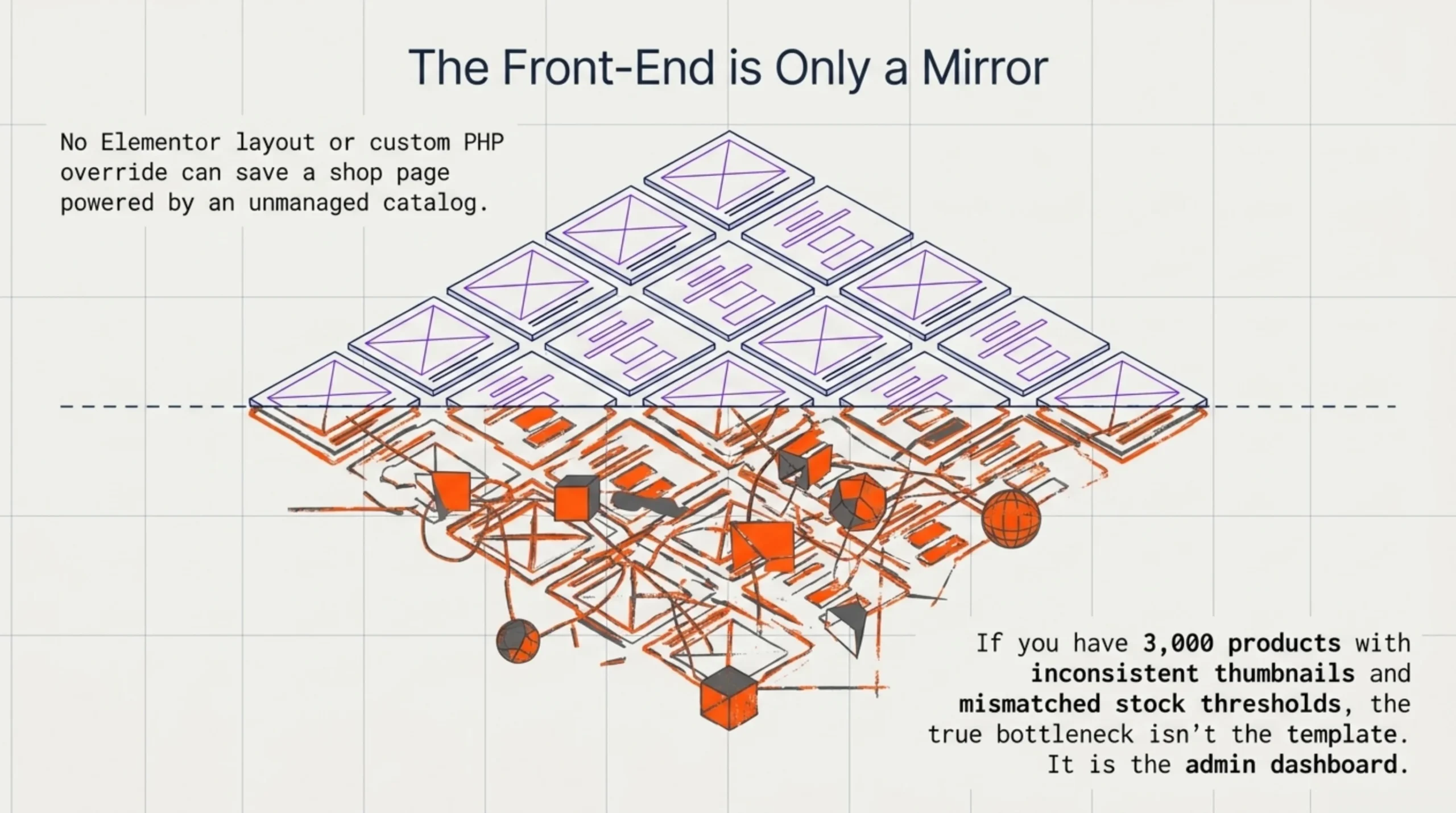
Here I have to be honest about scope. Everything above is about how to edit WooCommerce shop page on the front end: layout, cards, columns, builder widgets. None of that touches what most store owners actually spend their time on once the design is locked, which is managing the products that populate the page.
A shop archive is only as useful as the catalog behind it. If you have 3,000 products with inconsistent featured images, mismatched stock thresholds, and a pricing column nobody has audited in 18 months, no Elementor layout will save it. This is the gap BrikPanel sits in. It does not edit the shop page itself, that is a frontend job. It restructures the WooCommerce admin so the bulk operations behind the shop page (visibility toggles, stock adjustments, featured-image audits, category cleanup) take minutes instead of an afternoon. On a recent migration with 4,200 SKUs, the BrikPanel admin product list cut my catalog audit from about 6 hours to under 40 minutes because the columns I actually needed were finally on one screen.
If you are running a Trendyol, N11, or Hepsiburada feed alongside WooCommerce, the matching marketplace plugins register columns inside the same admin grid, so channel sync status sits next to stock count when you are picking which products to feature on the shop hero this week.
FAQ
No. For most stores under 200 SKUs, the native WooCommerce display settings plus a small archive-product.php template override cover everything. Page builders earn their keep when you want a visual editor or when a non-developer will be making layout changes. Knowing how to edit WooCommerce shop page through the native template route is the cheaper long-term skill.
Because WooCommerce overrides the page content with the product archive loop. The Page editor controls the title and slug, but the body content area is mostly ignored. To actually change layout, you edit the WooCommerce display settings or override the theme template. This is the most common stumble in how to edit WooCommerce shop page that I see in support forums.
No. The Product Archive template builder is a Pro-tier feature. The free version of Elementor cannot register an archive template. If you only need single-product page edits, the same restriction applies, the Single Product template builder is also Pro.
Use the loop_shop_per_page filter in your child theme’s functions.php, or set it on a per-archive basis using the Elementor Products widget query. The default is 12. I usually move it to 24 on desktop and let mobile inherit, after measuring scroll-depth.
Not if you preserve the title tag, the H1, and the canonical URL. The risk is that builders inject extra wrappers around product data and Google’s structured-data parser stops recognizing the loop as Product schema. Test with Google’s Rich Results tool after any major template change before pushing to live.
Try BrikPanel Free
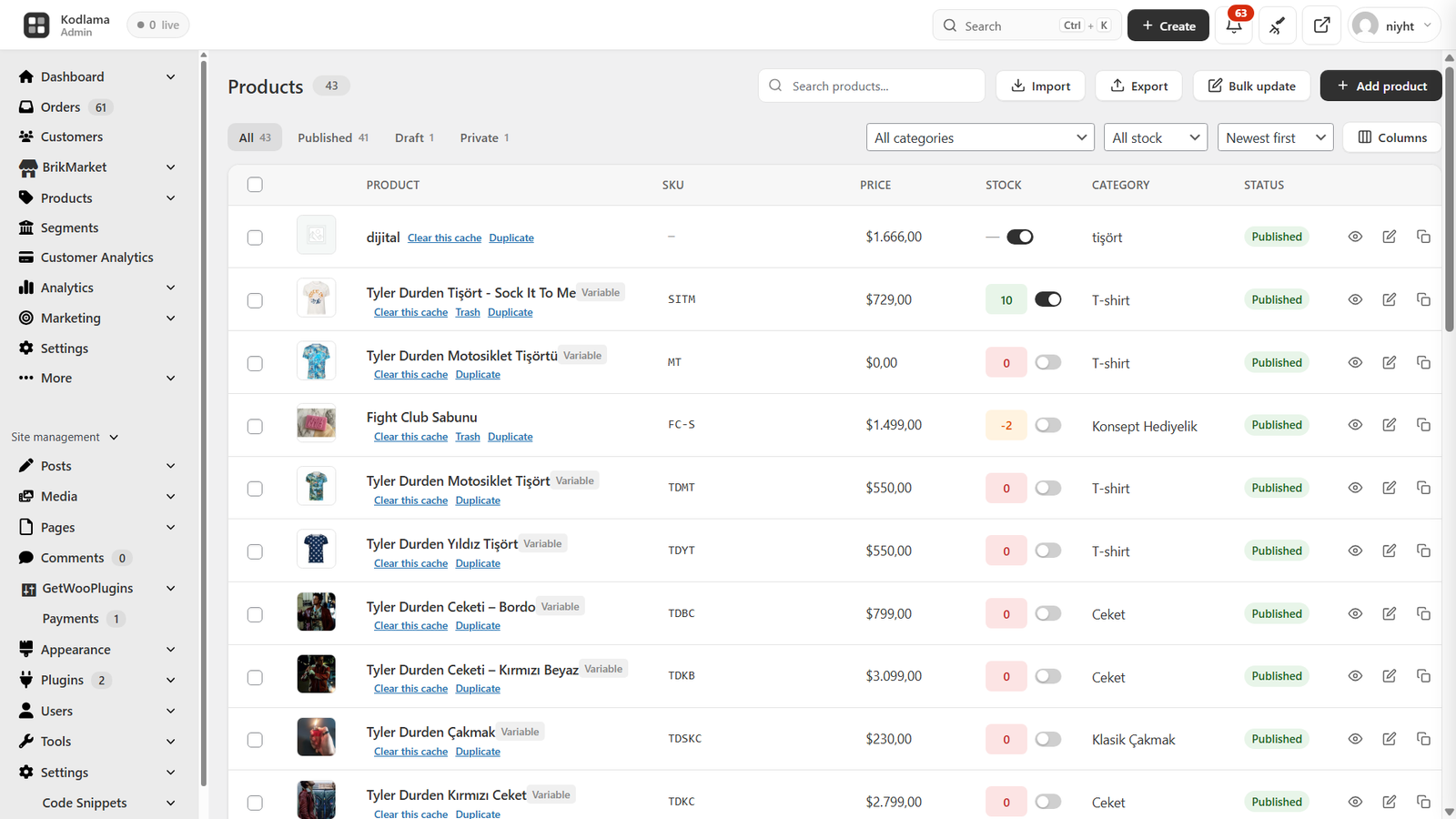
BrikPanel is a free WordPress plugin that restructures the WooCommerce admin around catalog operations: bulk stock edits, visibility toggles, featured-image audits, product attribute scans. It does not change how to edit WooCommerce shop page on the front end (that is a theme and builder job), but it makes managing the catalog that feeds the page substantially faster on stores over a few hundred SKUs. Install it from the WordPress.org plugin directory.
Sources Used
- WooCommerce Shop Page documentation — cited for shop page assignment and the official setup path inside WooCommerce settings.
- WooCommerce Pages reference — cited for which pages WooCommerce auto-creates and how the assignment works.
- WooCommerce template structure docs — cited for the template override hierarchy used to copy
archive-product.phpinto a child theme. - Google web.dev LCP guidance — cited for the 2.5-second LCP threshold that frames the Elementor performance trade-off.
- Baymard e-commerce UX research — cited for archive load speed driving abandonment in observed studies.
- BrikPanel plugin page — cited as the admin panel handling backend catalog management behind the shop page.
