
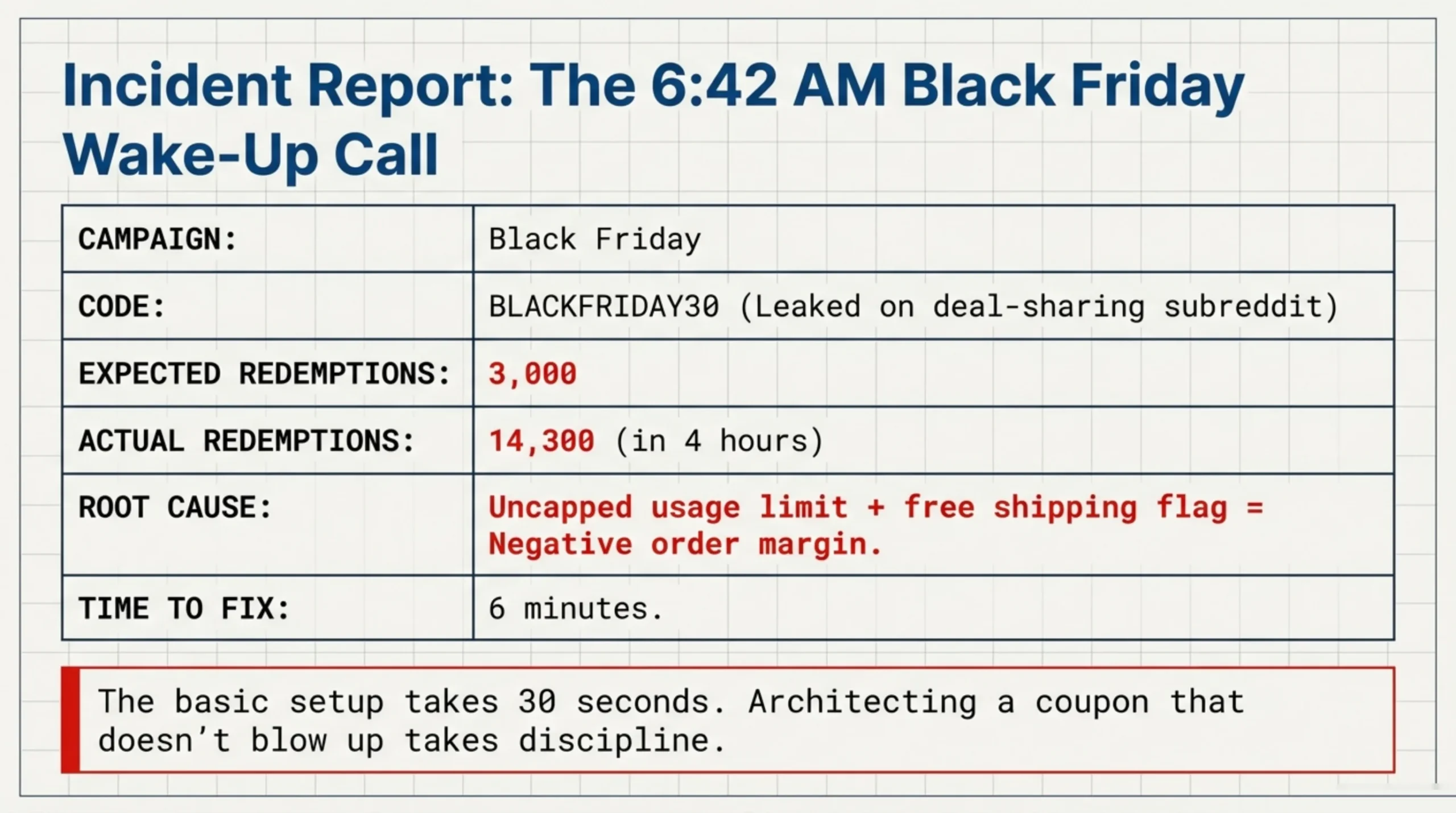
The Black Friday before last, a client paged me at 6:42am because their BLACKFRIDAY30 coupon had been redeemed 14,300 times in the four hours since the campaign email went out, against a budget that assumed maybe 3,000. Somebody had posted the code to a deal-sharing subreddit, the coupon had no usage limit set, and free shipping on every redemption pushed the order margin negative. The fix took six minutes. Knowing how to create a coupon in WooCommerce that does not blow up like that is what every short tutorial skips, and the part this article actually covers.
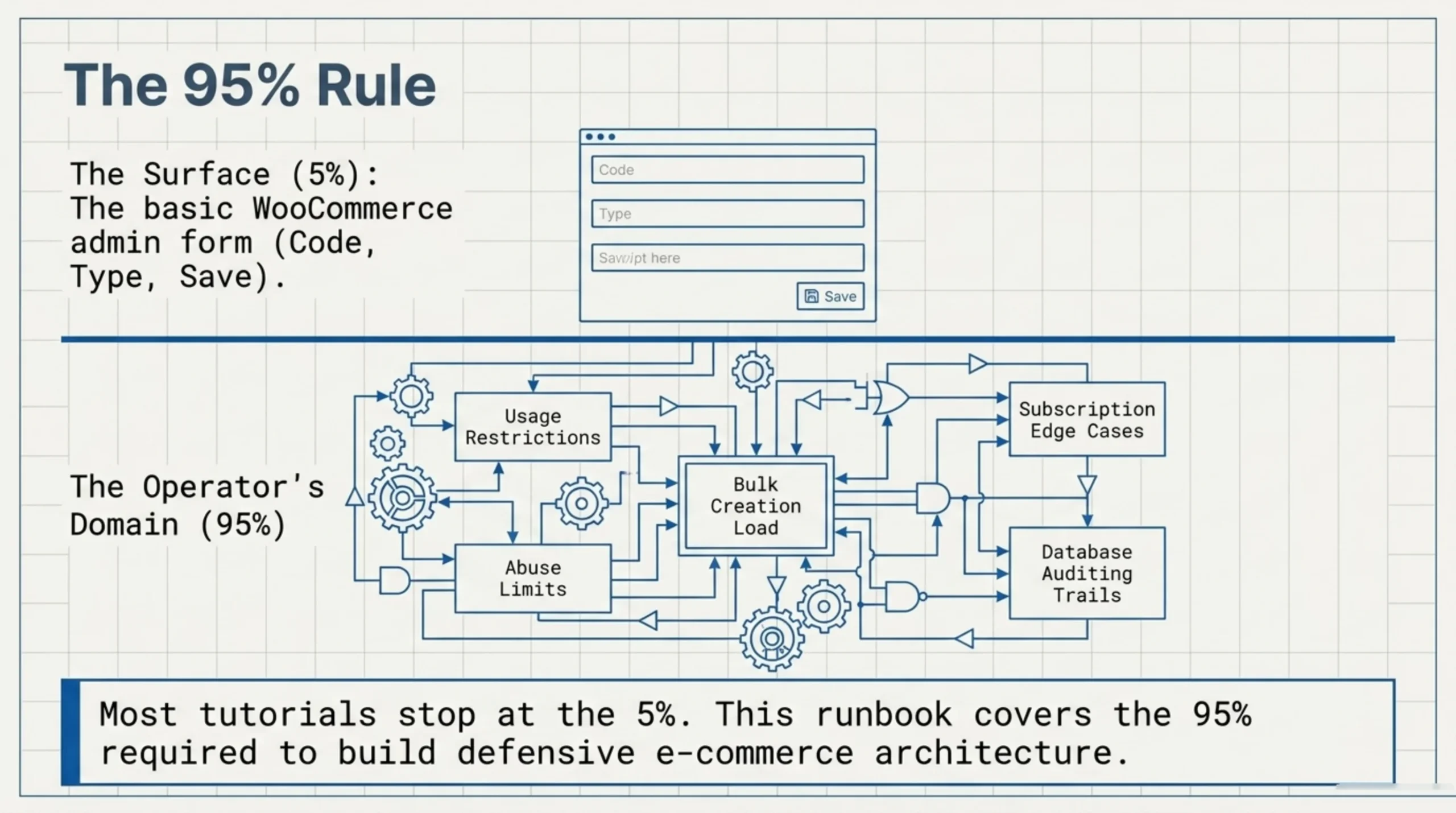
Most posts on how to create a coupon in WooCommerce stop at the three-field admin form. The form is roughly 5% of the work. The other 95% is restrictions, abuse limits, bulk creation, subscription edge cases, and the audit trail you need when somebody asks “where did that 30k discount go.” After eight years of shipping WooCommerce stores, I have opinions about all of it.
How to Create a Coupon in WooCommerce: The Three Native Discount Types
Open the admin and go to Marketing → Coupons → Add coupon. The official documentation at woocommerce.com/document/coupon-management walks the form fields, but it leaves out which type matches which use case in practice. Here is the operator-side version.
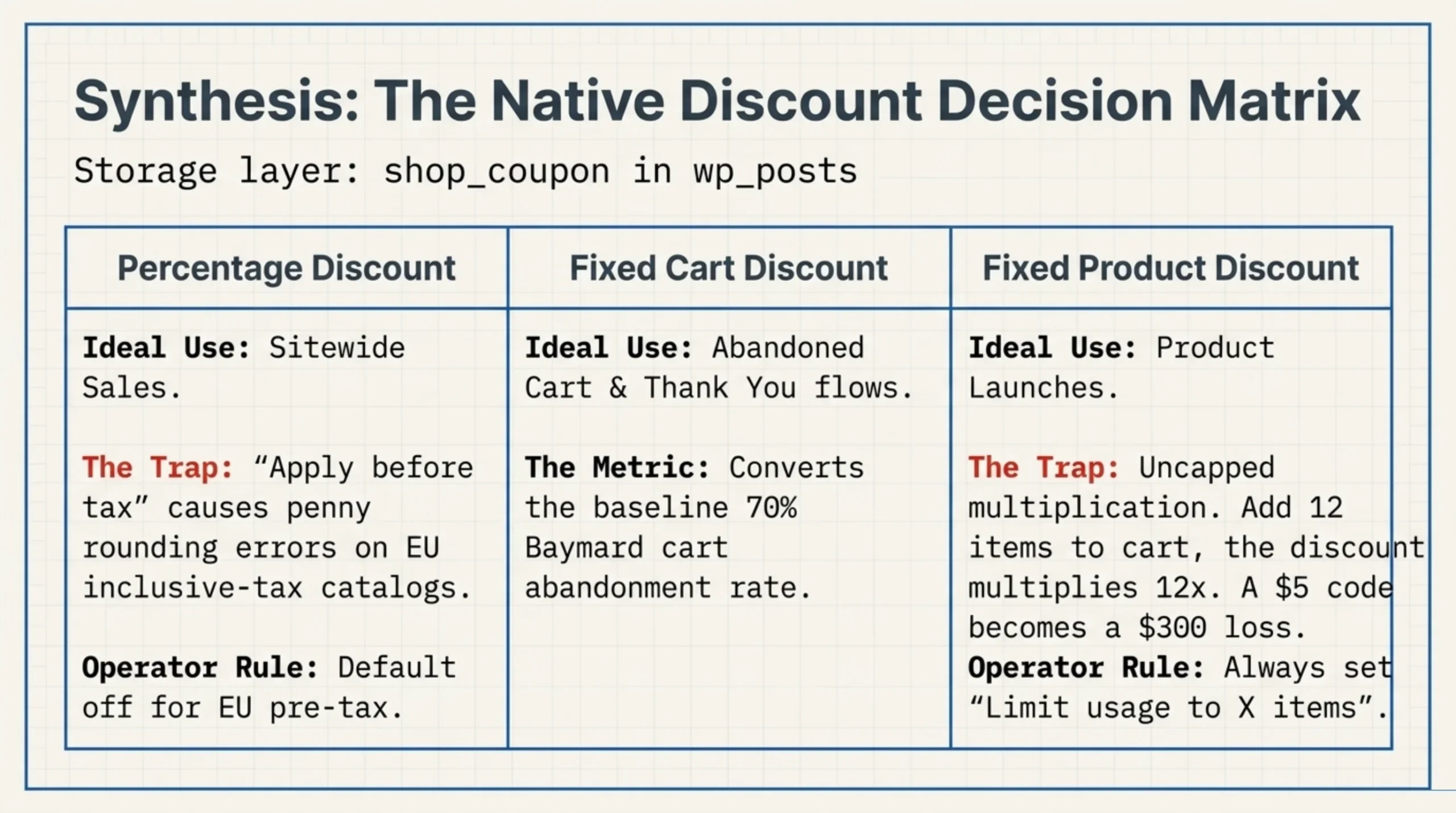
Three native discount types ship in core. Percentage discount. Fixed cart discount. Fixed product discount. Storage layer for all three is the same: a shop_coupon post type in wp_posts, with the discount metadata in wp_postmeta keys like discount_type, coupon_amount, and usage_limit. The class is WC_Coupon in github.com/woocommerce/woocommerce under plugins/woocommerce/includes/class-wc-coupon.php if you want to read what the validation actually does. I have read it more times than I would like, mostly during incidents.
Percentage discount applies to the cart subtotal. Use it for sitewide sales. The trap is “Apply before tax”. On EU stores I default this off, because pre-tax percentage discounts on inclusive-tax catalogs produce penny rounding errors that confuse accounting at year end.
Fixed cart discount subtracts a flat amount from the subtotal. Use it for thank-you gifts (“$10 off your next order”) and abandoned cart recovery flows. Baymard’s checkout research (baymard.com/lists/cart-abandonment-rate) puts cart abandonment around 70% across e-commerce; a $10 nudge on a $48 cart converts a measurable slice of that. Knowing how to create a coupon in WooCommerce of this exact shape is the foundation of any abandoned cart sequence.
Fixed product discount applies the amount per qualifying line item. Use it for product launches (“save $5 on the new mug”) tied to specific SKUs in the Usage restriction tab. The thing nobody tells you: if a customer adds 12 of the qualifying product, the discount multiplies. I have watched a $5 launch coupon turn into a $300 discount because the cap was empty. Set “Limit usage to X items” (covered later in this article) every single time on this type.
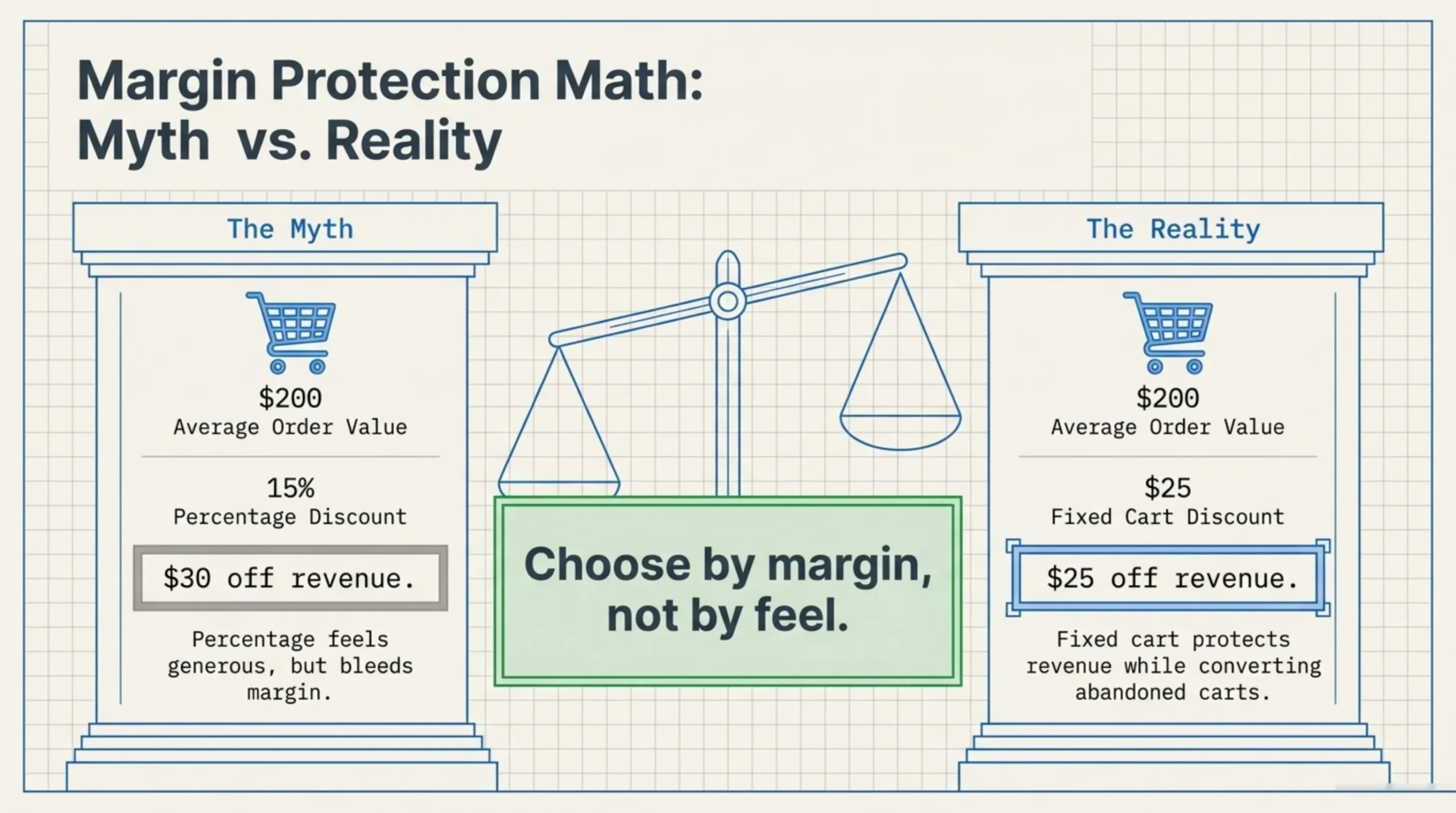
A small unpopular take. Most stores use percentage discounts when they should use fixed cart discounts, because percentage feels generous and round numbers feel cheap. The math says otherwise. A 15% discount on a $200 average order is $30; a $25 fixed cart discount on the same order is $25 of revenue protected. Choose by margin, not by feel.
How to Create Coupon Code in WooCommerce That Survives Promo Abuse
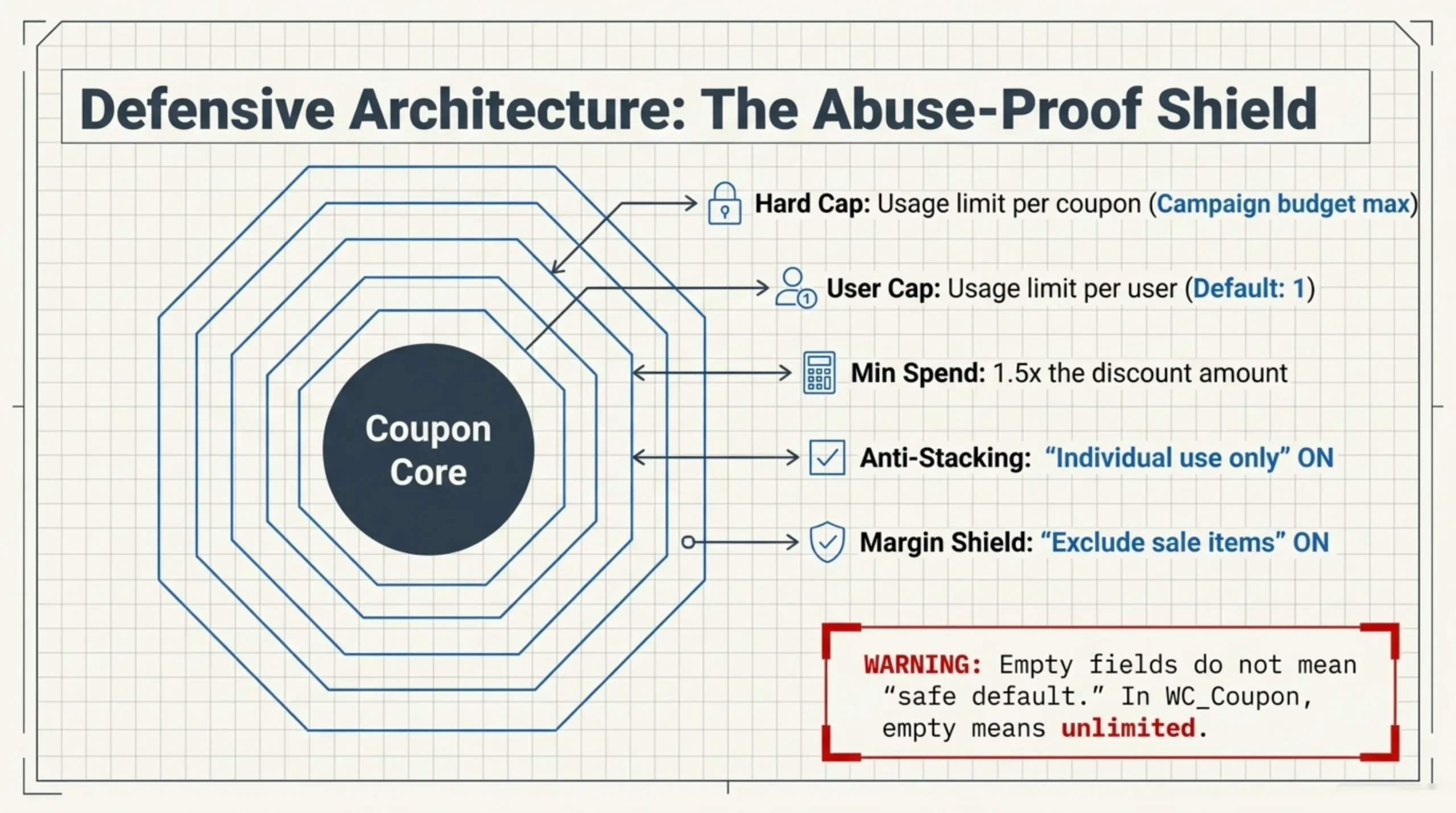
The basic question of how to create coupon code in WooCommerce takes 30 seconds: type a code, pick a discount type, save. The harder question is how to create one that does not get scraped, posted to a coupon-sharing site, and burned through in a morning. The Black Friday story above is exactly this failure.
Every coupon I ship now has at least four of the following set on the Usage restriction and Usage limits tabs:
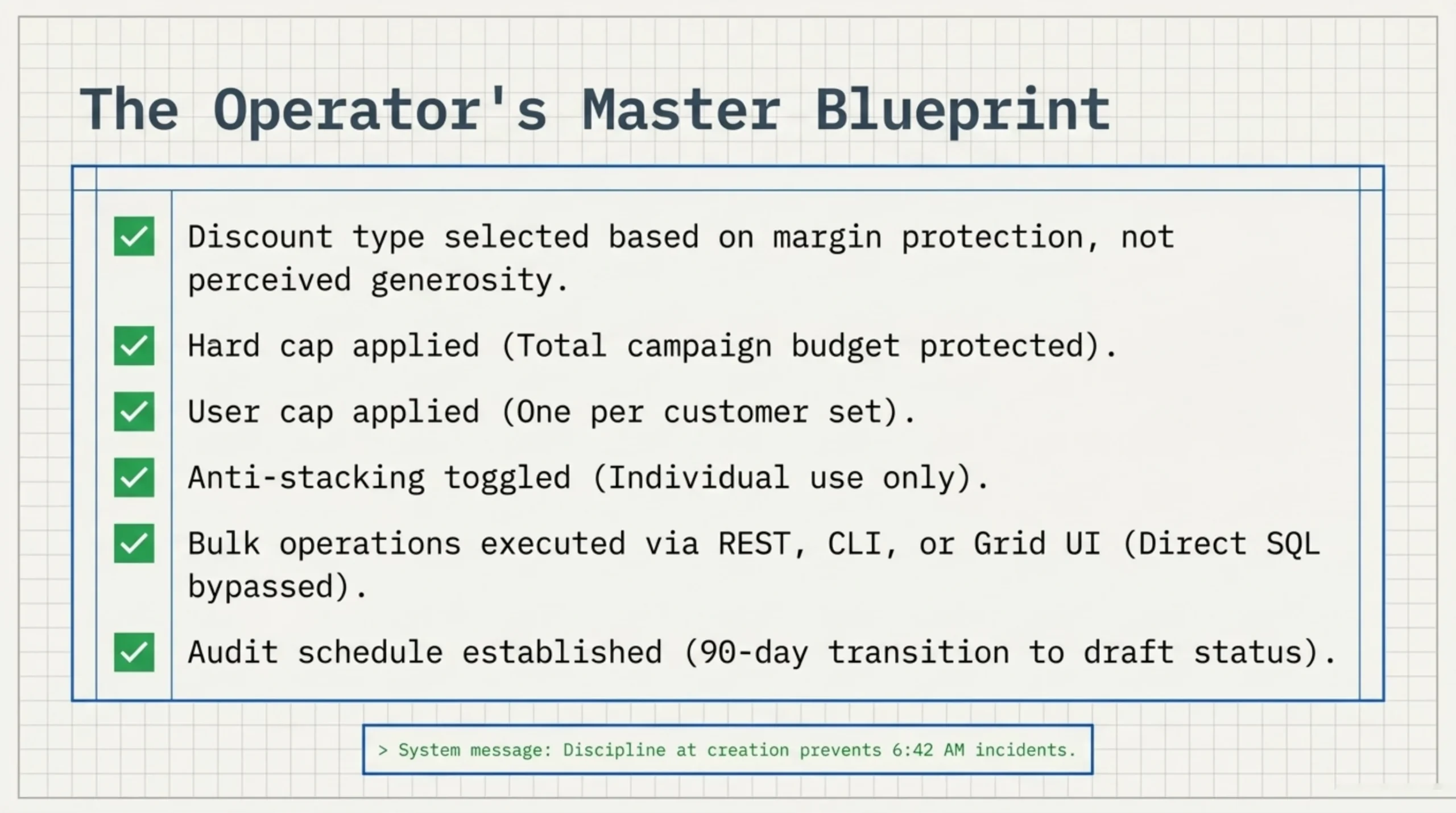
- Usage limit per coupon. Hard cap. If the campaign budgets for 5,000 redemptions, set 5,000. Coupon disables itself at the cap. This single field would have saved the BLACKFRIDAY30 incident.
- Usage limit per user. Most legitimate coupons should be 1. The exception is loyalty rewards. WooCommerce keys this on customer email or user ID; it does not stop a determined abuser with multiple addresses, but it stops 95% of casual sharing.
- Minimum spend. Stops people from stacking the discount onto $5 add-on items. I usually set min spend at 1.5x the discount amount.
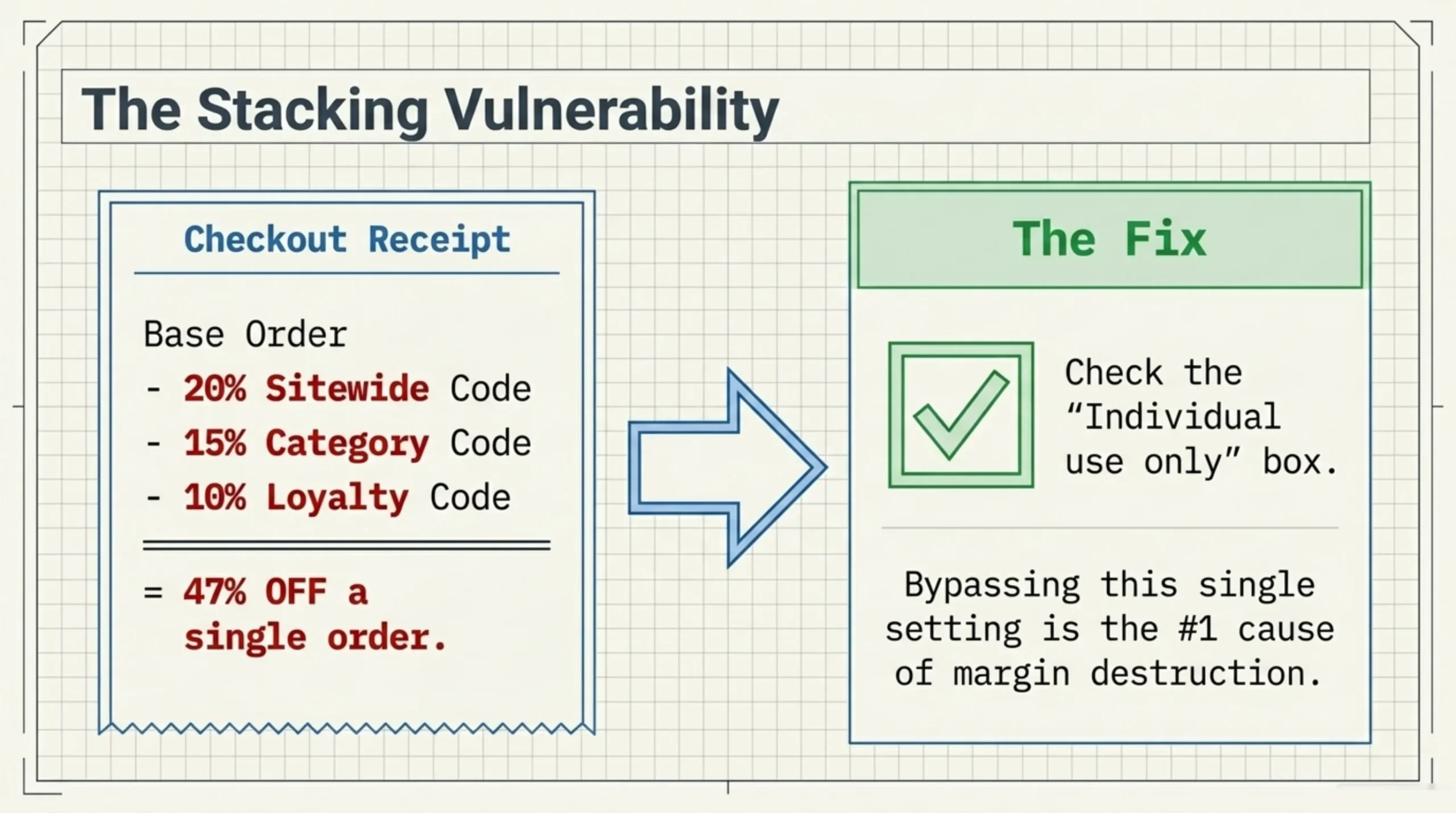
- Individual use only. Unchecked, your 20% sitewide coupon stacks with the 15% category coupon and the 10% loyalty coupon. I have seen 47% off a single order because three coupons stacked. Set this on every percentage coupon.
- Exclude sale items. If your store runs sale prices, percentage discounts on already-discounted items destroy margin invisibly. Toggle on for any storewide percentage code.
How to create a coupon in WooCommerce that respects all of these is mostly about discipline at creation time. The form does not warn you when you skip them. The class validates only what you set, so an empty “Usage limit per coupon” really does mean unlimited; it is not a typo for “default.”
One war-story aside. The same client whose BLACKFRIDAY30 blew up also had a WELCOME15 coupon set with no expiry, no usage cap, and no individual-use flag, sitting unused in the database since their site launch in 2019. We discovered it in February 2026 because somebody finally tried it after seeing it in an old email. It still worked. Audit your coupon list at least once a year; the next-but-one section covers how.
How to Create WooCommerce Coupon Codes in Bulk Without Killing the Server
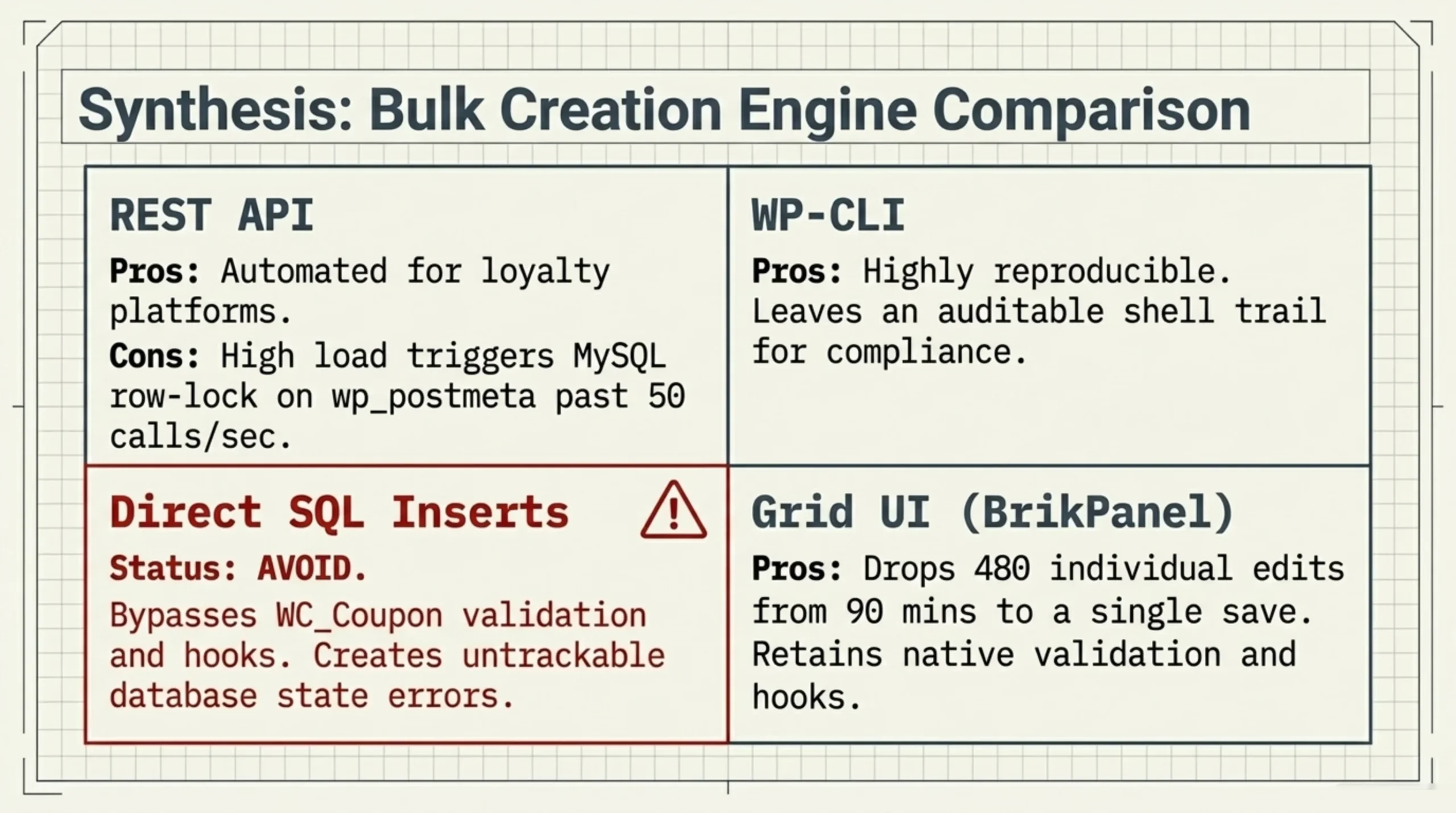
The native admin form creates one coupon at a time. For loyalty programs, partner integrations, or affiliate seeding, you need bulk. Three real options, each with a sharp edge.
REST API. The WooCommerce REST API (woocommerce.com/document/woocommerce-rest-api) exposes POST /wp-json/wc/v3/coupons and accepts the full coupon model in JSON. I use this for the loyalty platform integration that creates a unique coupon per customer on signup. Each call is one DB write plus one row in wp_posts and a handful in wp_postmeta. At 50 codes per second on a well-tuned host. Past that, you start fighting MySQL row-lock contention on wp_postmeta, especially on stores already running High-Performance Order Storage (woocommerce.com/document/high-performance-order-storage) where the order tables are decoupled but wp_postmeta is still the coupon backing store.
WP-CLI. Looping wp wc shop_coupon create from a CSV gets you reproducible, auditable bulk creation. Slower per call than REST. Better when the operation has to leave a shell trail for compliance. I use it on banking and pharma client work where every change has to be runnable from a deployable script.
Direct SQL inserts. Avoid. The WC_Coupon class does validation, slug generation, and triggers woocommerce_new_coupon action that other plugins (loyalty, gift cards, audit logs) hook into. Bypass it with raw inserts and you will get an inconsistent state nobody can debug for weeks.
This is the section where the default WooCommerce coupon UI runs out of road. The Marketing → Coupons screen does not have a bulk-edit dropdown for usage limits, expiry, or restrictions. A 200-coupon campaign means 200 individual page loads. I have a folder of three-hour bulk-edit sessions from past clients to prove it.
The grid editor in BrikPanel’s Coupon Manager (installed through wordpress.org/plugins/brikpanel-admin-panel-dashboard-for-woocommerce) is what I default to here. It loads every coupon on one paginated grid with discount type, amount, usage cap, expiry, and individual-use flag as inline editable columns. The save handler goes through WC_Coupon so the same validation and hooks fire as the native UI. On the loyalty client above, a 480-coupon expiry-date update dropped from a 90-minute click marathon to a single column edit and one save. The patch is ugly. It works.
How to create WooCommerce coupon codes in bulk via that screen is a one-screen operation: paste a CSV with code, type, amount, and limits; review the diff; commit. Same hooks fire, same woocommerce_new_coupon action, same audit trail. No raw SQL.
How Give Customer Free Shipping Coupon for Subscription in WooCommerce
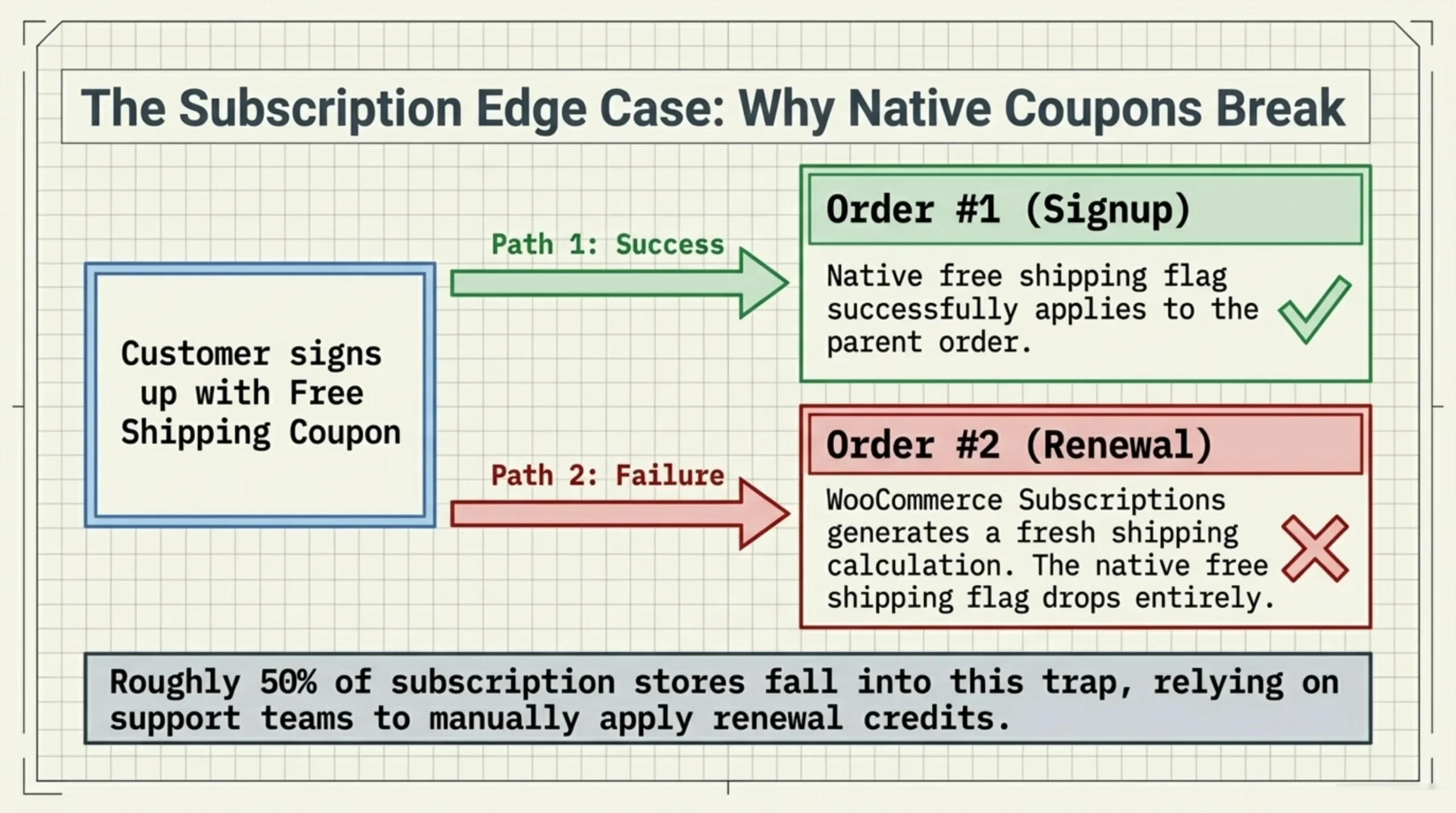
This is the request I get most often during launch weeks of a subscription brand, and the part of the admin where the stock UI is genuinely confusing. The supporting keyword “how give customer free shipping coupon for subscription in WooCommerce” looks awkward written out, and the answer is awkward to set up too.
First a hard truth. Native WooCommerce coupons do not handle recurring subscription orders. The free shipping flag on a coupon applies to the parent order only, meaning the first signup. Every renewal order placed by the WooCommerce Subscriptions extension generates a fresh order with its own shipping calculation, and the original coupon does not auto-apply to it. This trips up roughly half the subscription stores I audit.
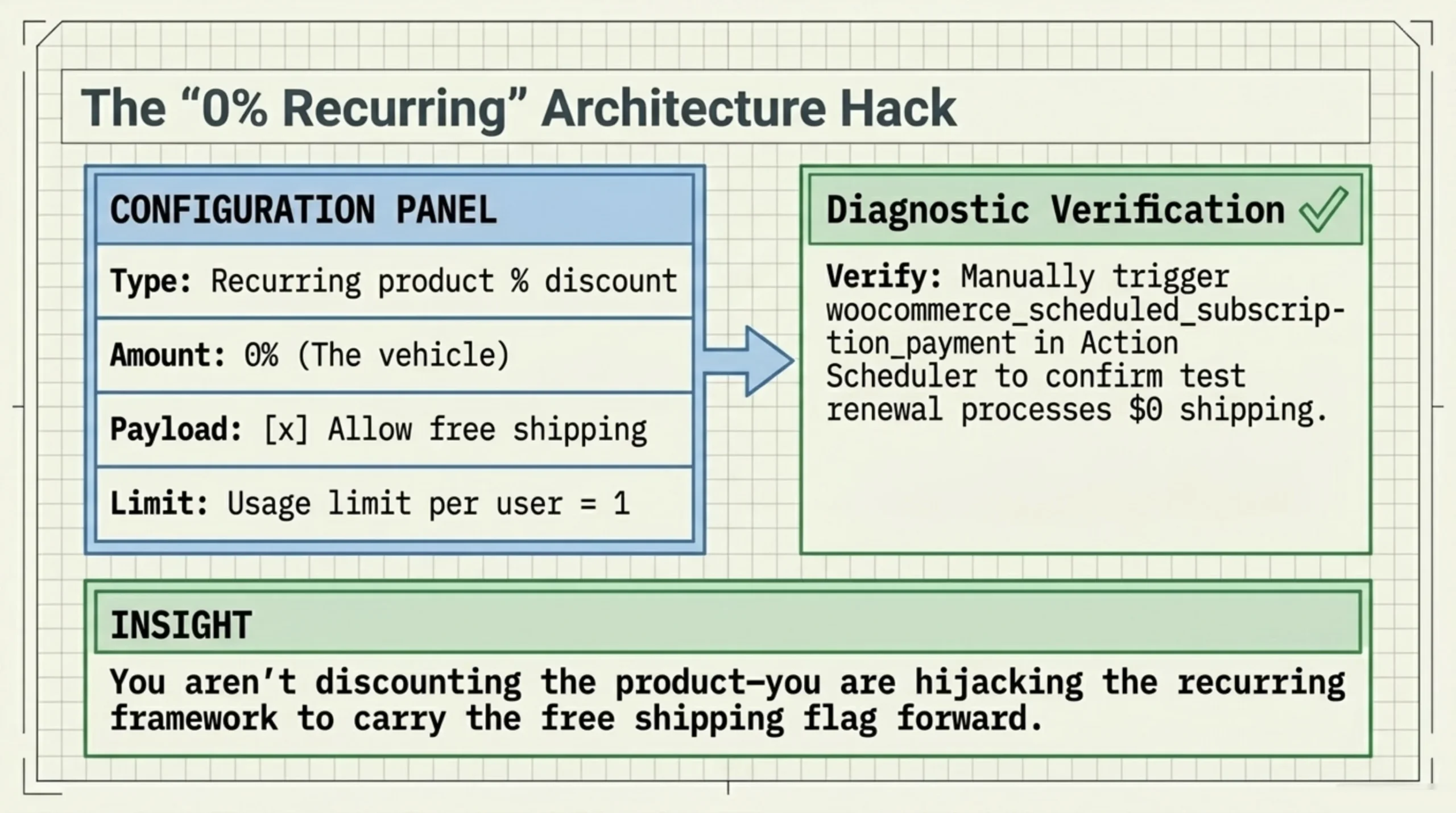
The actual fix needs WooCommerce Subscriptions (woocommerce.com/products/woocommerce-subscriptions). Subscriptions adds two coupon types to the discount-type dropdown that core does not have: “Recurring product discount” and “Recurring product % discount”. These apply to renewal orders, not just the signup. For free shipping that survives renewals, the pattern that works is:
- Create a coupon with discount type set to “Recurring product % discount” and amount 0%.
- Tick “Allow free shipping”. This flag is honored on every renewal because Subscriptions copies it forward.
- Restrict the coupon to the subscription products in question via the Products field on the Usage restriction tab.
- Set Usage limit per user to 1 so the customer cannot apply it on a separate non-subscription order in the same session.
- Confirm with a test renewal: in WooCommerce → Status → Action Scheduler, manually run the next
woocommerce_scheduled_subscription_paymentfor the test subscription and verify the renewal order shows shipping at $0.
That is how give customer free shipping coupon for subscription in WooCommerce in a way that survives the renewal cycle. The 0% recurring product discount is the trick. You are not actually discounting the product; you are using the recurring coupon type as a vehicle for the free shipping flag, because that flag is what Subscriptions copies forward.
A pet peeve. The Subscriptions documentation in 2026 still does not document this pattern in one place; it is implied across three different help articles. I rewrote the internal runbook for two clients in March and April this year because their support team kept manually applying renewal credits one at a time.
Auditing What You Create: Reporting on a Coupon in WooCommerce
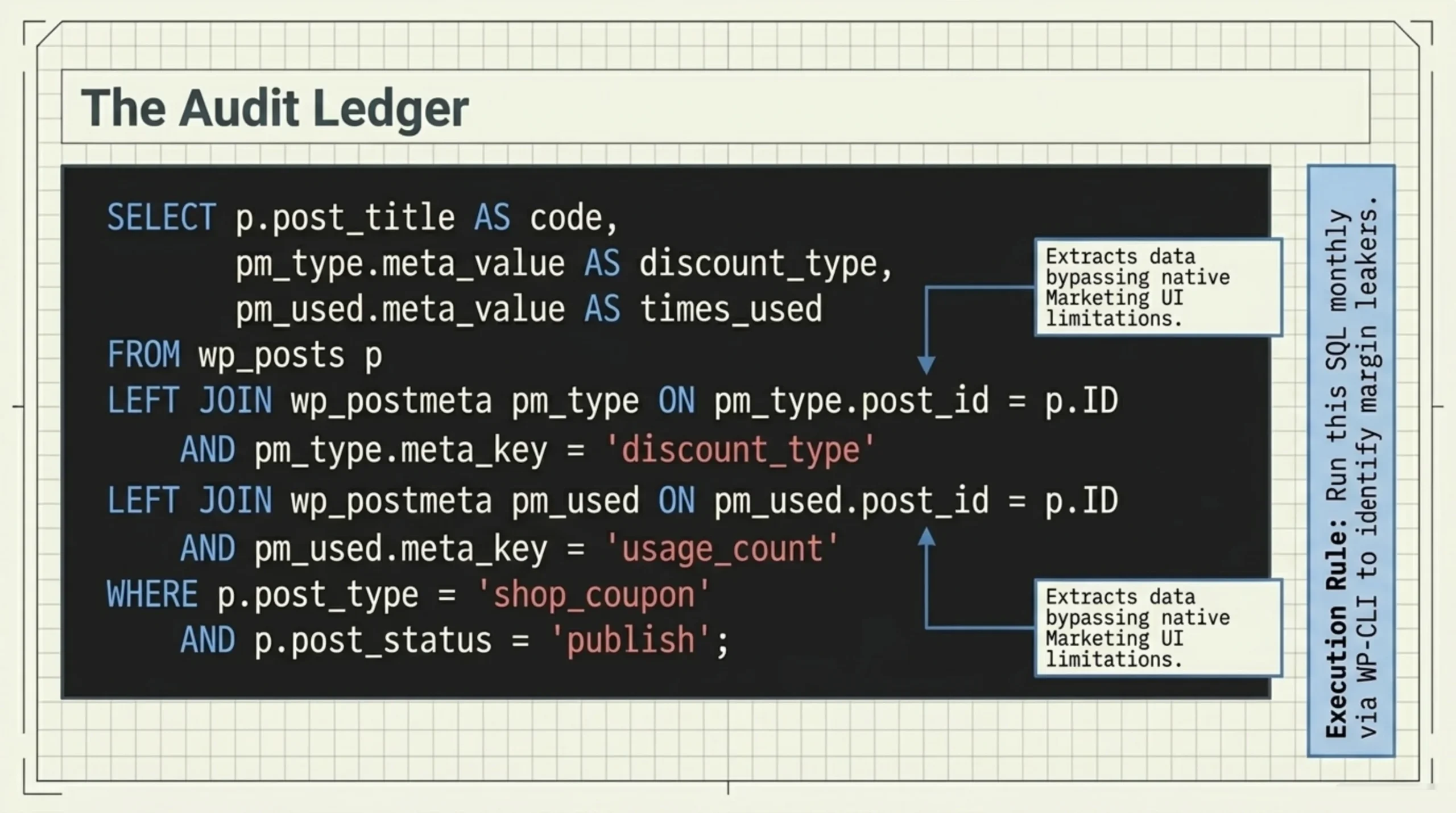
Once you know how to create a coupon in WooCommerce at scale, the next problem is knowing what is actually live, what is expired, and what is leaking margin. The native Marketing → Coupons screen does not show redemptions per coupon as a sortable column. You can click into each coupon to see usage, but for a portfolio of 80+ codes that does not scale.
A short SQL query gets the redemption counts straight from the database. Run via WP-CLI or your DB admin tool, against the WooCommerce schema:
SELECT
  p.post_title AS code,
  pm_type.meta_value AS discount_type,
  pm_amt.meta_value AS amount,
  pm_used.meta_value AS times_used,
  pm_limit.meta_value AS usage_limit,
  pm_expiry.meta_value AS date_expires
FROM wp_posts p
LEFT JOIN wp_postmeta pm_type   ON pm_type.post_id   = p.ID AND pm_type.meta_key   = 'discount_type'
LEFT JOIN wp_postmeta pm_amt    ON pm_amt.post_id    = p.ID AND pm_amt.meta_key    = 'coupon_amount'
LEFT JOIN wp_postmeta pm_used   ON pm_used.post_id   = p.ID AND pm_used.meta_key   = 'usage_count'
LEFT JOIN wp_postmeta pm_limit  ON pm_limit.post_id  = p.ID AND pm_limit.meta_key  = 'usage_limit'
LEFT JOIN wp_postmeta pm_expiry ON pm_expiry.post_id = p.ID AND pm_expiry.meta_key = 'date_expires'
WHERE p.post_type = 'shop_coupon'
  AND p.post_status = 'publish'
ORDER BY CAST(pm_used.meta_value AS UNSIGNED) DESC;
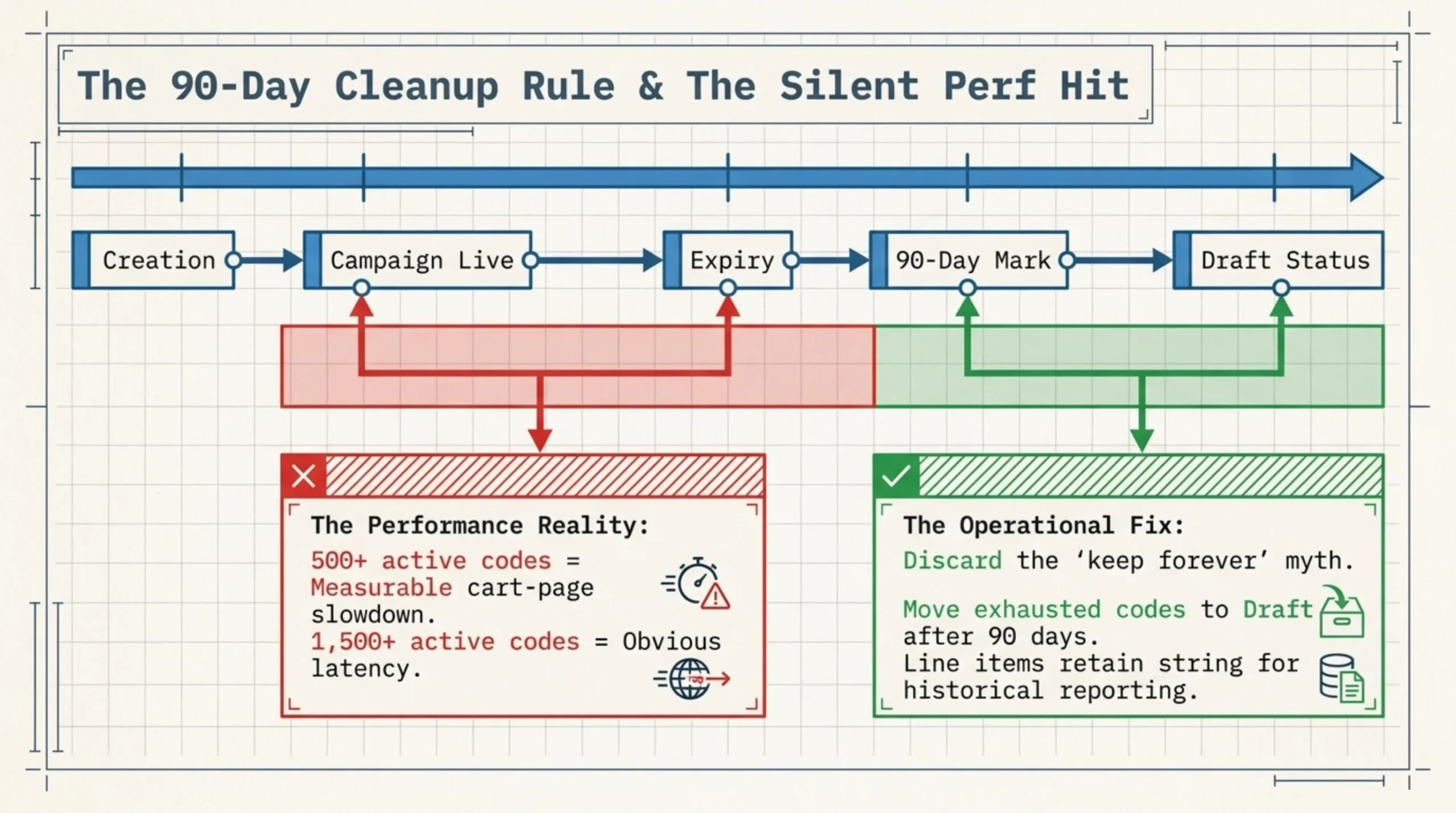
That gives you the full coupon ledger sorted by use. Run it monthly. The codes at the top of the list with no expiry and high redemption are your candidates for either a new usage cap or an expiry date. The codes at the bottom with zero use after six months should be unpublished, not because they hurt anything, but because they pollute the admin and slow the coupon-load query that runs on every checkout (one of the silent perf hits I see on stores with 800+ legacy coupons).
How to create a coupon in WooCommerce responsibly is one half of the discipline; cleaning up coupons you created last quarter is the other half. The audit query above is what I run against new client stores in the first week, and it usually surfaces three or four leakers within an hour. The same Coupon Manager screen mentioned earlier exposes redemptions and expiry as sortable columns without writing SQL, which is useful when handing the audit job to a non-technical operator at the client.
One disagreement with a popular guide. Most “WooCommerce coupon best practices” articles tell you to keep coupons forever for “historical reporting.” Don’t. Move expired and exhausted coupons to draft status after 90 days. Reporting still works because order line items keep the coupon code as a string. Active list stays clean.
FAQ
On a default WooCommerce 9.x install, the storefront still queries the full active coupon list on cart actions for matching against current cart contents. I start seeing measurable cart-page slowdown around 500 active coupons; past 1,500 it becomes obvious. Caching helps but does not eliminate it. The fix is operational, not technical: expire and unpublish what you do not need.
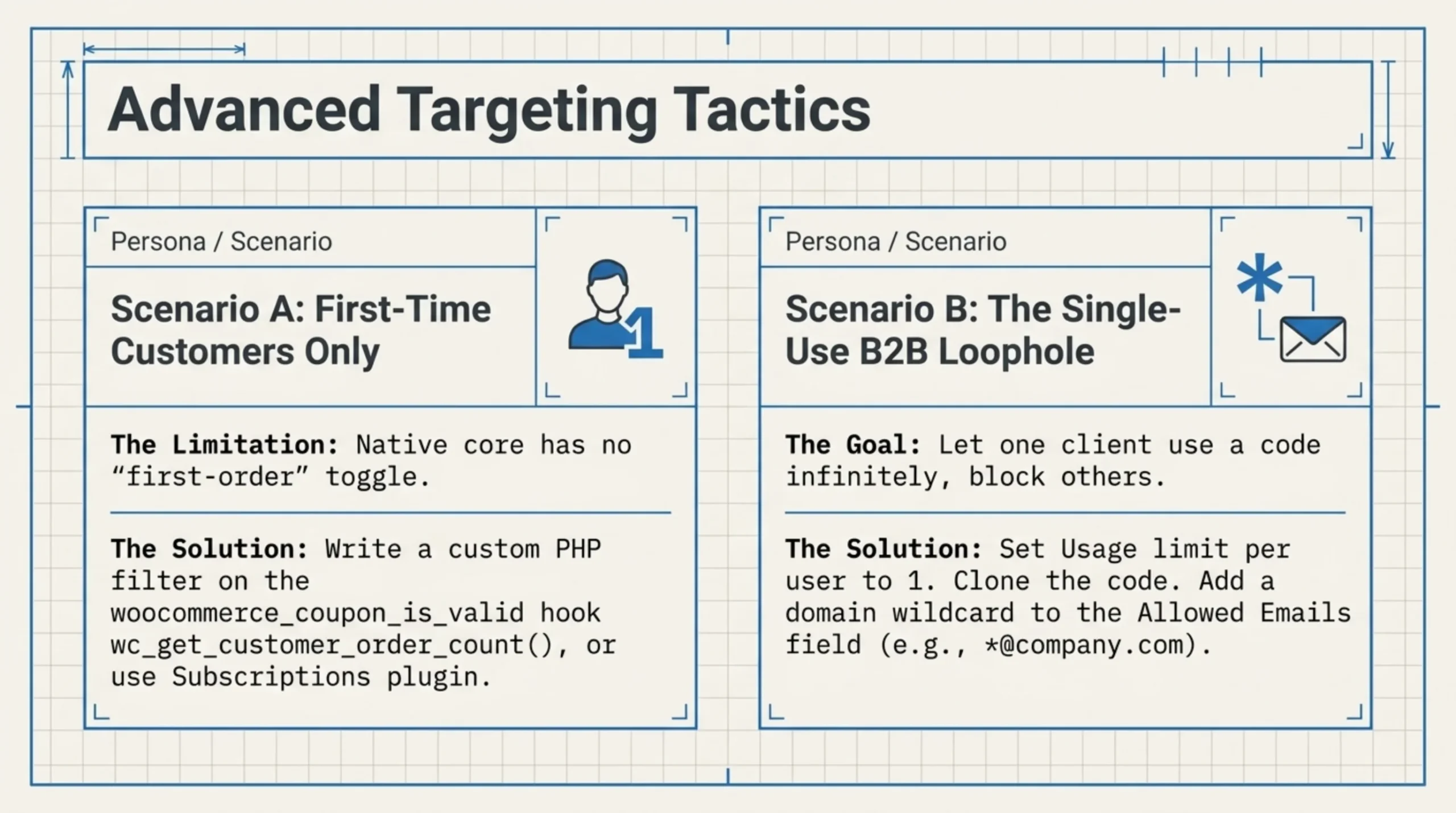
Not natively. The core form has no “first-order only” toggle. You either use Subscriptions’ new-customer coupon options if you have it installed, write a small filter on the woocommerce_coupon_is_valid hook that checks wc_get_customer_order_count(), or use a coupon plugin that ships this rule. The hook approach is 12 lines of PHP if you are comfortable in a child theme.
Use the Recurring product % discount type from the WooCommerce Subscriptions extension, set the percentage, and tick “Allow free shipping” on the same coupon. Both flags travel forward on every renewal. This is the same mechanism described in the free shipping section above; the discount field just goes above zero.
Top three reasons in my support inbox. The expiry date passed (timezone mismatch between server and store settings is common). The cart subtotal is below the minimum spend you set. Or the cart contains products excluded from the coupon’s Products / Categories restriction. Open the coupon, check all three, then verify with an incognito session and a fresh cart.
Set Usage limit per user to 1 on the coupon, then create a second coupon with the same discount and a different code, restricted to that customer’s email via the Allowed emails field. The Allowed emails field accepts wildcards (name@*) for domain restrictions, which is also how I handle B2B customer-segment coupons.
The aggregate count is on the coupon record. The per-redemption trail lives on the order: each order that used a coupon stores the code and discount as line-item metadata, queryable via Reports → Coupons or the REST API. There is no built-in “who used what when” report on the coupon admin screen. You build that from order data.
Sources Used
- woocommerce.com/document/coupon-management: the official coupon admin documentation, cited for the standard form fields and discount type definitions.
- github.com/woocommerce/woocommerce: source repo, referenced for the
WC_Couponclass behavior and validation logic. - baymard.com/lists/cart-abandonment-rate: Baymard’s e-commerce abandonment data, cited for the ~70% cart abandonment baseline behind fixed-cart discount strategies.
- woocommerce.com/document/woocommerce-rest-api: REST API reference, cited for the
POST /wp-json/wc/v3/couponsendpoint used for bulk creation. - woocommerce.com/document/high-performance-order-storage: HPOS docs, cited for the order/coupon table separation that affects bulk-write performance.
- woocommerce.com/products/woocommerce-subscriptions: Subscriptions extension page, cited for the recurring-product coupon types required for renewal-aware free shipping.
- wordpress.org/plugins/brikpanel-admin-panel-dashboard-for-woocommerce: BrikPanel directory page, referenced for the Coupon Manager grid used for bulk coupon edits.
BrikPanel: Coupon Manager BrikPanel adds a grid-style Coupon Manager that replaces the one-coupon-at-a-time admin form with an editable table of every coupon, its usage cap, expiry, and redemption count in one screen. Useful when you need to know how to create a coupon in WooCommerce in bulk, audit a portfolio of 80+ codes, or update expiry dates on a campaign without 200 page loads. Install free from wordpress.org/plugins/brikpanel-admin-panel-dashboard-for-woocommerce.
