
A customer emails Sunday at 7am: “I placed a guest order Friday, lost the confirmation email, and need to know if it shipped.” No account, no order number, just a Gmail address and the rough total. The support agent on shift opens WooCommerce → Orders, filters by email, finds three orders from that address, then has to dig through each one trying to figure out which view-order URL to send back. The whole exchange is what people are searching when they ask how to access the link on guest order woocommerce. Half the answers online tell you to ask the customer for their order number. That works exactly when the customer still has the receipt email — the case where they would not be asking in the first place.
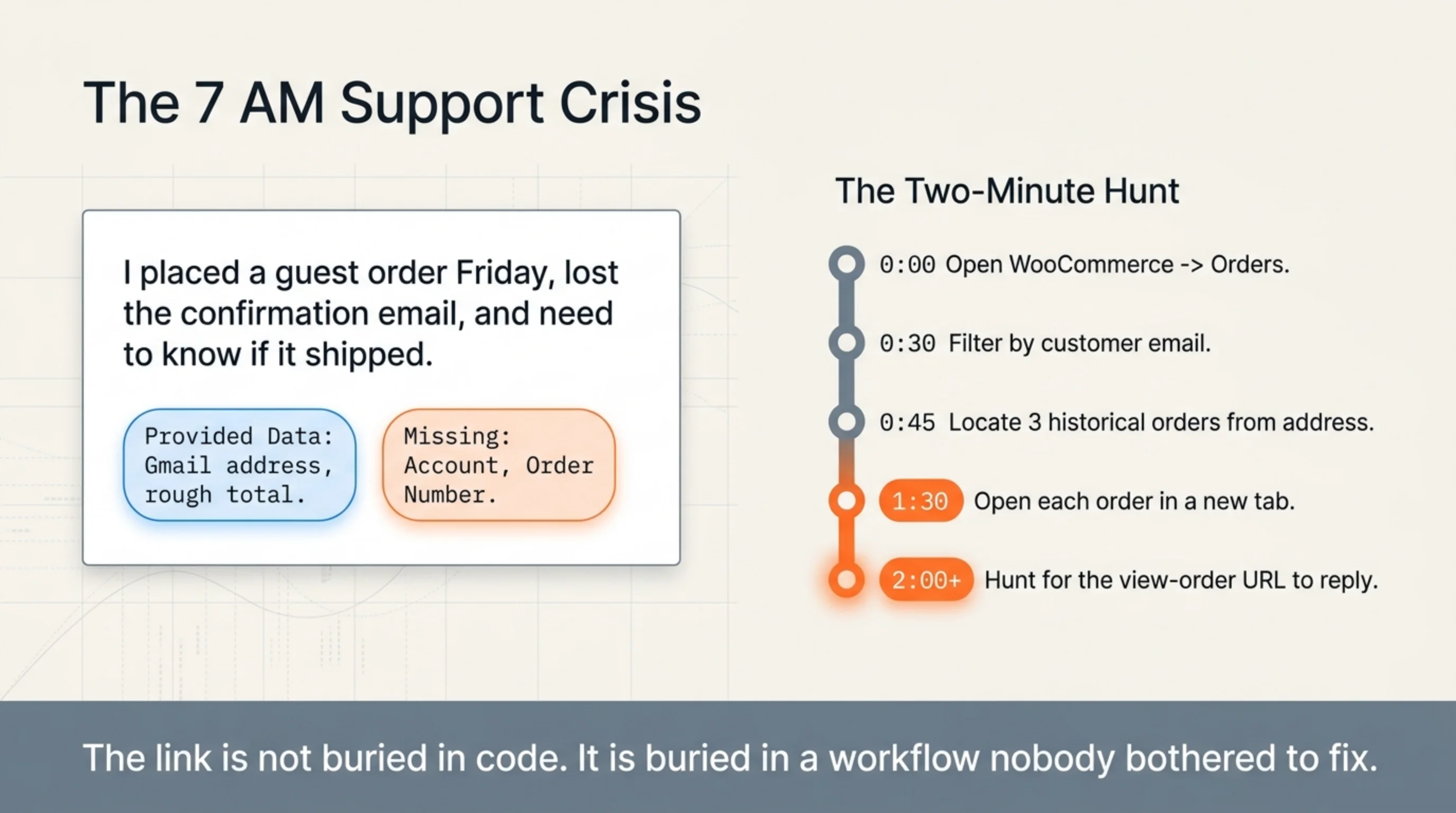
Eight minutes pass before the agent pastes a working URL into the reply. The link is not buried in code. It is buried in a workflow nobody bothered to fix.
How to Access the Link on Guest Order WooCommerce: Where the View-Order URL Lives
Every WooCommerce order has a public view URL gated by a hash. The format is /checkout/order-received/<order_id>/?key=wc_order_<32-char-hash> for the immediate thank-you page, and /my-account/view-order/<order_id>/?key=... for the persistent receipt link (woocommerce.com/document/managing-orders). The hash is stored on the order as the _order_key post meta. Without it, the URL returns a “Sorry, this order has expired” message. With it, the customer sees the same order detail page they would see logged in.
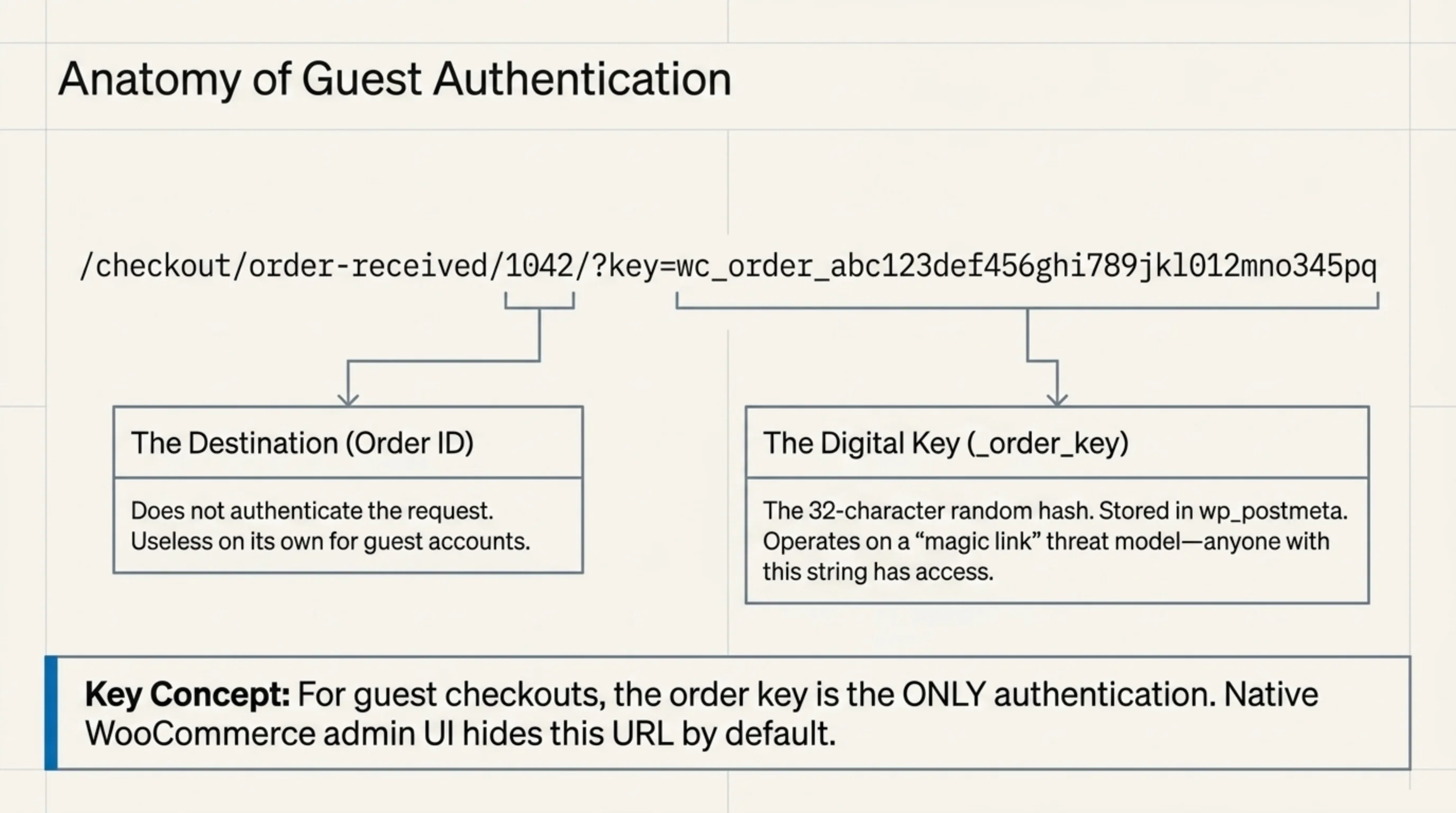
That hash is also the answer to a related question that comes up in the support inbox: how to check order status with order number on meta. People mean two different things by it. Some are asking whether the order number alone is enough to look up status without an account, and the answer is no — you also need the order key meta. Others are asking how to read the meta directly, which lives in wp_postmeta for the order’s post ID under the _order_key row. Either reading, the order number on its own does not authenticate the request.
For guest checkouts specifically, the order key is the only authentication. There is no email or password tied to the order, so WooCommerce treats anyone with the URL as authorized. The implication: knowing how to access the link on guest order woocommerce is mostly knowing where to copy this URL from in the admin, plus how to send it back to the customer without leaking it through the wrong channel.
The official path through the admin is: WooCommerce → Orders → click the order → look at the “Customer details” sidebar. The view URL is not there. The “Order actions” dropdown does not include “Email view-order link” by default (woocommerce.com/document/customer-emails). What you can do is resend the original order confirmation email, which contains the link. That is the official answer most guides on how to access the link on guest order woocommerce stop at: resend the email and hope the customer receives it.
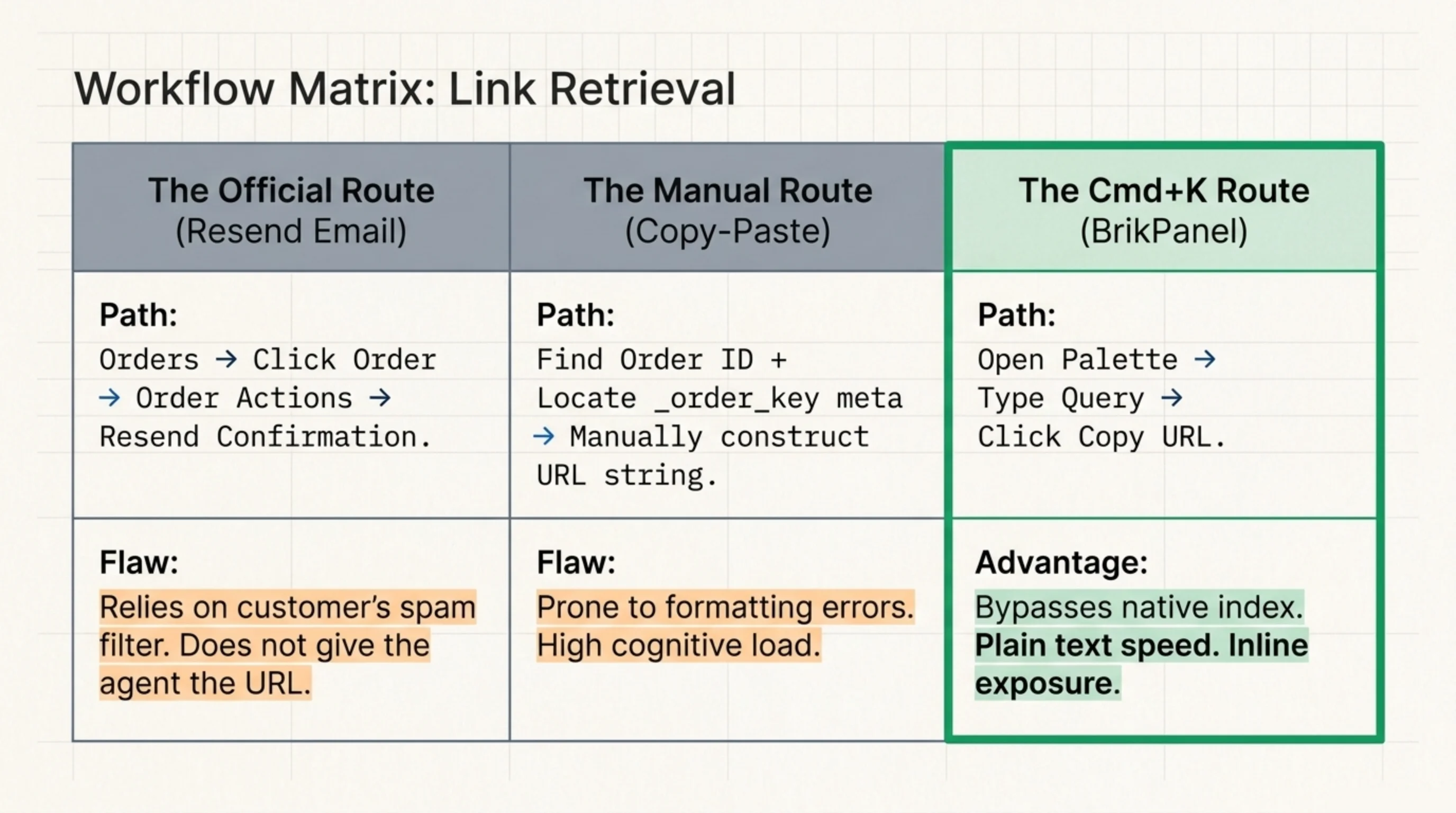
The unofficial answer, the one I use on every client store, is to construct the URL directly from the order ID and the _order_key post meta. Five seconds of copy-paste once you know the format. Saves the customer a second hunt through their spam folder.
How to Export WooCommerce Orders to Track Down a Specific Guest Receipt
Sometimes the customer in the support thread is not in the most recent 50 orders, and the admin search slows down sharply on stores past 100,000 historical orders. The native answer to how to export woocommerce orders is the WooCommerce → Orders screen’s Export action, which runs a CSV dump of orders matching the filters you set (woocommerce.com/document/managing-orders). I migrated a coffee subscription store off Magento in February 2025 — 84,000 historical orders, mixed registered and guest. The native exporter handled it in roughly four minutes for the full file. The reason this matters for how to access the link on guest order woocommerce: the export is the fastest path to a flat list of every guest receipt URL once you join the order key column back in.
The default columns are reasonable and miss two things. The exported CSV does not include _order_key, so even after you find the right row, you still have to construct the view URL by joining against the database. And if you check the “Customer email” column on a guest order, you get the email, but you do not get the customer’s account ID — guest orders have customer_id = 0 (woocommerce.com/document/woocommerce-rest-api), which is the easiest filter for “show me only guest orders” once you sort the export.
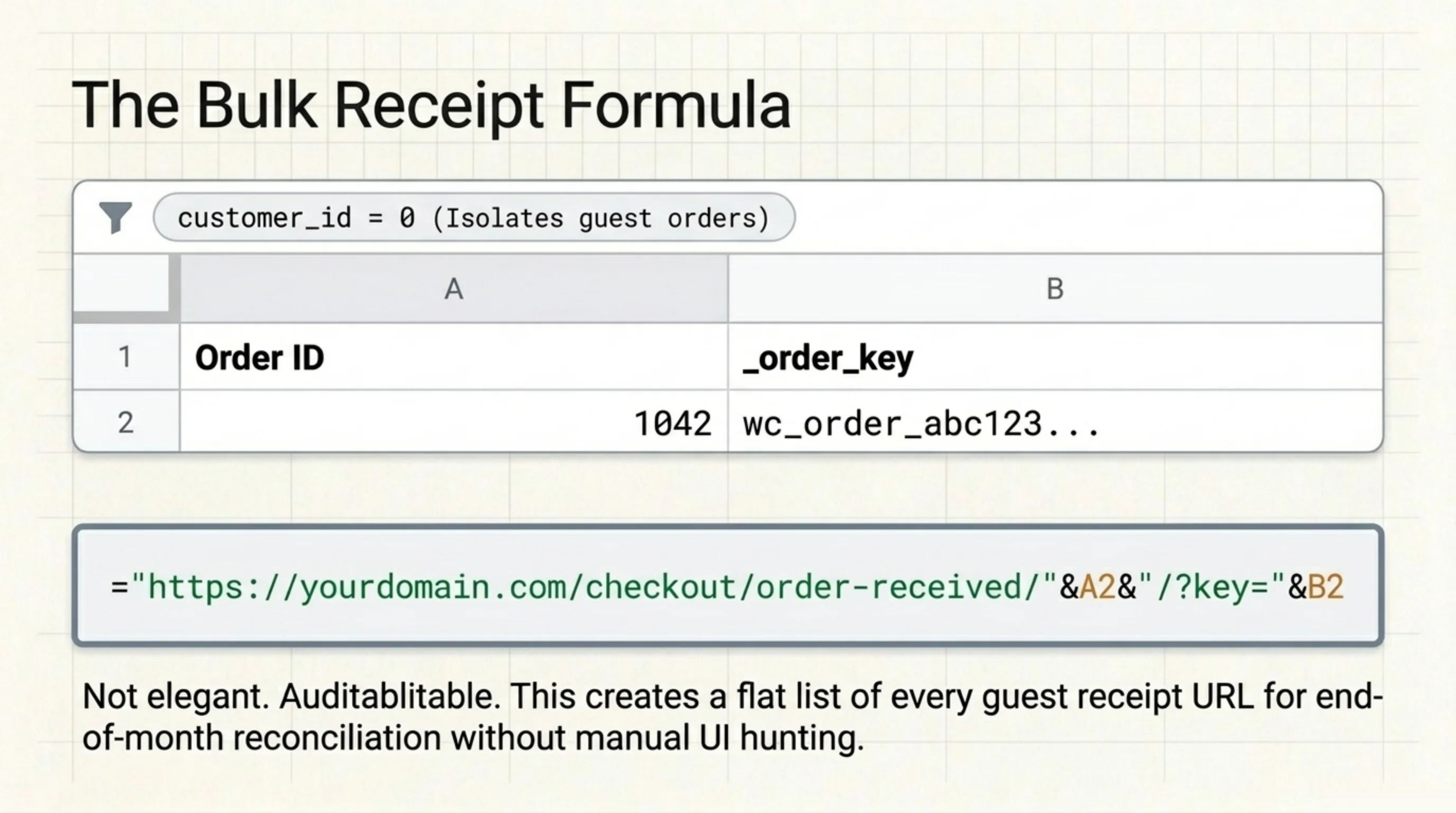
How to export woocommerce orders with _order_key included: edit the export configuration to add a custom column. The exporter UI lists most order fields and hides post meta behind an Advanced section. Tick “Include all order meta” and the CSV grows by 30 to 50 columns, of which _order_key is one. Open the CSV in a spreadsheet, filter customer_id to zero, sort by date, and your guest receipts are isolated. From that file, building view URLs is a CONCATENATE formula: ="https://yourdomain.com/checkout/order-received/"&A2&"/?key="&B2. Not elegant. Auditable.
This is the workflow I default to when a client asks for an end-of-month reconciliation of guest receipts. The patch is ugly. It works. For an ad-hoc lookup of a single customer’s lost link, the CSV path is overkill — that is the next section’s problem.
How to Access the Link on Guest Order WooCommerce Without the Two-Minute Hunt
The most common pattern I see in support workflows looks like this: agent opens Orders, types the customer’s email, scrolls the filtered list, opens the right order in a new tab, copies the order ID and order key, constructs the URL by hand, pastes it in the reply. Two minutes per ticket if the agent is fast, four minutes if they are not. On a Black Friday weekend with 60 to 100 of these tickets per day, the math gets bad fast.
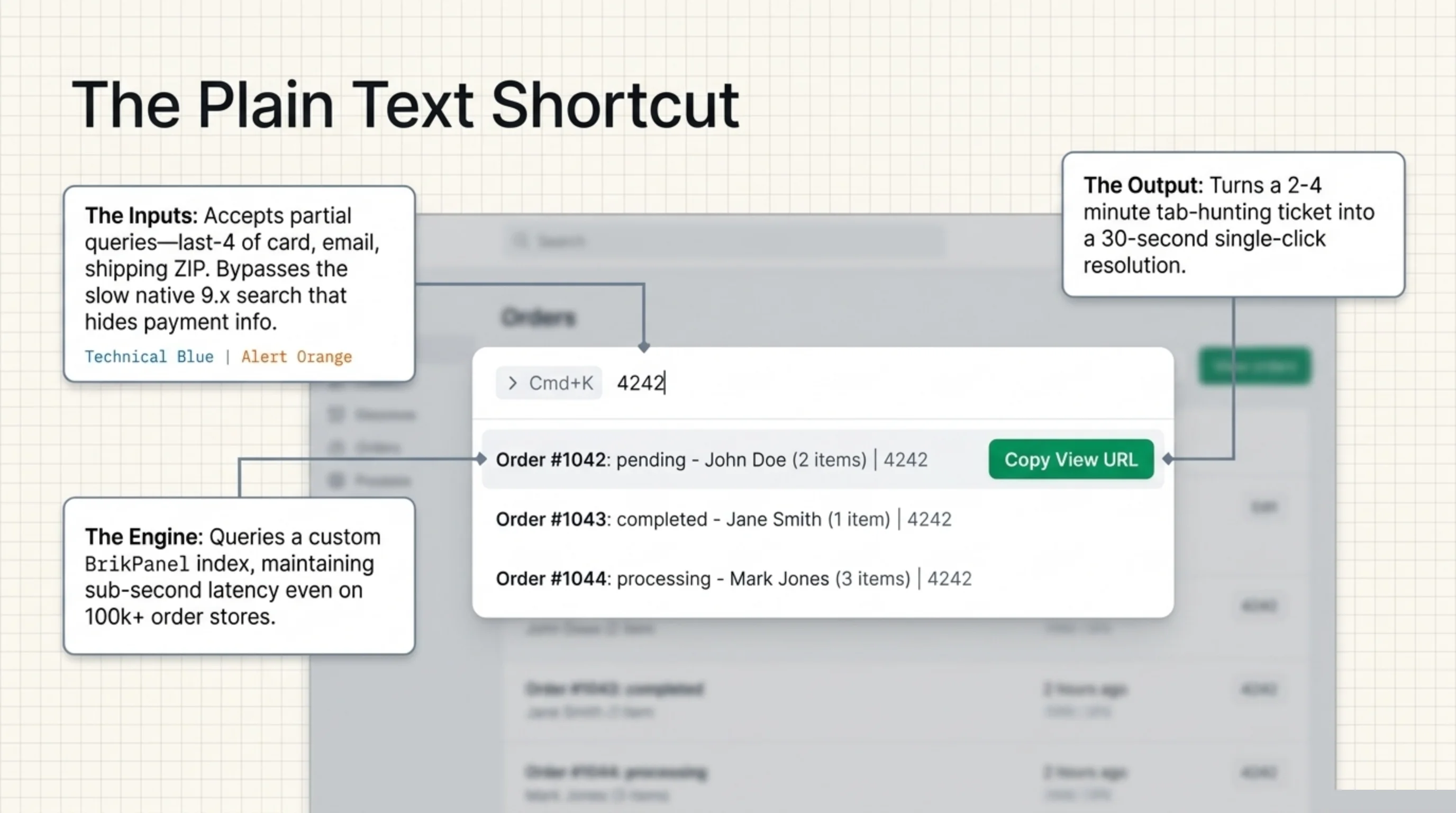
There is a faster pattern. Plain text is faster than UI navigation when you already know what you are searching for. BrikPanel adds a Cmd+K (Ctrl+K on Windows) order search that opens an inline command palette anywhere in WP admin. Type the customer’s email or the last four of their card and the matching guest orders surface in under a second. Click the order in the result list and the view-order URL is exposed at the top of the detail screen with a copy-to-clipboard button next to it. That last touch is what kills the two-minute hunt.
How to check order status with order number on meta in this same flow: type the order number into the palette, hit enter, and the matching order opens directly. The palette also accepts partial last-4 of card, customer email, or shipping ZIP. None of those queries hit the slow admin Orders search; they query the order index BrikPanel maintains, which is what makes the latency tolerable on a 100k-order store.
I am not pretending this replaces the export workflow. For monthly reconciliation, you still want the CSV. For “I need this one customer’s link in the next 30 seconds”, typing an email into Cmd+K and hitting enter is the workflow that turns a five-minute support reply into a thirty-second one. That is the BrikPanel angle on how to access the link on guest order woocommerce: not a feature, just a faster way to get to the link that was already there.
A pet peeve while I am here: the WooCommerce Orders screen still does not show last-4 of card by default in 9.x. You have to click into each order to see the payment method line, which means search-by-card is a non-starter without either a custom column or a third-party tool. That gap has been open for years.
How to Export WooCommerce Orders for QuickBooks Without Mangling Tax Codes
The most-asked variant of how to export woocommerce orders is the QuickBooks one. Reconciling sales between WooCommerce and QuickBooks Online is roughly 30% of the bookkeeping work I see on client stores in any given month. The official live-sync integration is the MyWorks WooCommerce + QuickBooks Online sync (woocommerce.com/document/quickbooks-online-by-myworks-software). CSV export is the offline alternative, the one teams reach for during catch-up reconciliation when the live sync was paused for a stretch.
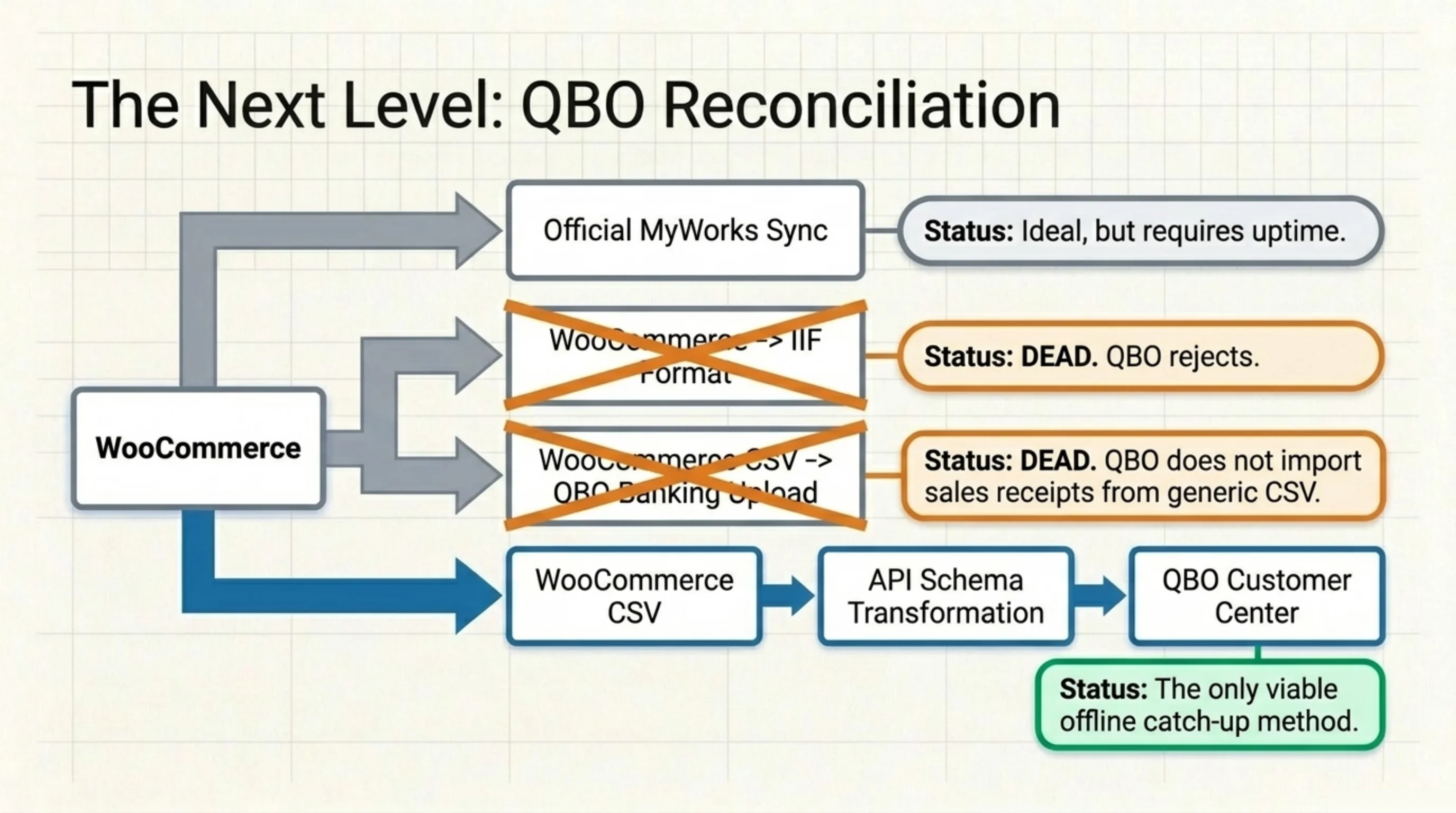
How to export woocommerce orders for quickbooks the right way: the IIF format that QuickBooks Desktop accepts is dead for QBO purposes. Online accepts CSV imports through the Banking → File Upload path for transactions, and through the Sales section for customer master data, but it does not import sales receipts directly from CSV. The realistic flow is to export from WooCommerce, transform the columns to QuickBooks’s expected schema (sales receipt or invoice), and import through QuickBooks’s Customer Center or via a third-party connector that wraps the QBO API.
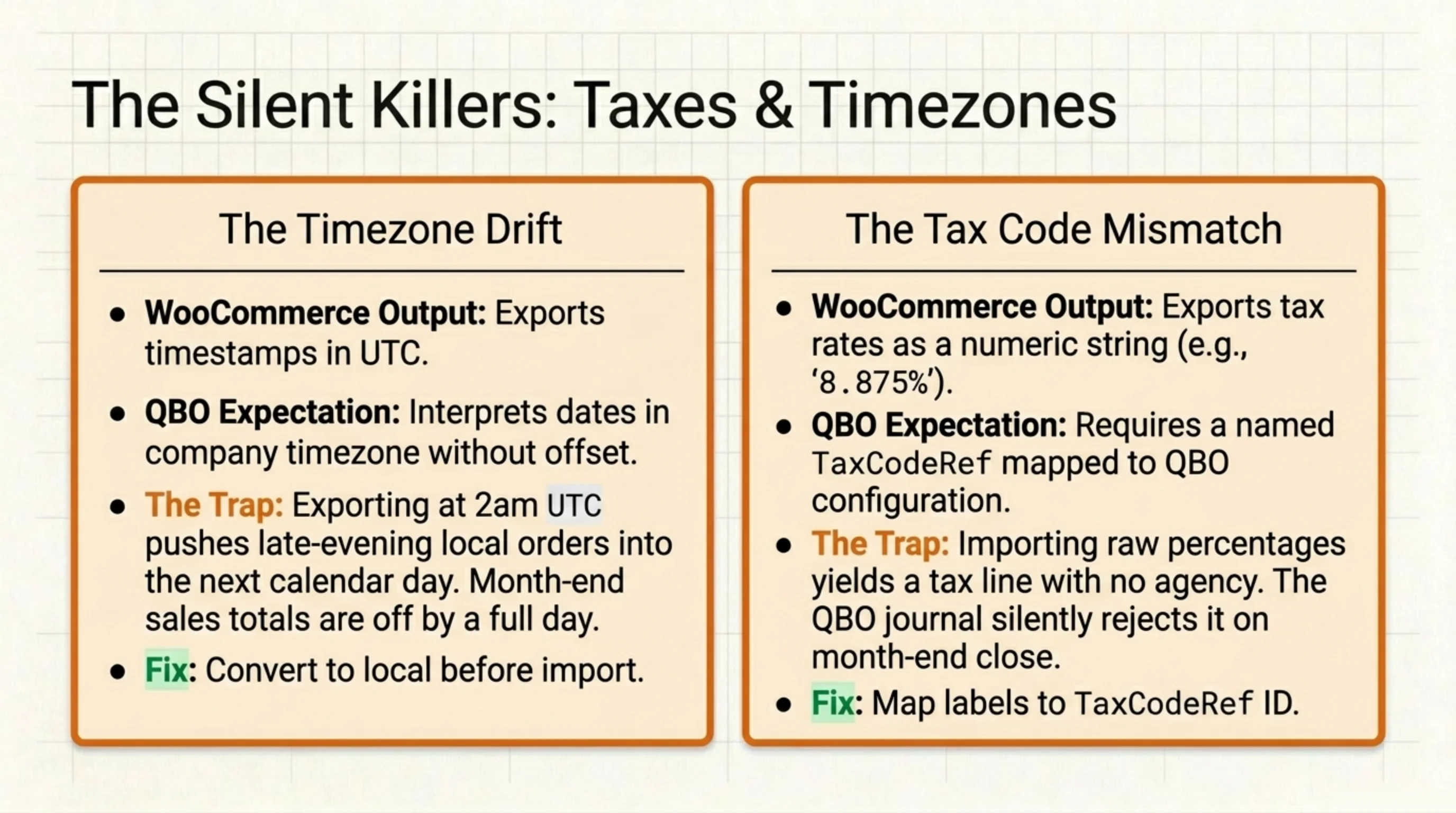
Tax code translation is where most CSV-based reconciliations fall over. WooCommerce stores tax rates as percentage fields per line item, and QuickBooks expects a named tax code that maps to a configured tax rate inside QBO. Exporting “8.875%” as a numeric value and importing into QuickBooks gives you a tax line with no tax agency, which the QBO journal will reject on month-end close. The fix is to map every WooCommerce tax rate label (e.g., “NY State 8.875%”) to the corresponding QuickBooks tax code ID in a lookup column before the import runs. One client store had to redo a quarter of receipts in March 2024 because nobody noticed the tax mapping had silently bypassed.
A specific gotcha I keep tripping over: WooCommerce date fields export as UTC, and QuickBooks Online interprets dates in the company timezone without offset. If your store sells across timezones and you export at 2am UTC, late-evening orders from the prior calendar day local time get bucketed into the next QBO date, which is how you end up with a sales total off by a day at month-end. Convert dates to the QBO company timezone in the transform step. Do not rely on the QBO importer to do it for you.
What Fields Can Be Passed to QuickBooks From WooCommerce: The Mapping That Survives Audit
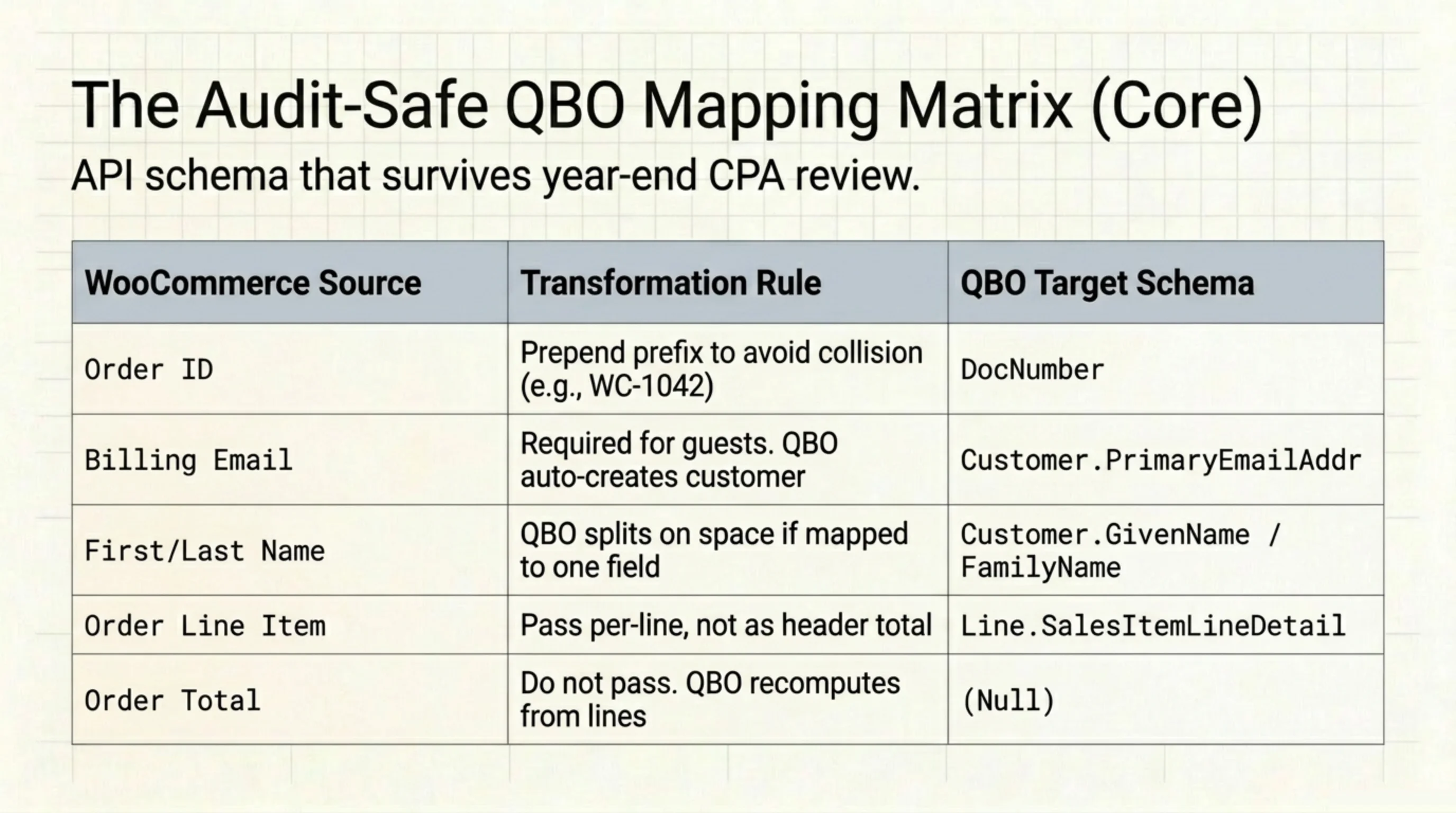
Asking what fields can be passed to quickbooks from woocommerce is the same question as: which order columns are recognized by the QuickBooks Online sales receipt schema and which require transformation. The mapping below is the one I have used on three QBO migrations between 2024 and 2026, conservative enough to survive a CPA review at year-end.
| WooCommerce field | QuickBooks Online field | Notes / gotcha |
|---|---|---|
| Order ID | DocNumber on Sales Receipt | Prepend with a prefix (e.g., WC-1042) so it does not collide with manually entered receipts |
| Customer email | Customer.PrimaryEmailAddr | Required for guest orders; QBO creates a customer record from email when no match exists |
| Billing first/last name | Customer.GivenName / FamilyName | QBO splits on first space if you pass a single full-name field, which mangles compound surnames |
| Order line item | Line.SalesItemLineDetail | Pass per-line, not as a header total; QBO recomputes from lines |
| Order total | (computed) | Do not pass directly; QBO will reject if the header total disagrees with the sum of lines |
| Tax total | TxnTaxDetail.TotalTax | Must reference a configured TaxCodeRef, not a numeric percentage |
| Order date | TxnDate | Convert to QBO company timezone (see prior section) |
| Payment method | PaymentMethodRef | Pre-create methods in QBO; passing a name string fails silently |
_order_key post meta | (no QBO equivalent) | Skip; useful in WooCommerce, has no QBO counterpart |
| Shipping address | ShipAddr (object) | Address1, City, CountrySubDivisionCode, PostalCode passed as separate sub-fields |
| Coupon codes | DiscountLineDetail | One discount line per coupon; QBO does not stack coupons natively |
| Refund amount | RefundReceipt (separate doc) | Refunds are not a field on the sales receipt; create a separate RefundReceipt document |
The full QBO sales receipt schema lives in the Intuit developer docs, and the field names above match the API spec (developer.intuit.com/app/developer/qbo/docs/api/accounting/all-entities/salesreceipt). The CSV importer accepts a friendlier subset of these field names; the API expects the exact CamelCase versions.
What fields can be passed to quickbooks from woocommerce that the table above leaves out: order notes, custom fields, attribution metadata. Order notes are not directly importable into QBO sales receipts. They live in the Memo field if you concatenate them into a single string, but the field has a 4000-character cap and concatenating a multi-touchpoint customer thread blows past it on any complaint ticket worth tracking. Custom fields from WooCommerce checkout (e.g., a “VAT Number” field on B2B orders) need explicit mapping to QBO custom fields, which are limited to three on a sales receipt. Past three, the data has to live elsewhere, and “elsewhere” usually means a separate spreadsheet that nobody updates.
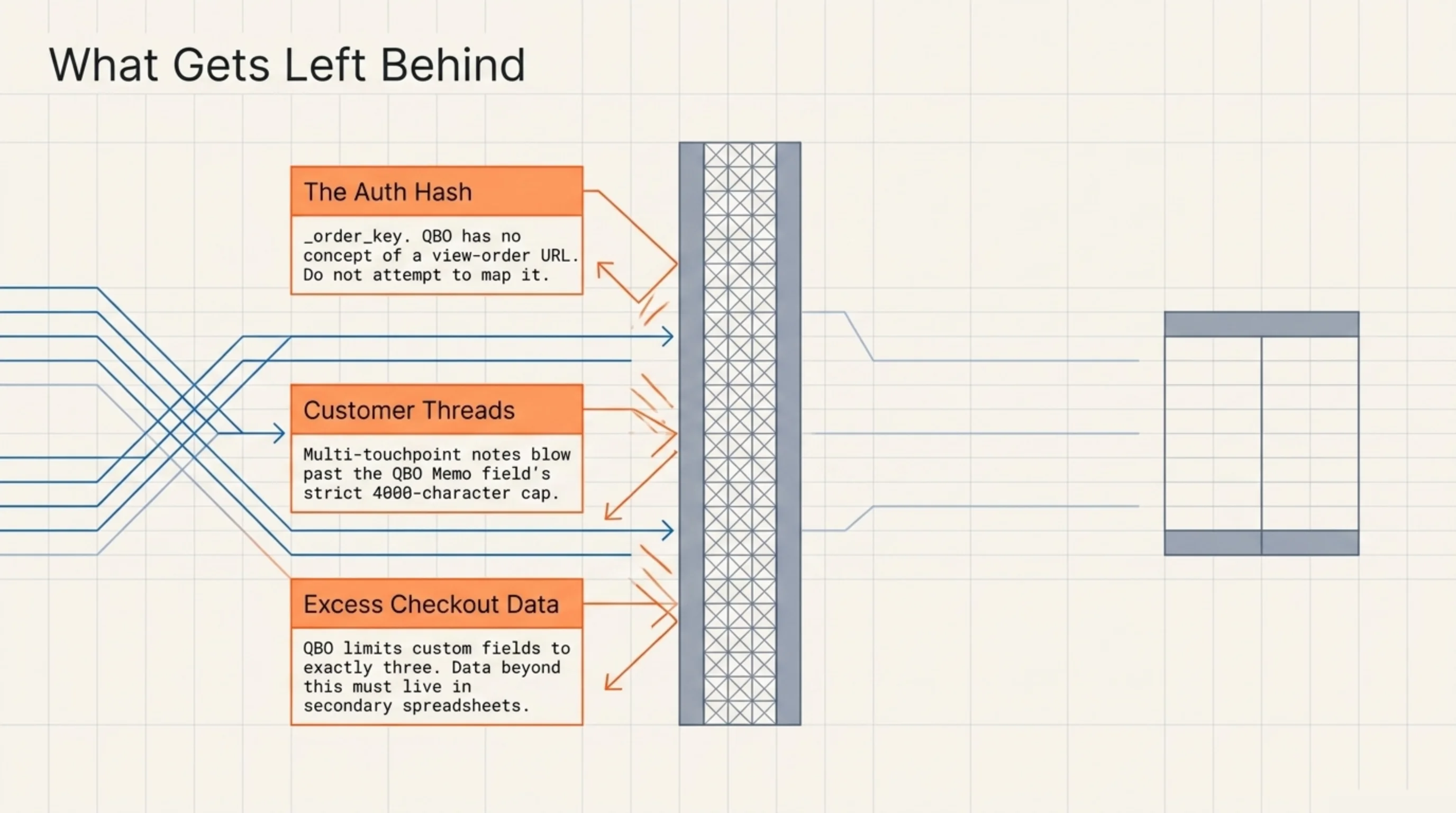
One more thing every QuickBooks reconciliation I have done has run into: the order key meta is not a QBO concept. There is no field for “the URL the customer can access their order at”. If your reconciliation workflow includes sending customers a link to their original WooCommerce receipt, that link has to be constructed on the WooCommerce side after the QBO sync, not preserved through the export. Knowing how to access the link on guest order woocommerce is a WooCommerce-side competency, not a QBO one. Keep them separate and the audit goes faster.
FAQ
About BrikPanel
BrikPanel is a free WordPress admin plugin that adds a Cmd+K (Ctrl+K on Windows) order search to WP admin, an inline view-order URL on every order detail screen, and column-level filters for guest orders. If “how to access the link on guest order woocommerce” is something your support team types into Google more than once a week, install it from wordpress.org/plugins/brikpanel-admin-panel-dashboard-for-woocommerce. The Cmd+K palette is the feature that turns a two-minute admin hunt into a thirty-second copy-paste.
Yes, through the order key URL. Every order has a _order_key post meta value, and the URL /my-account/view-order/<order_id>/?key=<order_key> is publicly accessible to anyone with the link. This is the mechanism behind every “view your order” button in the WooCommerce confirmation email. For how to access the link on guest order woocommerce when the email is lost, the admin can reconstruct the URL from the order ID and the meta value in about five seconds.
Two paths. The official one is to resend the order confirmation email through the order’s “Order actions” dropdown (woocommerce.com/document/customer-emails) and hope the customer receives it. The faster one is to copy the view-order URL directly from the order screen and paste it into the support reply, which gets the link in front of the customer in 30 seconds without depending on their email setup or spam filter.
The order key is a 32-character random hash, not the order ID itself, so it is not guessable. Anyone who has the URL can view the order, which is the same threat model as a “magic link” login. As long as the URL travels through encrypted email or HTTPS support tickets, it is fine. Do not paste guest order URLs into Slack channels with broad membership; treat them like temporary access tokens.
Use the native exporter at WooCommerce → Orders → Export, then expand the Advanced section and tick “Include all order meta”. The export file gains a _order_key column. Combine it with the order ID and the store’s domain in a spreadsheet formula to construct the view-order URLs in bulk. The same trick works for any other meta key you need on the receipt row.
The audit-safe mapping is order ID (as DocNumber with a WC- prefix), customer email, billing name, order lines summed into the total, tax total against a configured TaxCodeRef, order date converted to QBO company timezone, and payment method against a pre-existing PaymentMethodRef. Refunds need to be RefundReceipt documents, not fields on the sales receipt. Skip the _order_key meta and the WooCommerce custom checkout fields beyond what fits in three QBO custom fields.
The default WooCommerce export uses the registered customer’s email by joining customer_id against the user table, and guest orders have customer_id = 0 so the join returns null. The fix is to add the order’s billing email (a separate field on the order itself, not the user record) as a column in the export configuration. After that change, guest orders carry the email through to the CSV without needing a user record.
Sources Used
- woocommerce.com/document/managing-orders — cited for the WooCommerce order URL structure with the order key parameter and the native order export workflow on the Orders screen.
- woocommerce.com/document/customer-emails — cited for the order confirmation email contents and the resend behavior used when a guest customer loses the original receipt.
- woocommerce.com/document/woocommerce-rest-api — cited for the REST API behavior around the
customer_idfield and how guest orders surface ascustomer_id = 0in API responses. - woocommerce.com/document/quickbooks-online-by-myworks-software — cited as the documented QuickBooks Online live-sync integration for WooCommerce stores.
- developer.intuit.com/app/developer/qbo/docs/api/accounting/all-entities/salesreceipt — cited for the QuickBooks Online Sales Receipt schema and the CamelCase field names used in the WooCommerce-to-QBO mapping table.
- wordpress.org/plugins/brikpanel-admin-panel-dashboard-for-woocommerce — cited as the install location for BrikPanel.
