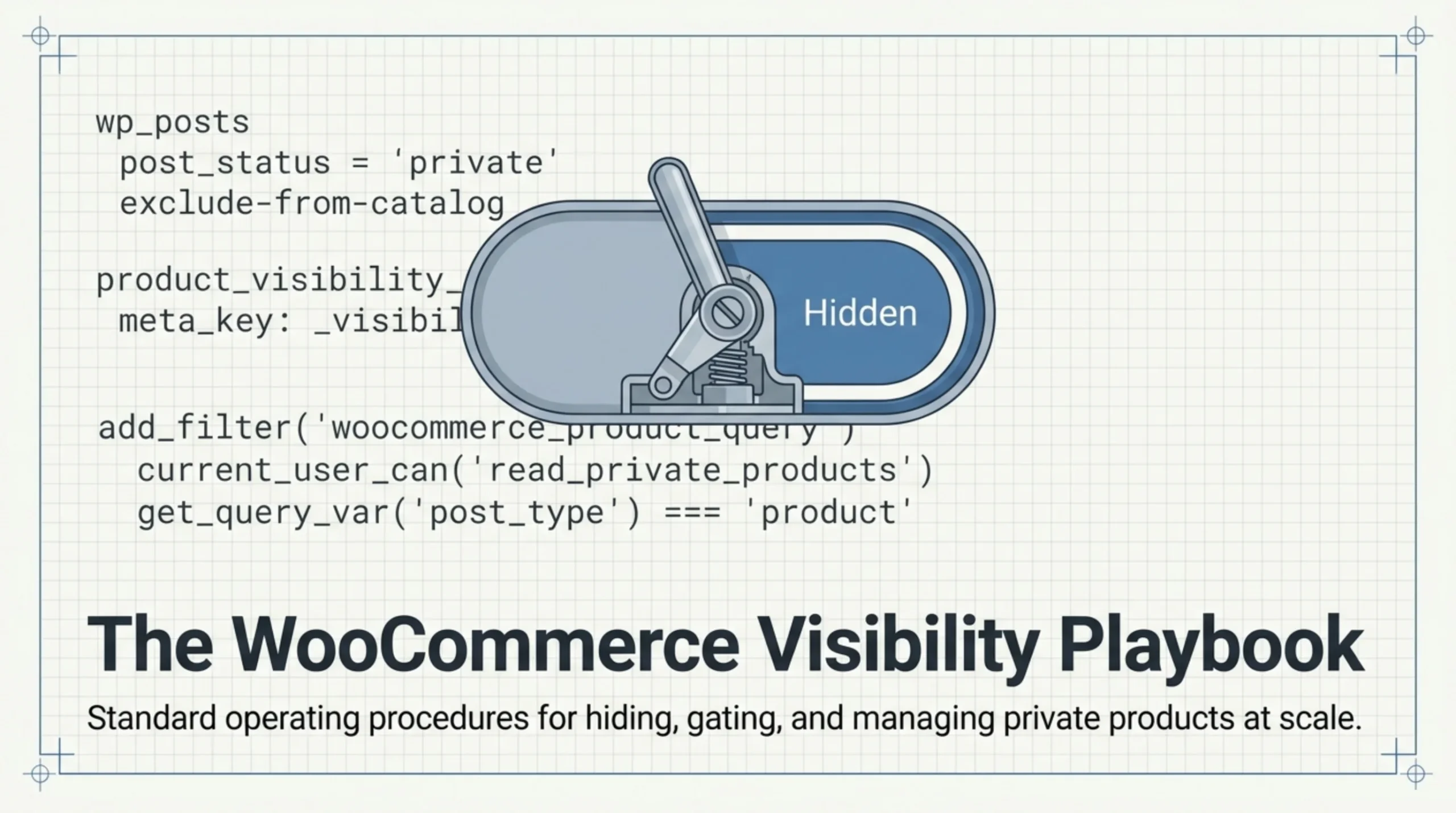
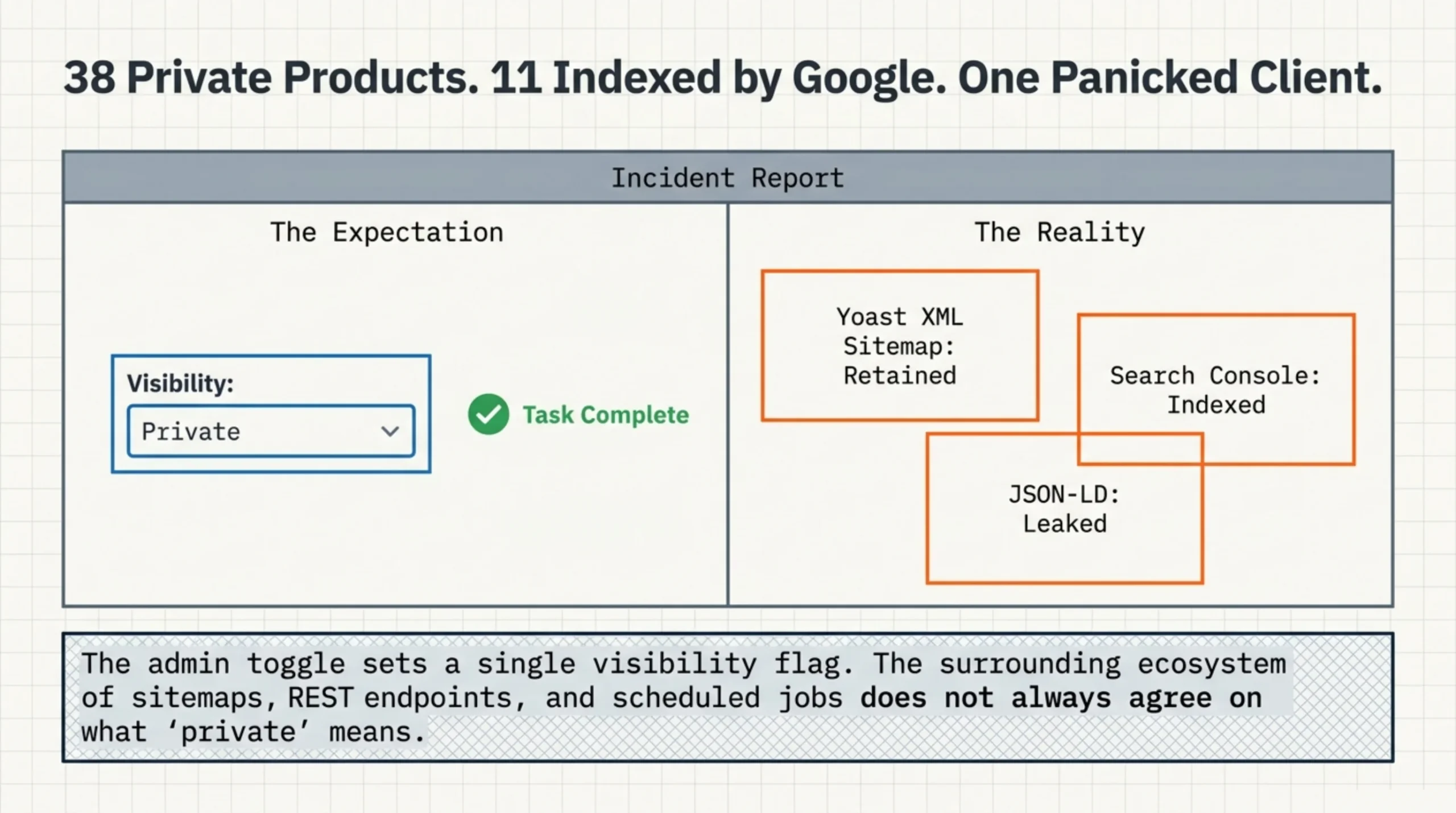
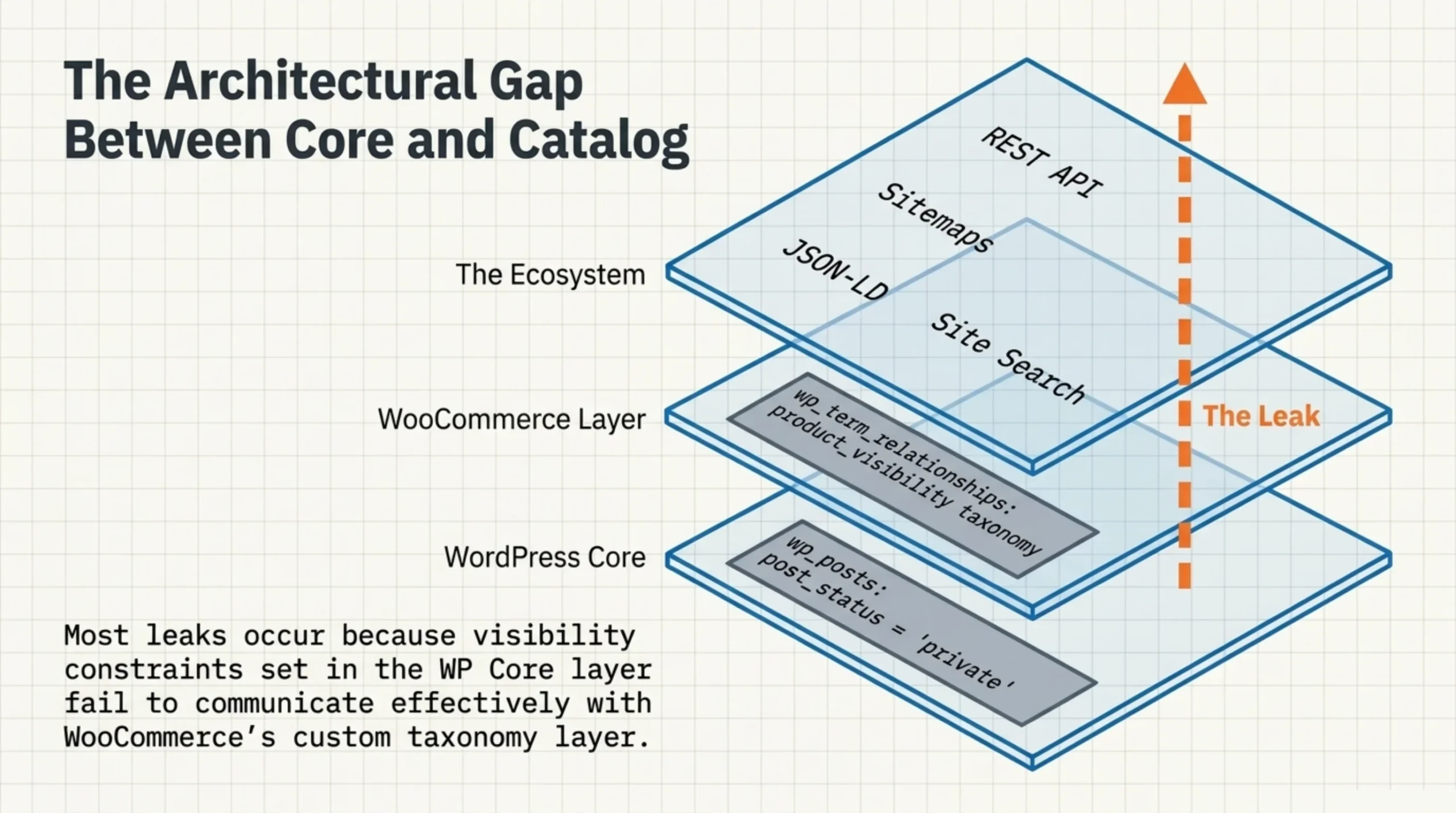
A client emailed at 9am on a Tuesday, panicked. They had set 38 products to “Private” status in WooCommerce a month earlier — internal reference SKUs they did not want public — and Google had still indexed 11 of them. The product URLs returned 404 to anonymous visitors, but the sitemap submitted to Search Console included them, and Yoast had not regenerated the entry. That is the actual problem with how to hide private products from WooCommerce store: the admin toggle sets a visibility flag, but the surrounding ecosystem (sitemaps, search, scheduled jobs, REST endpoints, related-product loops) does not always agree on what “private” means.
Most guides on how to hide private products from WooCommerce store stop at the dropdown in the editor. The dropdown is one of four overlapping settings, and getting any of them wrong leaks the products you tried to hide. This is the operator’s version of the topic.
Private, Hidden, Draft, Password: How to Hide Private Products from WooCommerce Store the Right Way
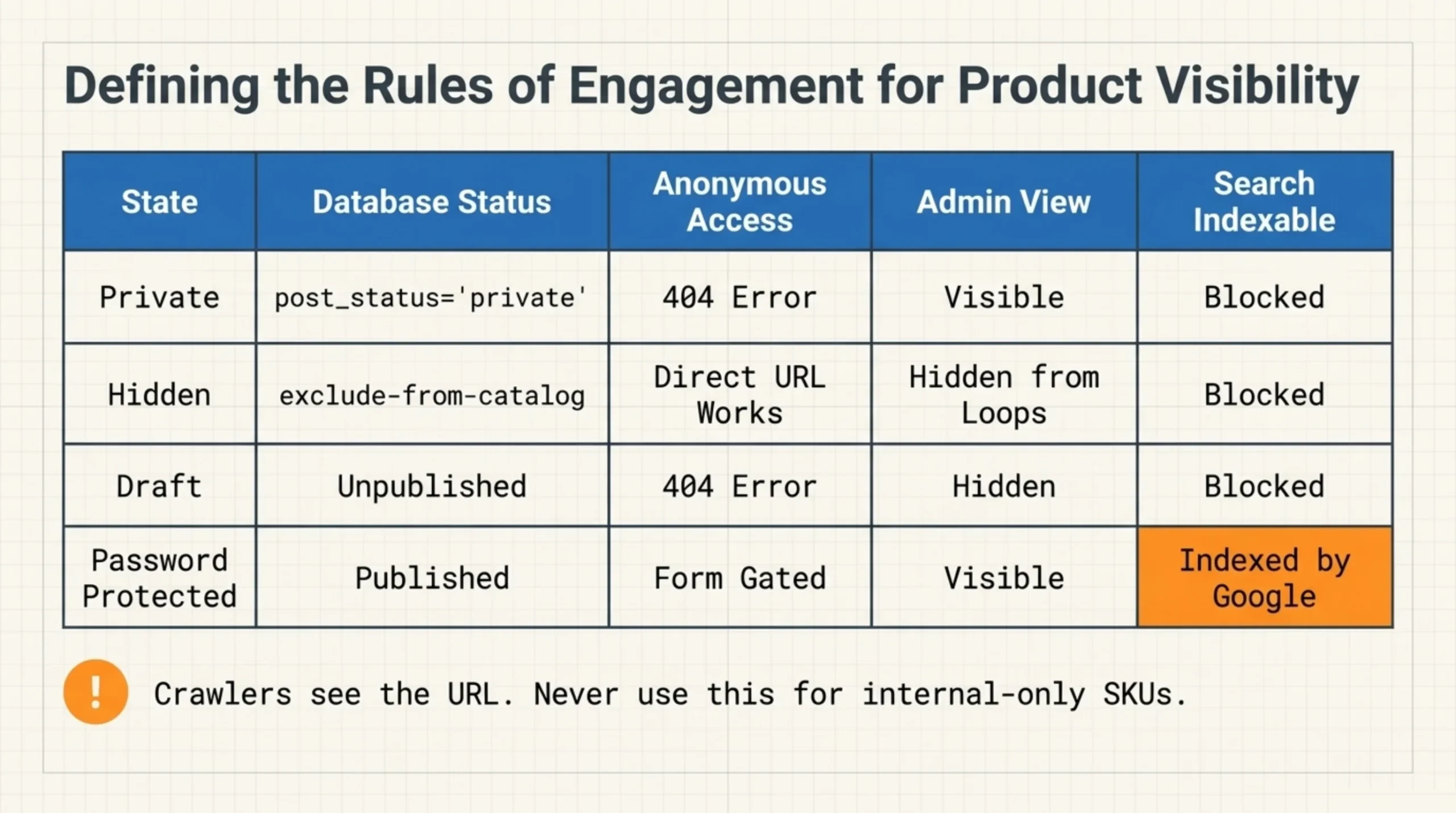
WooCommerce gives you four overlapping ways to keep a product out of the catalog, and the wrong one will leak.
- Visibility: Private. The WordPress core post status. The product still exists with
post_status = 'private'inwp_posts. Logged-in users with theread_private_productscapability can see it (developer.wordpress.org/reference/functions/get_post_status). Anonymous visitors get a 404. Admins see it on the storefront when logged in. - Catalog visibility: Hidden. A WooCommerce-specific setting stored as
product_visibilitytaxonomy terms (exclude-from-catalog,exclude-from-search) on the product post. The product publishes normally; it just does not appear in shop loops or site search. Direct URLs work for everyone. - Status: Draft. Not published at all. URL returns nothing. Cannot be checked out. Useful for products being prepared, useless for products you want accessible by direct link.
- Password protected. Public URL, gated content blocks. Common for VIP-only products you want indexable but not buyable without the password.
Picking the wrong one is how the leak happens. Half the support tickets I see on how to hide private products from WooCommerce store come from someone setting Private when they meant Hidden, or Hidden when they meant Password protected. The official content-visibility article (wordpress.org/documentation/article/content-visibility) covers the WordPress core settings but does not mention the WooCommerce Catalog visibility layer at all. That gap is where most of the confusion starts.
One unpopular take. Do not use Password protected for products you want hidden from search engines. Password protection still serves the product page publicly and includes the URL in sitemaps; it just gates the content blocks behind a form. Crawlers see the URL exists. If your goal is “remove from Google entirely”, Private is the right call.
Catalog Visibility: The Cleanest Way to Hide Private Products from WooCommerce Store
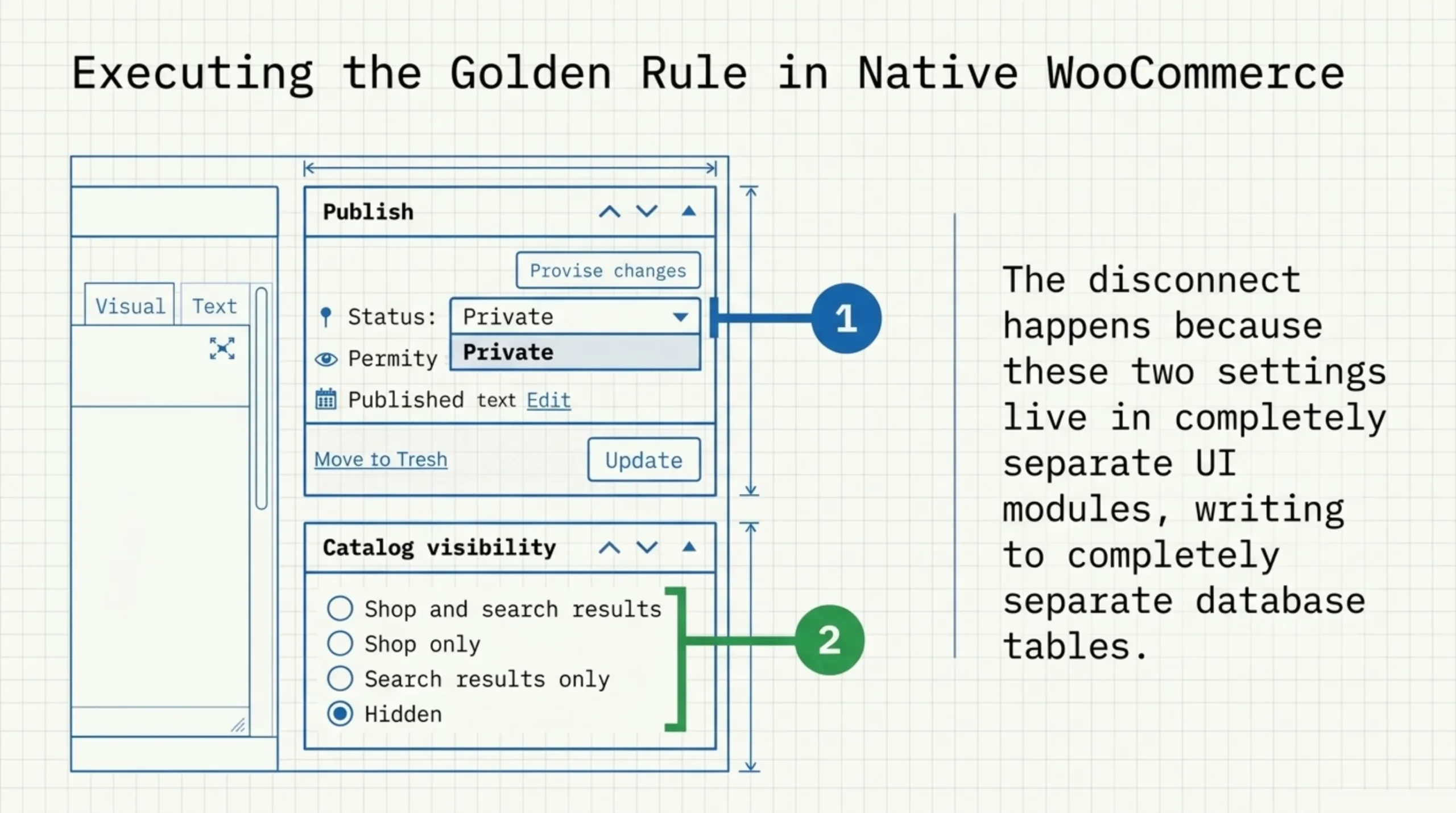
Open a product in the editor. The right sidebar shows a Catalog visibility panel: this is part of how to add and manage products in WooCommerce out of the box (woocommerce.com/document/managing-products). Four options are listed: Shop and search results, Shop only, Search only, Hidden. Picking Hidden writes both exclude-from-catalog and exclude-from-search into wp_term_relationships against the product_visibility taxonomy.
The setting is per-product. There is no native bulk path to flip 200 products to Hidden through the standard WordPress UI. The Products screen’s Bulk Edit dropdown does not include a Catalog visibility field, even in WooCommerce 9.x. This is one of the older gaps in WooCommerce admin that has not been closed in core for years, and core contributors keep punting it to plugin land.
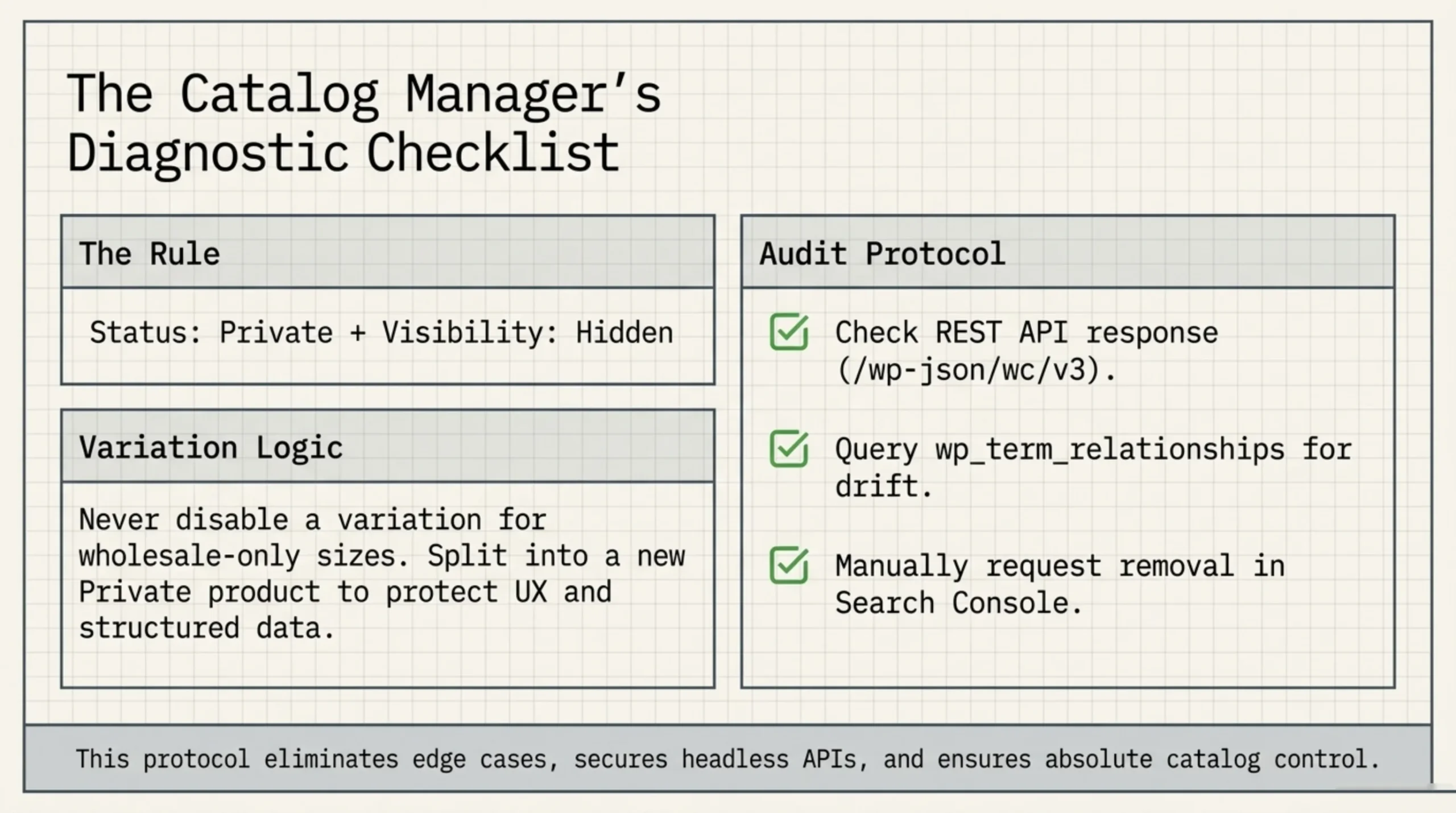
For Private products specifically, setting Catalog visibility to Hidden alongside post status Private is overkill but harmless. The Private status alone already removes the product from anonymous shop loops and from search results. I add Hidden anyway on every Private product I touch, because admin users browsing the storefront while logged in will otherwise see them in shop loops, which makes QA confusing for clients. The Private + Hidden combination is what I recommend when somebody asks how to hide private products from WooCommerce store with zero edge cases left exposed.
A small note on REST API behavior. Setting Catalog visibility to Hidden does not remove the product from /wp-json/wc/v3/products for authenticated requests; the product still returns with catalog_visibility: "hidden". The hide is presentation-layer for shop loops, not a true API filter. Headless storefronts that pull from this endpoint need to filter on catalog_visibility themselves, or the “hidden” SKUs will render on the public site.
Bulk Hiding: How to Hide Private Products from WooCommerce Store Across Hundreds of SKUs
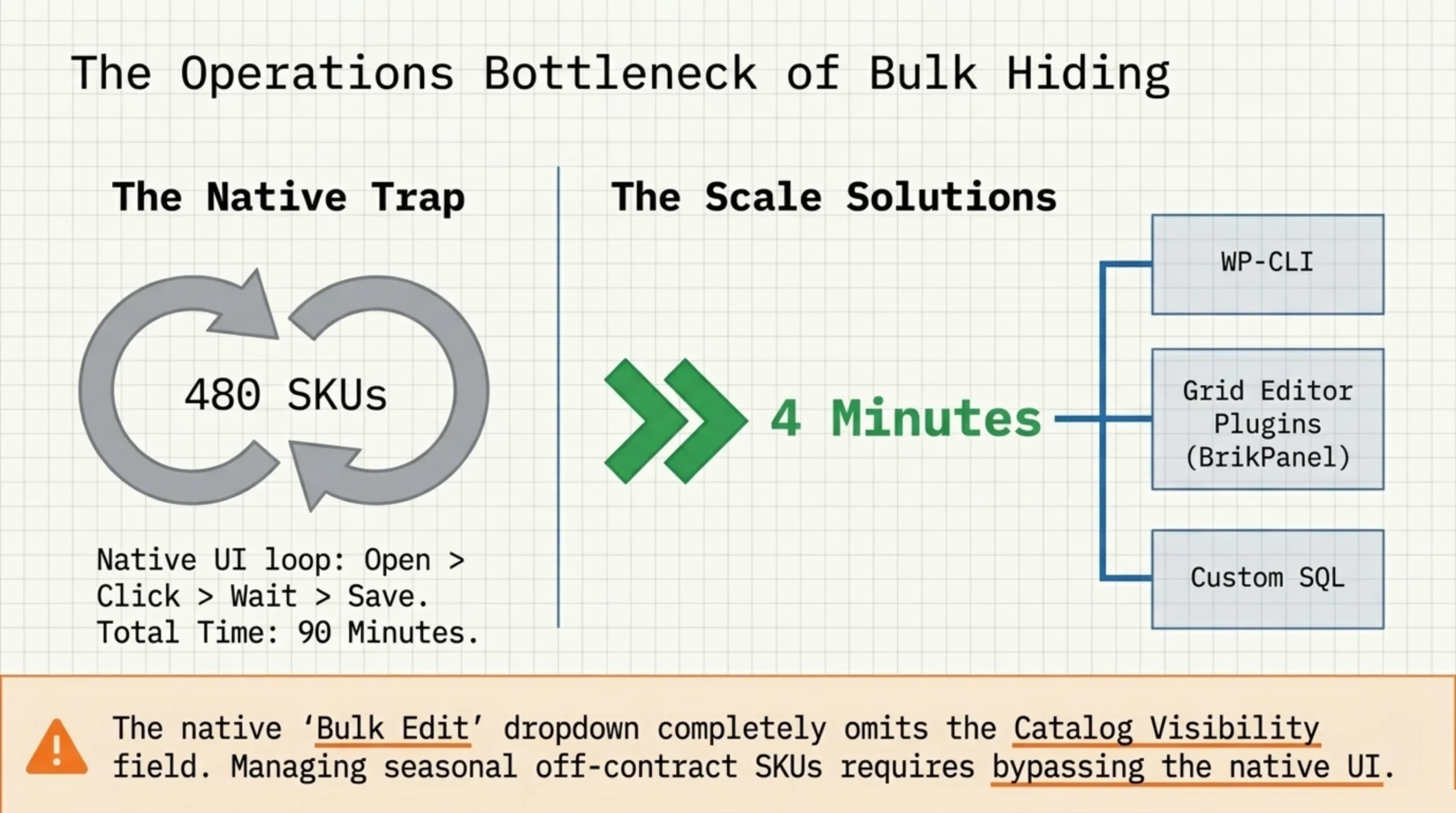
Per-product visibility settings are fine for catalogs of 50 SKUs. The native Products screen scales painfully past 200. I worked on a B2B store last quarter (October 2025) where the operations team needed to hide 480 SKUs that went off-contract on the 1st of every month, then re-publish them when new contracts kicked in. Through the native UI, the cycle was a 90-minute job and they ran it twelve times a year.
The supporting keyword “how to add and manage products in WooCommerce” usually gets answered with the official Products screen tutorial. That tutorial stops at single-product editing. For bulk visibility flips, you have three real options:
- WP-CLI:
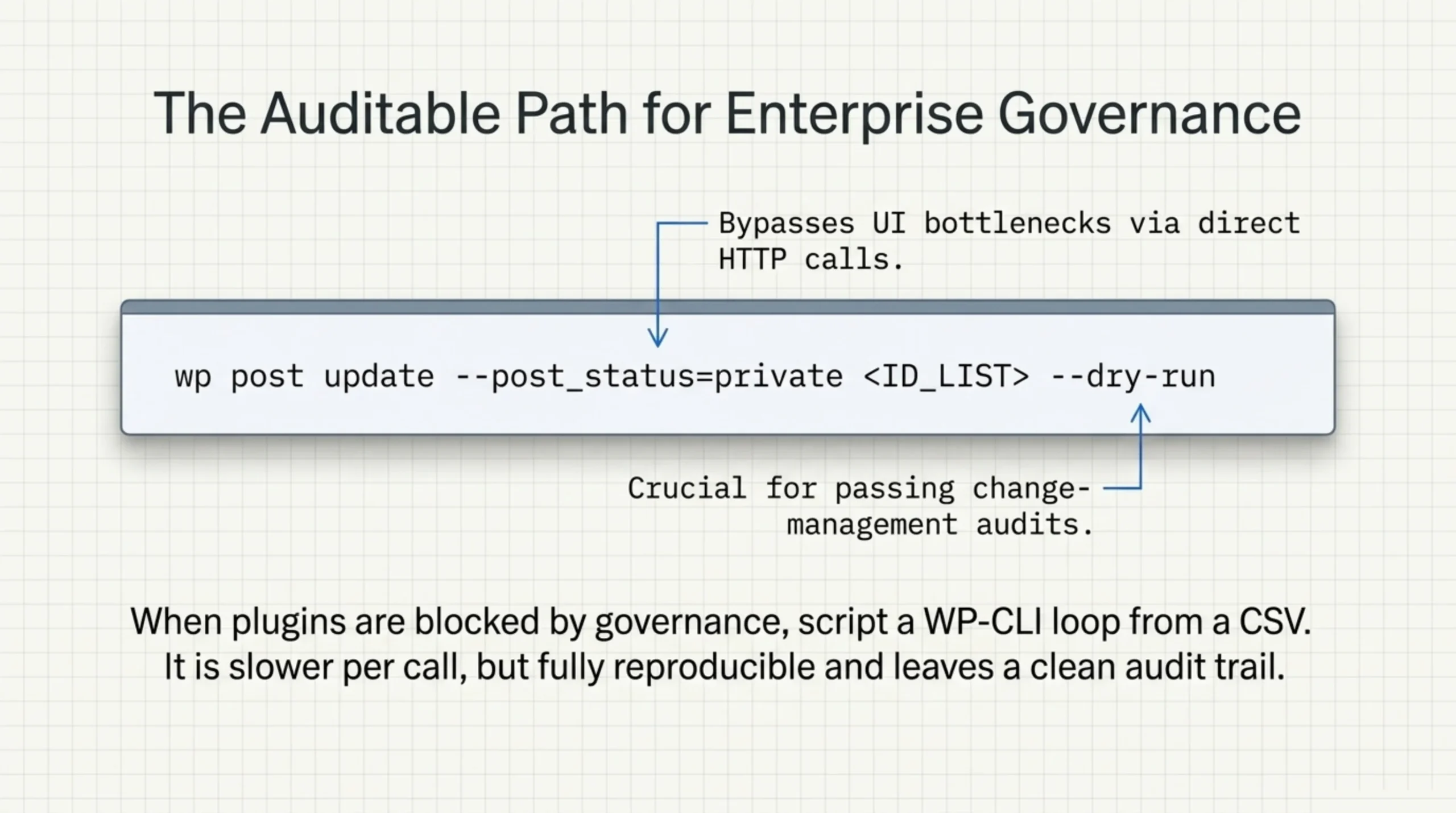
wp post update <ID> --post_status=privateper ID, scripted from a CSV (developer.wordpress.org/cli/commands/post/update). Reproducible. Slow per call (one HTTP-equivalent per ID). - A grid editor that exposes status and Catalog visibility as inline toggles on the Products screen. Fast. Requires a plugin.
- Custom SQL on
wp_posts.post_statusandwp_term_relationships. Avoid in production unless you genuinely understand both tables and have a backup taken in the same session.
The grid editor is what I default to on client work. BrikPanel’s product list plugin adds a publish/private toggle column directly on the Products screen, plus a quick-edit sidebar that flips Catalog visibility without round-tripping to the editor. On the B2B store above, the same 480-SKU cycle dropped from 90 minutes to 4. The save handler updates post_status and writes the product_visibility term relationships in the same DB transaction, which is what you want so the half-saved state (visible status with hidden meta, or the reverse) never happens during a bulk operation.
A wide screenshot of that screen tells the story better than prose: the Products list shows the post-status badge inline next to the product title, and clicking the toggle opens a slide-out where you set status, Catalog visibility, and stock status in one save. That is the layout I run on every client store with more than 200 SKUs. If you cannot install plugins for governance reasons, the WP-CLI loop is the next-best path. Wrap it in a shell script with a --dry-run flag, log every changed ID, and the auditors will accept it as a reproducible procedure for how to hide private products from WooCommerce store. The patch is ugly. It works.
How to Manage WooCommerce Product Variations Effectively When Only Some Variations Should Stay Hidden
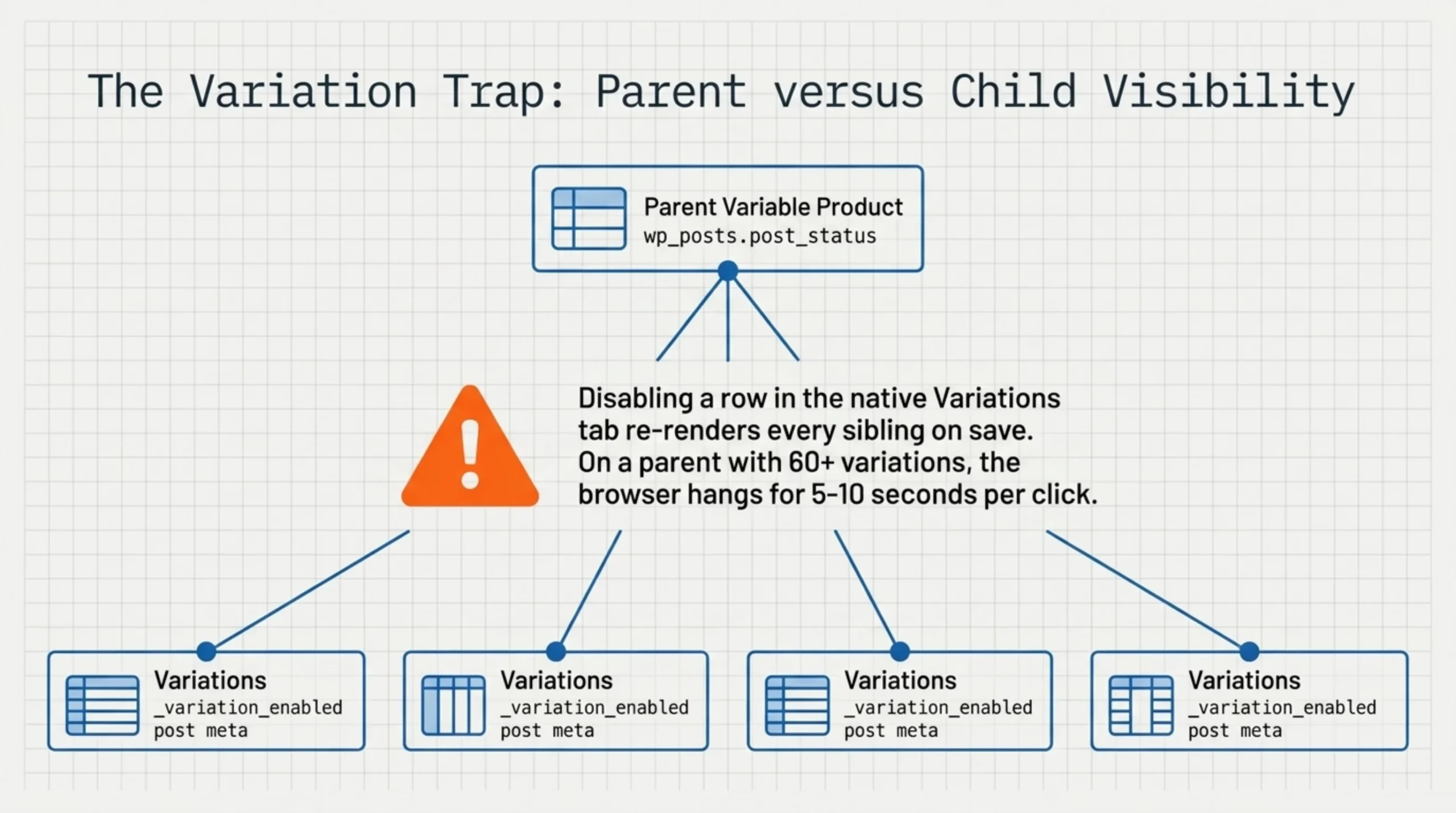
A subtle case shows up on stores with large variable products: a parent product is published and visible, but 2 of its 12 variations are seasonal or B2B-only. You do not want to delete those rows, because the SKUs will come back next quarter, but you do not want them showing in the variation dropdown for the public.
WooCommerce variation visibility is a separate setting from parent visibility. On each variation row you have an Enabled toggle (woocommerce.com/document/managing-products). Disabling a variation removes it from the storefront variation dropdown and from frontend variation queries. The row stays in wp_posts with post_status = 'publish' (variations are stored as their own product_variation post type with a parent_id pointing back to the variable product), so re-enabling next quarter is one click rather than a recreate.
How to manage WooCommerce product variations effectively when half need to stay public and half need to be hidden: do not toggle Enabled per row through the native Variations tab. The tab re-renders every variation row on every save, and on a parent with 60+ variations the JS hangs 5 to 10 seconds per click. I migrated a fashion store off Magento in March 2024 with 12,400 variations across 3,100 parents, and the only reason that catalog was workable at all was a grid view that flipped Enabled inline without rerendering siblings. The Variation Editor module in BrikPanel is what I used; it loads all variations across all parents on one page, and the Enabled column saves row-by-row through Ajax.
Where this ties back to the topic at hand: how to hide private products from WooCommerce store and how to hide individual variations are two different settings, written to two different tables (wp_posts.post_status for the parent, _variation_enabled post meta on the variation row, plus a separate product_visibility taxonomy term for catalog filtering). Confusing them is how you end up with a Private parent whose variations are still publicly indexed via JSON-LD if a structured-data plugin is generating per-variation snippets. The audit query in the next-but-one section catches that case in seconds. Ask me how I know I needed it.
How to Create Multiple Options for One Product WooCommerce While Keeping Hidden Ones Invisible
Variations and attributes are distinct concepts and people mix them up constantly. How to create multiple options for one product WooCommerce uses the variable product type: set up product attributes (Size, Color, Material), enable “Used for variations” on the ones that should generate SKUs, generate variations from the cartesian product, and you have N rows representing the combinations (woocommerce.com/document/managing-product-categories-tags-and-attributes).
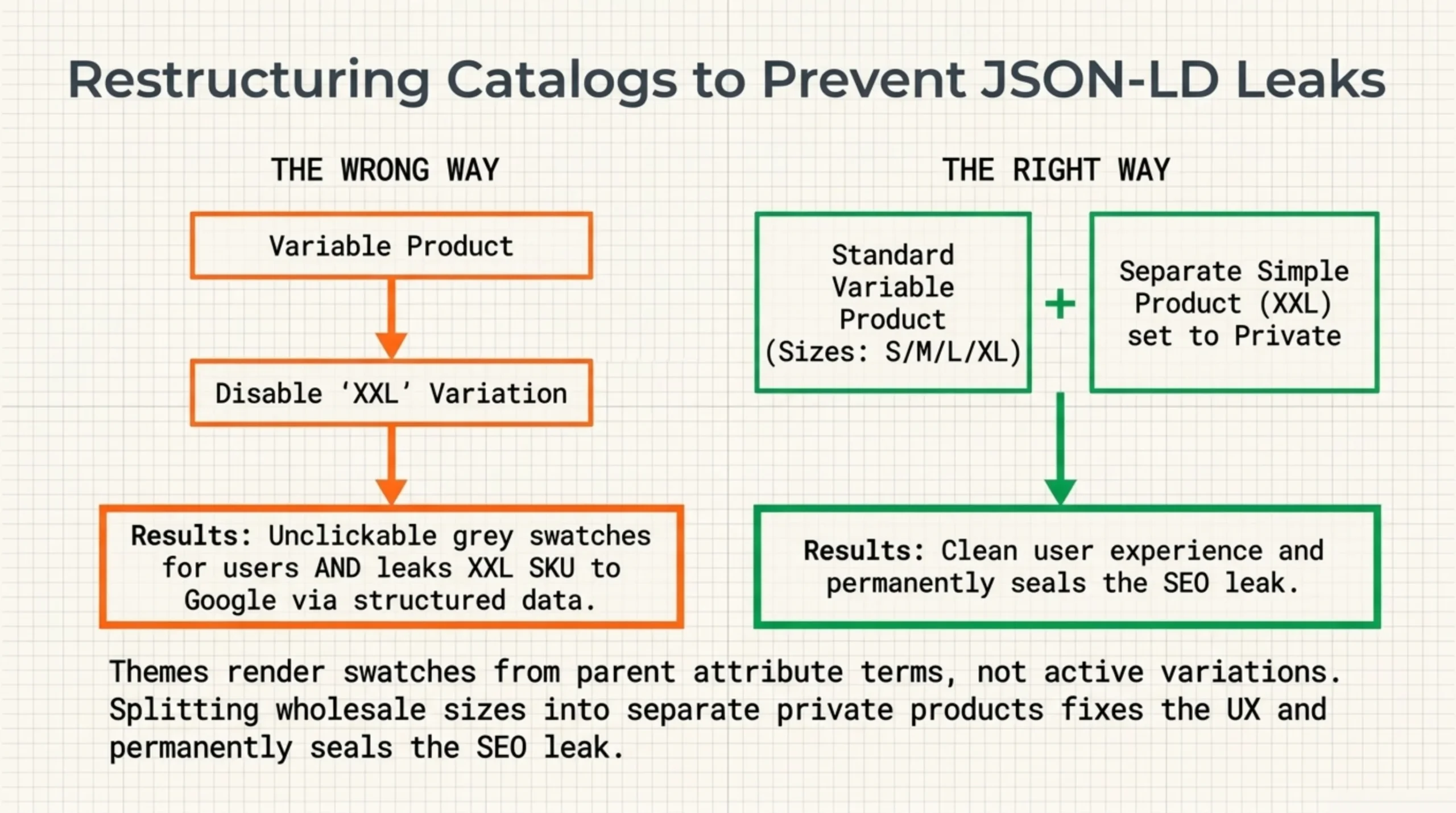
The hiding question on top of that: if Size has values S/M/L/XL/XXL and only XXL is internal-only (a B2B sample size, say), making the XXL variation Disabled is not actually clean. The Disabled flag hides XXL from selection. The XXL value still appears in the swatch UI on most modern themes, because themes render attribute swatches from the parent product’s attribute terms, not from the active variation set. The user sees a greyed-out XXL swatch that they cannot click, which is worse UX than not showing it at all.
The cleaner approach for “I have 5 sizes, I only want 4 visible to retail customers” is to remove XXL from the attribute’s Used for variations set on the parent, regenerate, and store XXL as a separate product with post_status = 'private'. Two products instead of one variable. I learned that on a 2024 client store where we stuffed B2B-only sizes into the variable product, and Yoast’s structured data picked them up regardless of the Disabled flag, exposing wholesale-only SKUs in Google’s product knowledge panels for two weeks before we caught it. The fix was splitting the catalog. The original architecture decision was wrong.
This is also where how to hide private products from WooCommerce store and how to create multiple options for one product WooCommerce intersect cleanly: the answer is sometimes “make the hidden option a separate Private product, not a variation of the visible parent”. Variable products are not the right shape for partial visibility, and trying to force them into it costs you more time than the duplication does.
How to Check WooCommerce Product Data Table When a Hidden Product Is Still Showing
When a “hidden” product appears in shop loops, search results, or sitemaps anyway, the answer is almost always in wp_postmeta and wp_term_relationships, not in the admin UI. The admin UI lies more often than people expect, because it reads from cached values that drift after bulk operations.
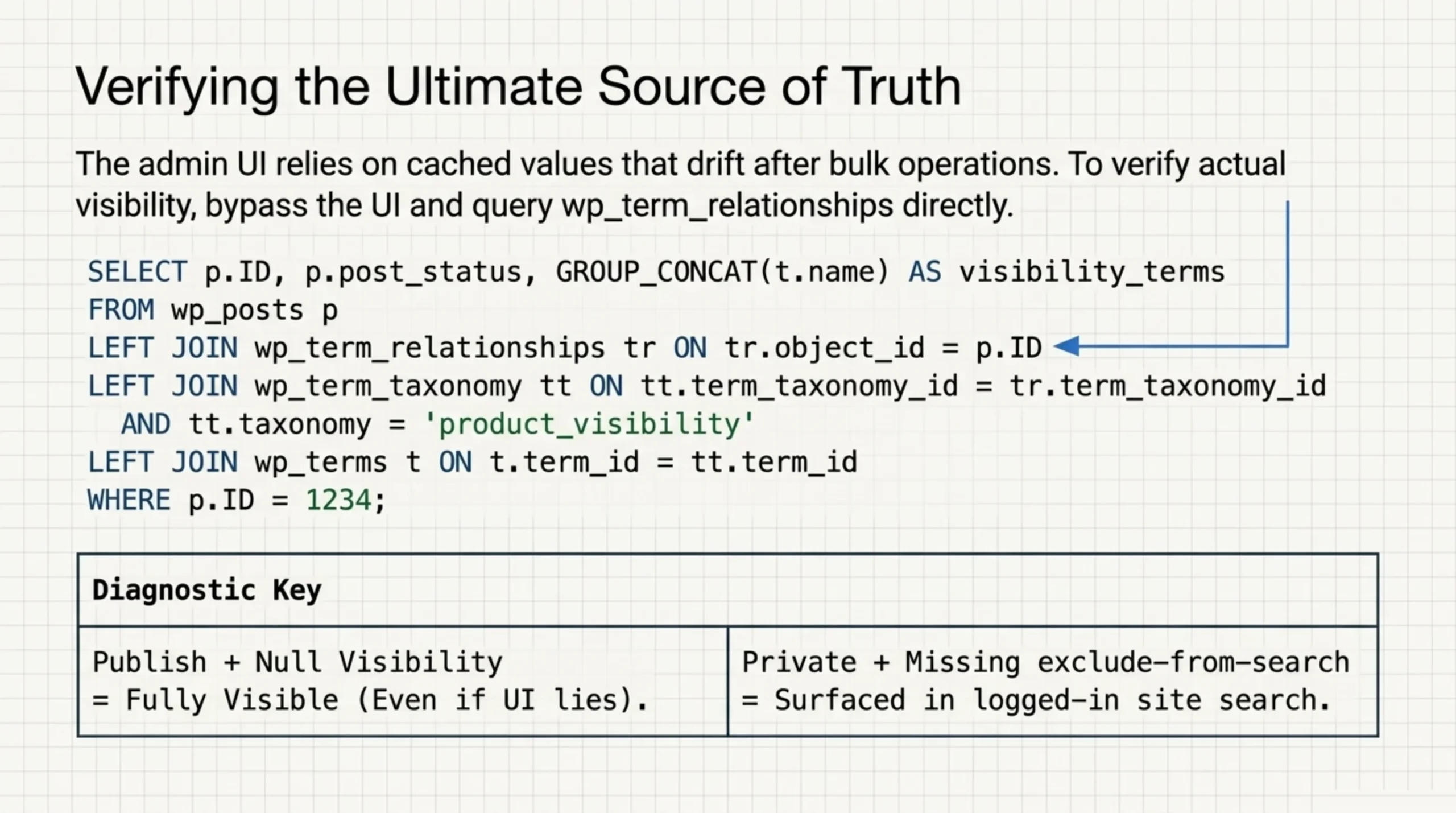
How to check WooCommerce product data table for the visibility state of a specific product:
SELECT p.ID, p.post_title, p.post_status,
       GROUP_CONCAT(t.name SEPARATOR ', ') AS visibility_terms
FROM wp_posts p
LEFT JOIN wp_term_relationships tr ON tr.object_id = p.ID
LEFT JOIN wp_term_taxonomy tt ON tt.term_taxonomy_id = tr.term_taxonomy_id
  AND tt.taxonomy = 'product_visibility'
LEFT JOIN wp_terms t ON t.term_id = tt.term_id
WHERE p.ID = 1234
GROUP BY p.ID, p.post_title, p.post_status;
Run that against your prefix. If post_status is publish and visibility_terms is null, the product is fully visible regardless of what the admin UI shows. If post_status is private but exclude-from-search is missing from the visibility terms, the product is hidden from anonymous visitors but still discoverable through internal search components that run as logged-in users. Some site-search plugins do this, and they will surface Private products to admins who are QA-ing the catalog while logged in, which feels like a leak even though it is not technically one.
A faster diagnostic from an HTTP client: hit the product’s REST endpoint at /wp-json/wc/v3/products/<id> with admin credentials (woocommerce.com/document/woocommerce-rest-api). The status field tells you private versus publish. The catalog_visibility field tells you hidden versus visible. Both should match what the editor showed. They drift more often than they should, usually because a third-party plugin (CSV importer, ERP sync, marketplace connector) wrote one and not the other.
For ongoing audits at scale, BrikPanel’s product list plugin shows post_status and Catalog visibility side-by-side as columns on every Products screen row. Sort by either. Filter to “published + hidden” or “private + visible” combinations, and you immediately see misconfigured rows. It is the column I check first when a client says “we hid this last week and it just showed up on the homepage on Monday”. Knowing how to hide private products from WooCommerce store is half the battle. Catching the ones that are not actually hidden is the other half.
FAQ
About BrikPanel
BrikPanel is a free WordPress admin plugin that adds inline status toggles, Catalog visibility columns, and a quick-edit sidebar to the Products screen. If you do bulk visibility flips often (staff stores, B2B catalogs, seasonal SKUs), install it from wordpress.org/plugins/brikpanel-admin-panel-dashboard-for-woocommerce. The product list module is the fastest path I know for how to hide private products from WooCommerce store without writing custom SQL or kicking off a CLI script every time a contract ends.
Eventually, yes, once Google recrawls and your sitemap regenerates. The process is not instant. Yoast excludes Private products from the next sitemap regeneration (yoast.com/help/the-yoast-seo-xml-sitemap), but if you previously submitted the URL to Search Console, the index entry persists until Google decides to recheck. Plan on a 1 to 4 week tail when you hide private products from WooCommerce store and need them out of Google fast. Request manual removal in Search Console rather than waiting for the natural recrawl.
Only by logged-in users with the right capability. Anonymous visitors get a 404 on the product URL, so the Add to Cart form never renders. If you need to allow specific customers to buy a hidden product, the cleaner pattern is post_status = 'publish' with Catalog visibility set to Hidden, plus a unique URL you only share with those customers through email or a quote document.
Catalog visibility set to Hidden does exactly that. The product publishes, the URL works for everyone, but it does not appear in shop loops or site search. This is what most people actually want when they say “hidden”, and it is the answer to how to hide private products from WooCommerce store without breaking direct-link access for newsletter campaigns or quote-only SKUs.
Yes, because variations are queried through the parent. Setting the parent to Private or Hidden means the variations are unreachable through the storefront. There is no way to land on a variation page without going through the parent. The variation rows still exist in wp_posts with their own status, but they are not addressable to the public.
They are returned by /wp-json/wc/v3/products only if the request is authenticated with a key that has read_private_products capability. Public REST consumers see them as if they did not exist. This matters for headless storefronts: if you front WooCommerce with Next.js or a similar layer, Private status correctly hides the product from your public API consumers without any extra filtering on the frontend. Catalog visibility set to Hidden, on the other hand, does not filter the API response, which is a common gotcha when teams assume the two settings behave the same way through REST.
WP-CLI, scripted from a CSV. The exact command is wp post update <ID> --post_status=private, looped across the IDs you want hidden. Slower than a grid editor but auditable, scriptable, and survives plugin governance reviews. Run it inside a transaction-aware deploy script and log the before-and-after state of each row.
Sources Used
- developer.wordpress.org/reference/functions/get_post_status — cited for the
read_private_productscapability and how WordPress core resolves Private post status for authenticated users. - wordpress.org/documentation/article/content-visibility — cited for the WordPress core visibility settings (Public, Private, Password protected) that sit underneath WooCommerce’s product layer.
- woocommerce.com/document/managing-products — cited for the Catalog visibility panel options, the per-variation Enabled toggle, and the official Products screen behavior.
- woocommerce.com/document/managing-product-categories-tags-and-attributes — cited for the variable-product attribute model and the “Used for variations” flag that drives variation generation.
- developer.wordpress.org/cli/commands/post/update — cited for the
wp post updatecommand used to script bulk post-status flips from a CSV. - woocommerce.com/document/woocommerce-rest-api — cited for the
/wp-json/wc/v3/products/<id>endpoint and thestatusandcatalog_visibilityfields used for diagnostics. - yoast.com/help/the-yoast-seo-xml-sitemap — cited for Yoast’s behavior excluding Private and Draft posts from the XML sitemap on regeneration.
- wordpress.org/plugins/brikpanel-admin-panel-dashboard-for-woocommerce — cited as the install location for BrikPanel.
