
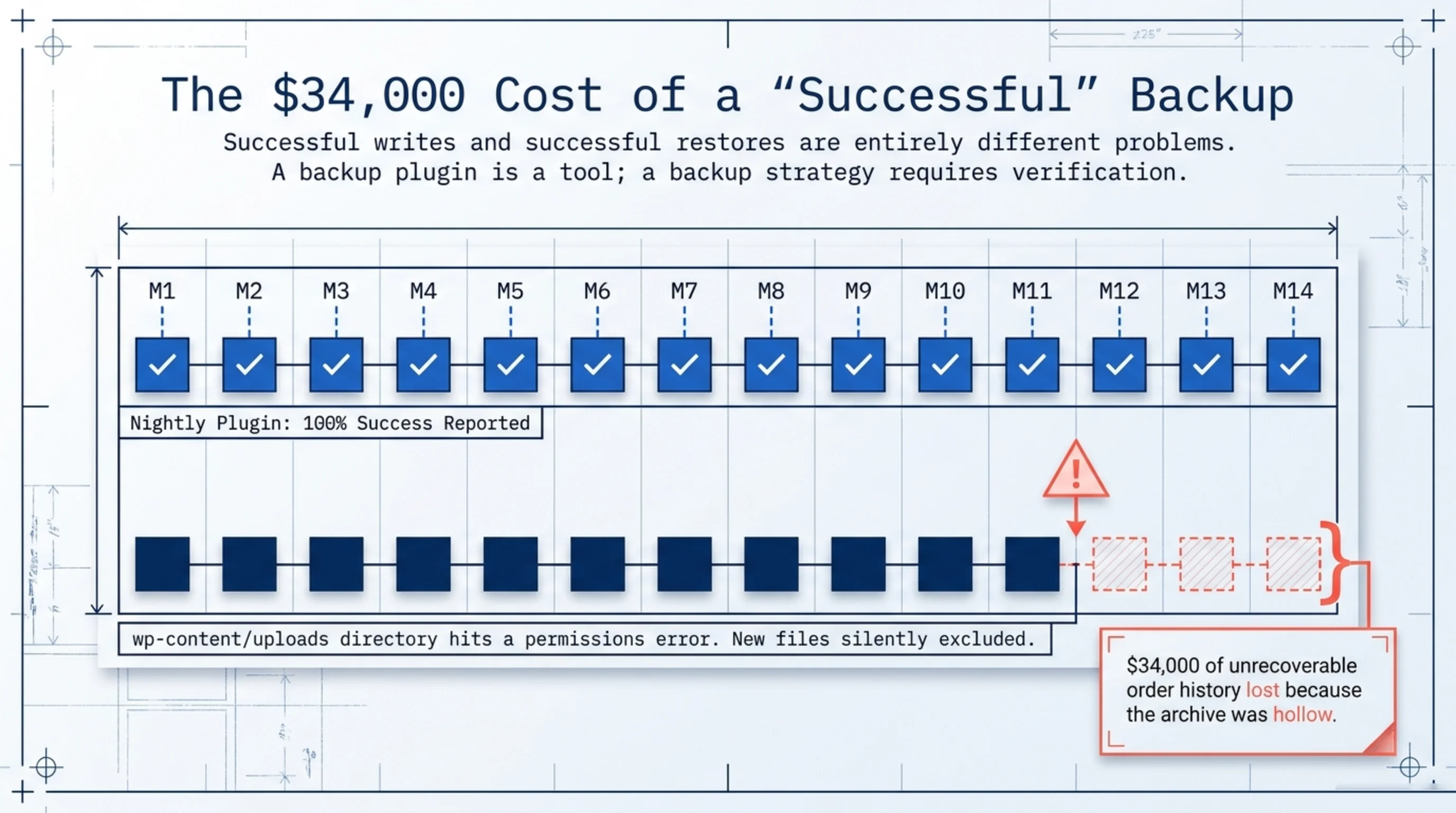
Last August, a client called at 6am on a Sunday. Their WooCommerce store had just rolled back to a state from six days earlier. Every order, every customer note, every stock movement from those six days, gone. Their hosting provider had restored “the latest backup” after a disk incident, and the latest backup turned out to be the one their nightly plugin had been successfully writing, while a permission change on wp-content/uploads had quietly stopped any new files from being included for two months. They lost roughly $34,000 in unrecoverable order history because nobody had ever tested a restore from that backup. That is what learning how to backup a WooCommerce site actually means: not setting up a plugin, but verifying that what comes out the other end is whole.
Most “how to backup a WooCommerce site” tutorials end at “install UpdraftPlus and click Backup Now”. That is the easy 15% of the problem. The other 85% — what to back up, where to put it, how to verify it, and how the host’s quirks get in the way — is what this guide covers.
How to backup a WooCommerce site: what actually counts as “the site”
A WooCommerce store is not a single thing. Backing up the WordPress files alone misses orders. Backing up the database alone misses uploaded product images. Knowing how to backup a WooCommerce site starts with knowing what each piece is and where it lives.
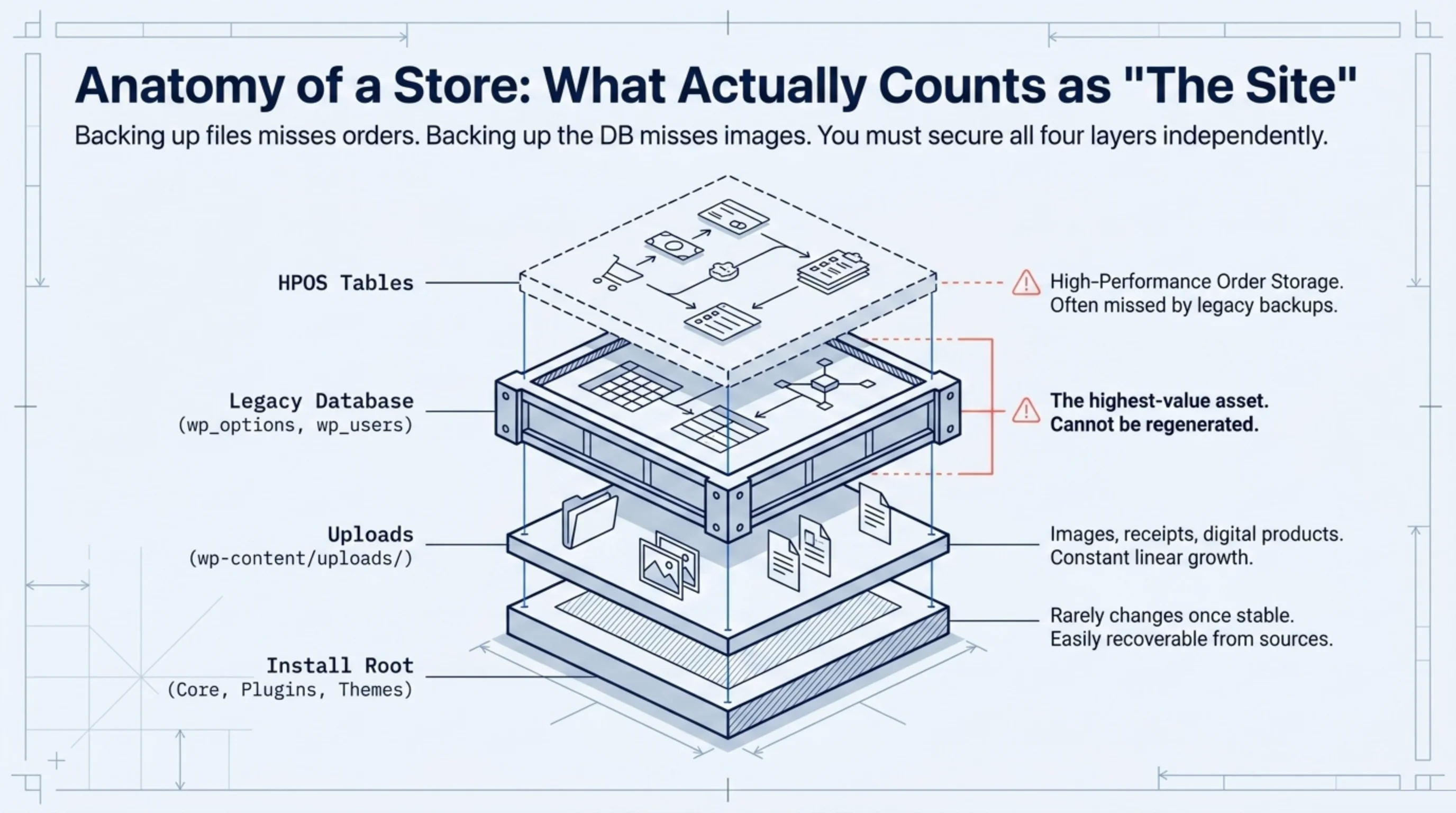
The four parts that matter:
- WordPress core, plugin, and theme files under your install root. These rarely change once production is stable.
- Uploads under
wp-content/uploads/. Product images, downloadable files, customer-uploaded receipts. These grow constantly. - The MySQL database. Posts, orders, customers, stock fields, sessions. The highest-value asset on the entire site.
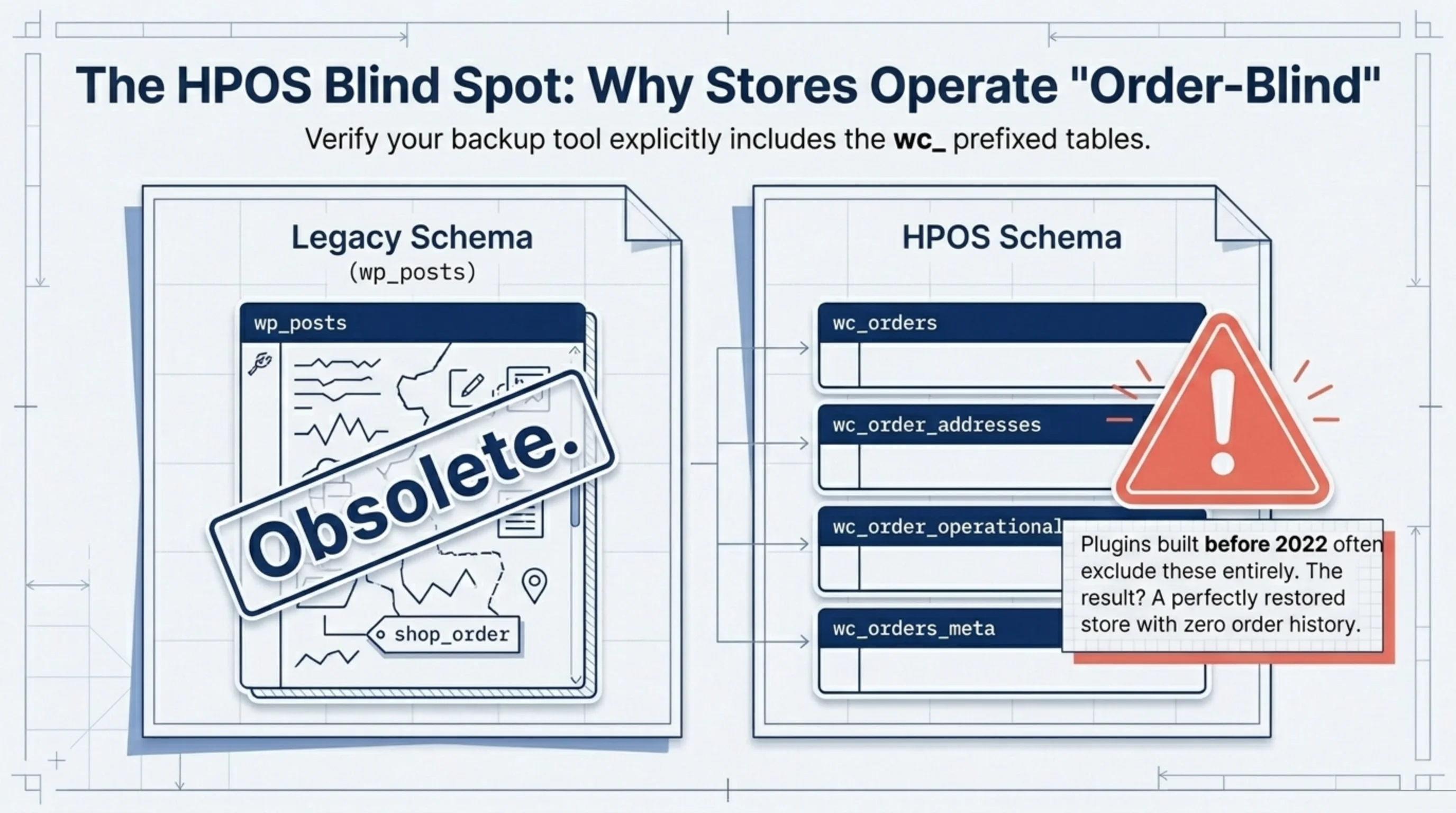
- HPOS order tables if you have High-Performance Order Storage enabled:
wc_orders,wc_order_addresses,wc_order_operational_data,wc_orders_meta(woocommerce.com/document/high-performance-order-storage). Some older backup plugins were still missing these as recently as 2024.
A backup that covers files but skips the database can be reconstructed in a day. A backup that covers the database but skips uploads loses every product image. A backup that has both but skips the new HPOS tables — that store is operating blind on order history after restore. The official WordPress backup documentation (wordpress.org/documentation/article/wordpress-backups) treats files and DB as separate domains for exactly this reason.
Why how to backup WooCommerce database matters more than file backups
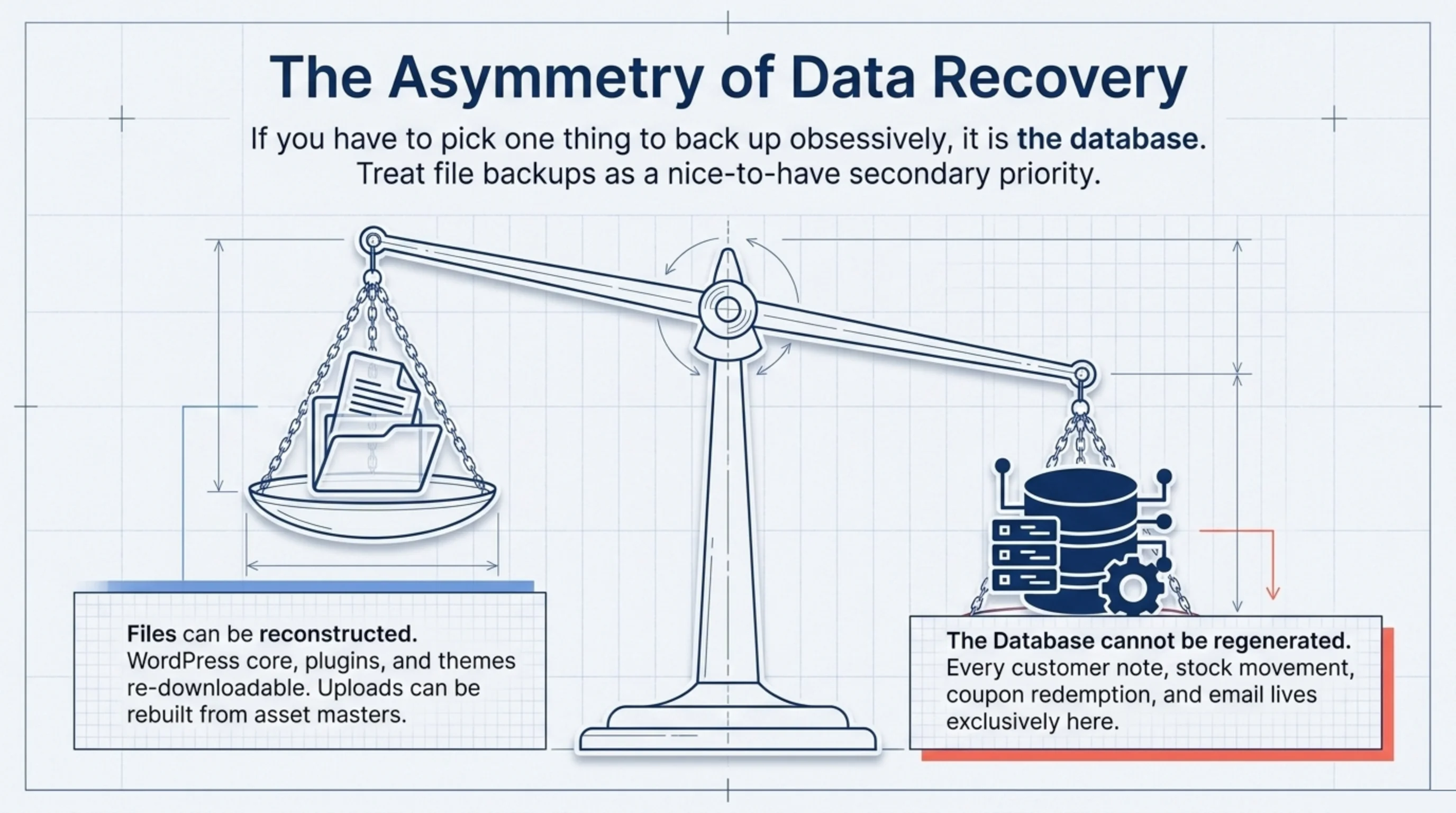
If you have to pick one thing to back up obsessively, it is the database. Files are mostly recoverable: WordPress core, plugins, and themes can be re-downloaded from their sources; uploads can usually be reconstructed from your asset master. The database cannot be regenerated. Every order, every customer email, every coupon redemption lives there.
The clean way to handle how to backup WooCommerce database state on a production store is WP-CLI:
wp db export woocommerce-$(date +%Y%m%d-%H%M).sql --add-drop-table
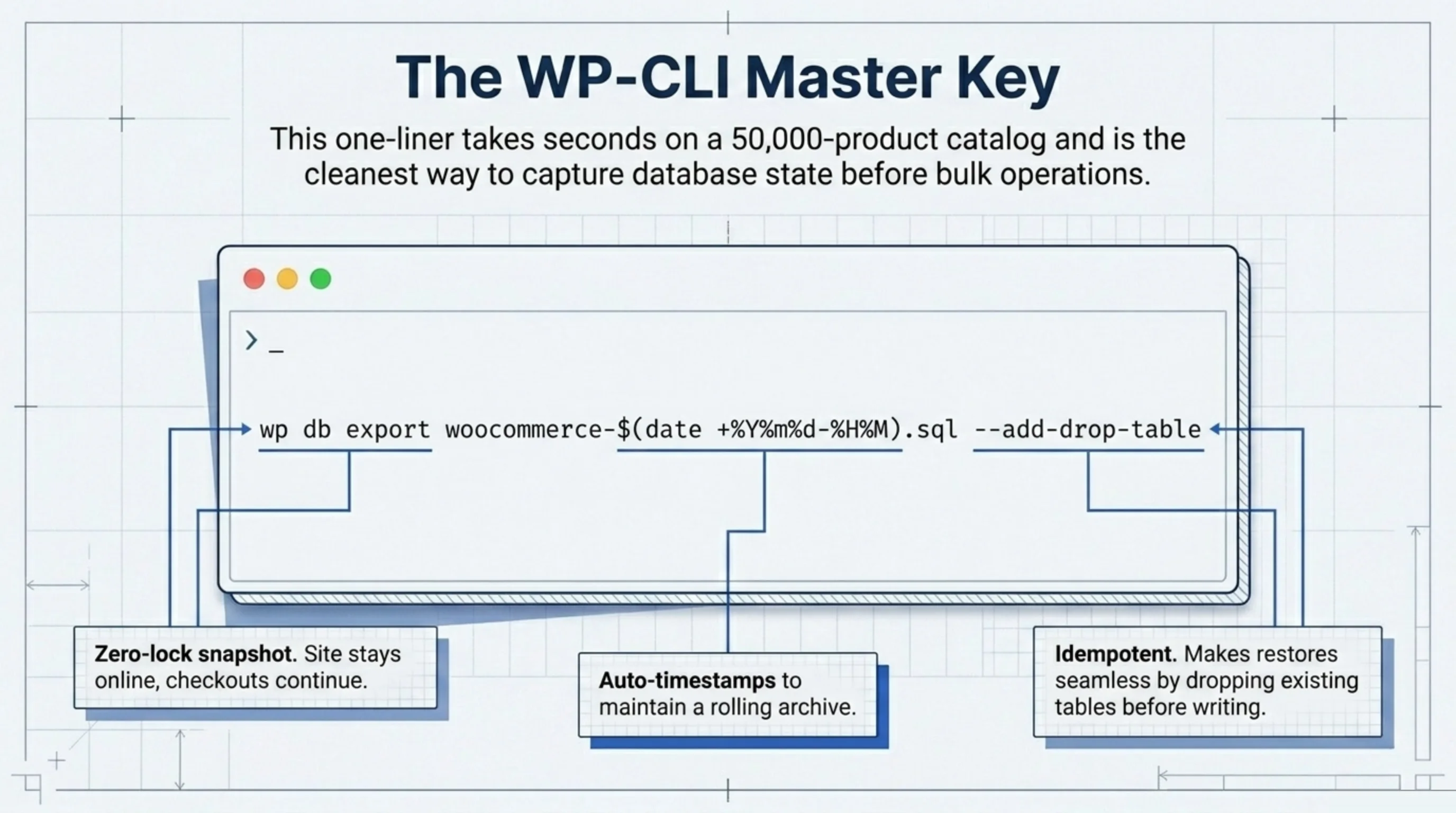
One line. Dumps the entire database with DROP TABLE statements that make restore idempotent (developer.wordpress.org/cli/commands/db/export). Tag with timestamp so you keep multiple. I run this on every client store before any bulk operation: bulk price update, plugin upgrade, custom SQL, anything that touches more than 20 rows. The dump takes seconds on a 50,000-product catalog and saves hours when something breaks. Restoring it later uses the paired command wp db import (developer.wordpress.org/cli/commands/db/import).
The unpopular take. Most “best WordPress backup plugins” articles (kinsta.com/blog/wordpress-backup-plugins) treat database backup as one feature among many. For WooCommerce specifically, it is the only feature that matters. Pick a tool that does the database well and treat file backups as nice-to-have.
For scoped backups limited to WooCommerce-specific tables (faster on big stores), use the --tables flag:
wp db export woocommerce-only.sql \
  --tables=wp_posts,wp_postmeta,wp_woocommerce_sessions,wp_wc_orders,wp_wc_order_addresses,wp_wc_order_operational_data,wp_wc_orders_meta
Restore from a scoped dump is faster and safer than restoring an entire database when only the commerce data is corrupted.
How to back up WooCommerce products and order history together
Products and orders live in different tables. Both matter, but they fail differently. Products break on bulk edits and CSV imports. Orders break on payment gateway issues, refund flows, and HPOS migration mistakes. When you sit down to figure out how to back up WooCommerce products specifically, what you are really doing is making sure the wp_posts rows of post type product and product_variation, plus their matching wp_postmeta rows, come along together with the taxonomy tables.
A surgical export for just the product layer:
wp db export products-only.sql \
  --tables=wp_posts,wp_postmeta,wp_terms,wp_term_taxonomy,wp_term_relationships
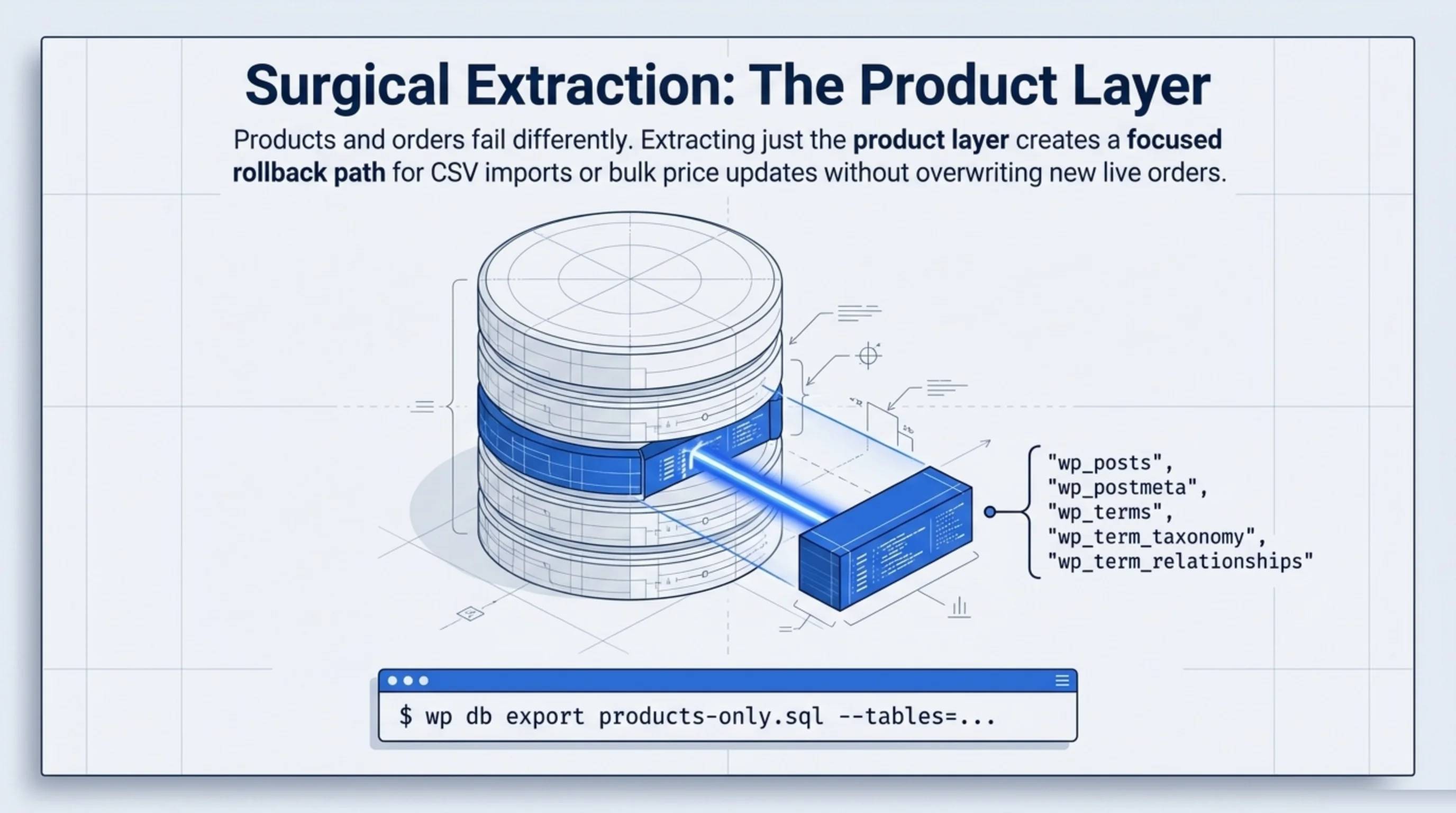
This captures products, variations, attributes, categories, and tags. Not orders. Useful when you are about to run a risky CSV import and want a focused rollback path that does not touch the order tables.
For orders, the table list depends on whether HPOS is enabled. The legacy schema kept orders in wp_posts with post type shop_order. The HPOS schema moved them to dedicated tables. A backup workflow built in 2022 that still excludes HPOS tables is, I have seen this on three client stores in the last six months, silently shipping order-blind backups to S3 every night. Test by restoring to staging once a quarter; this is the only way to catch a misconfigured table list.
A real backup-before-bulk-operation routine I run on every store I manage:
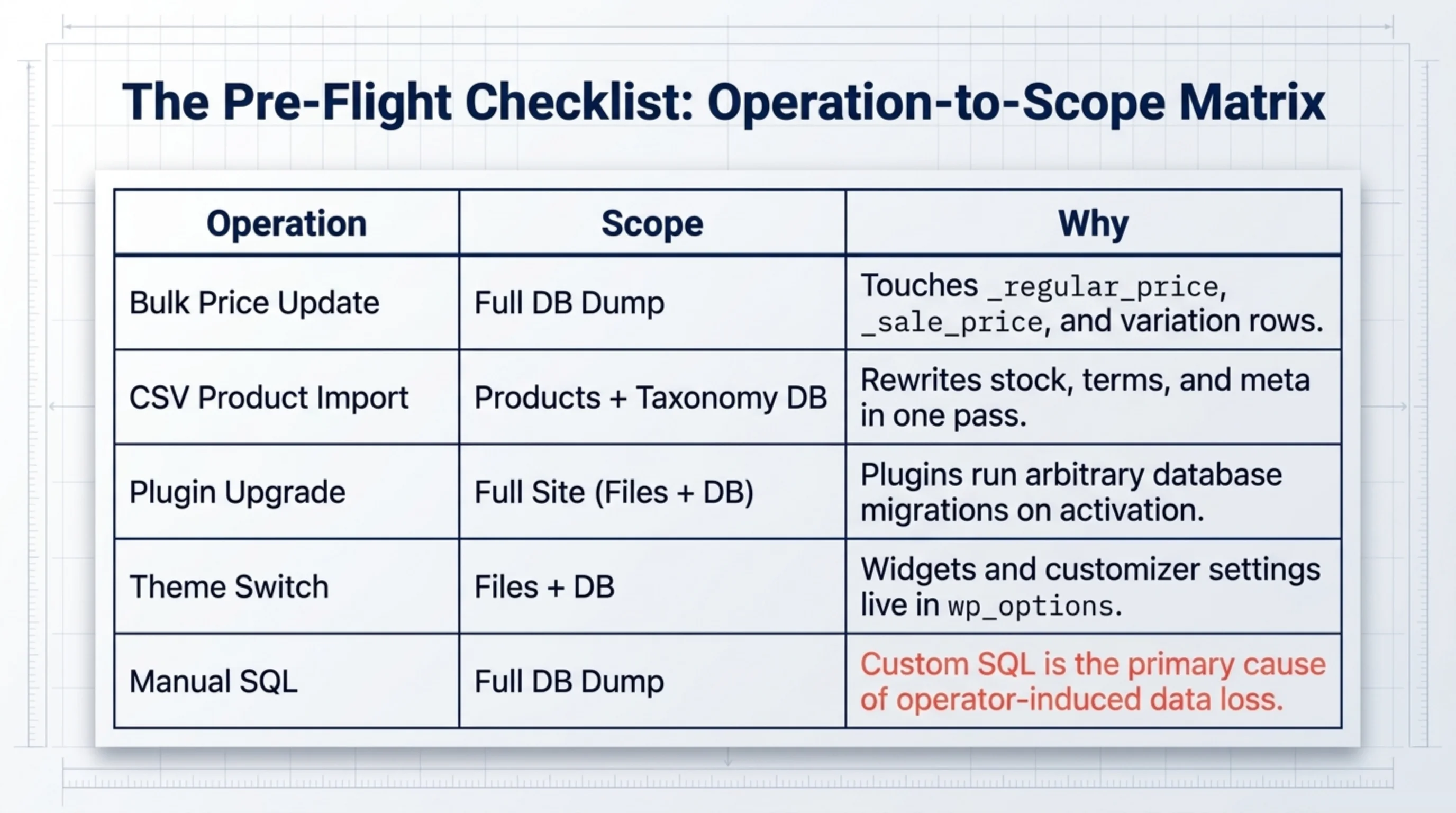
| Operation | Backup scope | Why |
|---|---|---|
| Bulk price update | Full DB dump | Pricing touches _regular_price, _sale_price, and variation rows |
| CSV product import | Products + taxonomy tables | Imports rewrite stock, terms, and meta in one pass |
| Plugin upgrade (high risk) | Full site (files + DB) | Some plugins run migrations on activation |
| Theme switch | Files + DB | Widgets and customizer settings live in wp_options |
| Manual SQL on production | Full DB dump tagged with the change description | Custom SQL is where I have caused my own worst incidents |
Knowing how to back up WooCommerce products at this granularity, picking the right scope per operation, is the difference between a 30-second restore and a 90-minute one.
How to find WooCommerce database Bluehost users keep losing track of
Half the support questions I get from Bluehost customers start with the same problem: they cannot find the database to back it up. Bluehost ships a customized cPanel that buries phpMyAdmin a few clicks below “Advanced”, and the database name is rarely the obvious one.
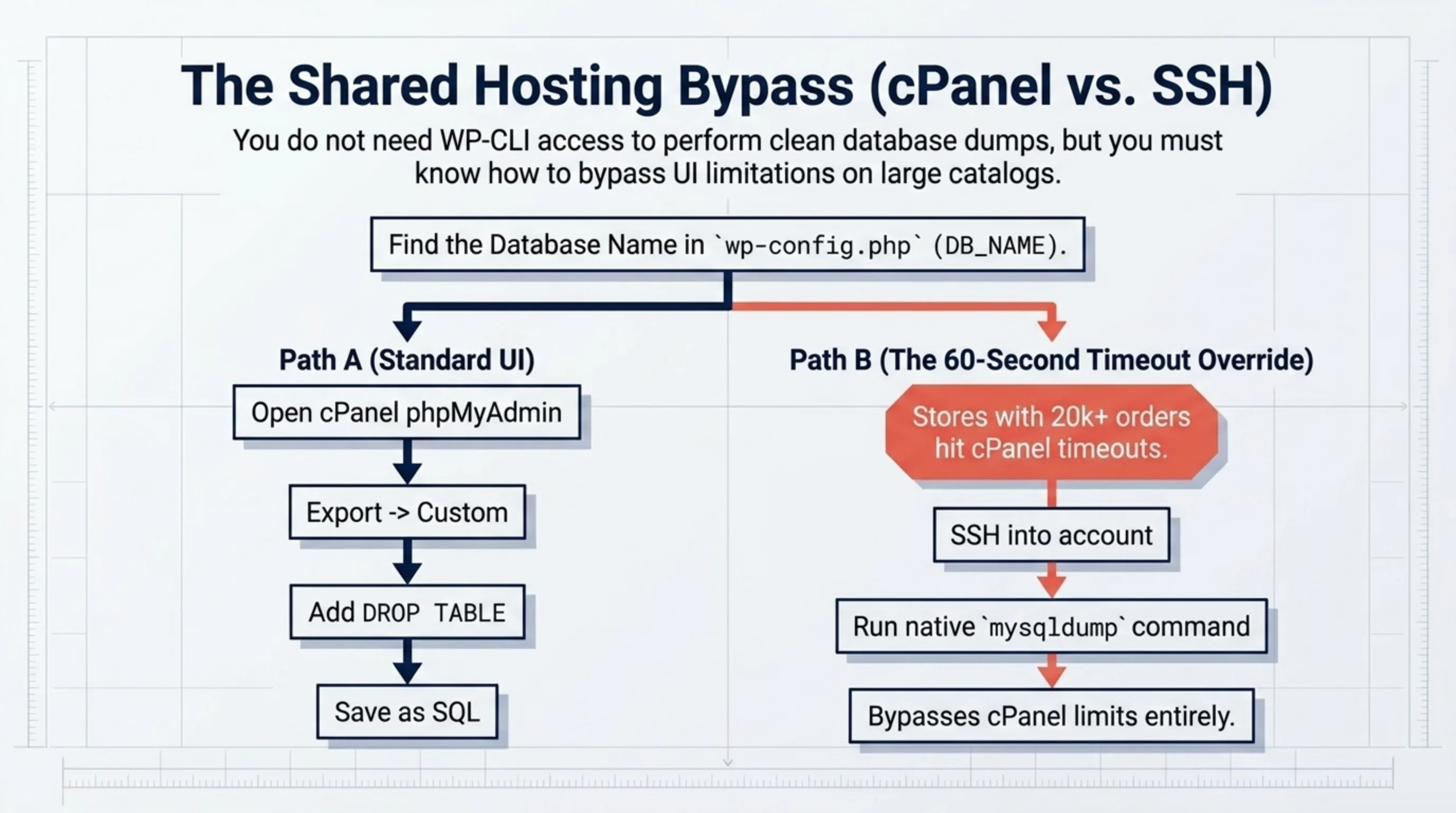
How to find WooCommerce database Bluehost-style, in three concrete steps:
- Get the database name from
wp-config.php. Log in to Bluehost, then Hosting, then File Manager. Openpublic_html/wp-config.php. Look for the linedefine('DB_NAME', 'something_wp123');. That string is your database name. Bluehost prefixes the account name plus a numeric ID. - Open phpMyAdmin scoped to that database. From cPanel go to the Databases section and click phpMyAdmin. Pick the database matching
DB_NAMEfrom the left sidebar. WooCommerce-specific tables start withwp_woocommerce_andwp_wc_(HPOS). - Export from phpMyAdmin. Select all tables, then Export, then Custom, check “Add DROP TABLE”, set format to SQL, click Go. This produces the same kind of dump as
wp db export, just without WP-CLI access.
Bluehost shared plans also throttle long-running database operations. On a store with more than 20,000 orders, exports can hit a 60-second cPanel timeout. The workaround: SSH into the account (Bluehost shared plans support SSH on most tiers) and run mysqldump directly from the command line (dev.mysql.com/doc/refman/8.0/en/mysqldump.html). The native CLI does not respect the cPanel timeout and finishes when it finishes.
How to backup a WooCommerce site so the restore actually works
A backup that has not been restored is theoretical. The whole point of how to backup a WooCommerce site properly is that you can come back from a real incident, and the only way to know is to rehearse it.
My pet peeve here. Every backup plugin’s marketing page implies that “we run nightly” is the safety guarantee. It is not. Successful writes and successful restores are different problems. The 6am-Sunday client from the opening had a plugin reporting “backup successful” for 14 months while the actual archive on disk was missing the entire uploads/ tree.
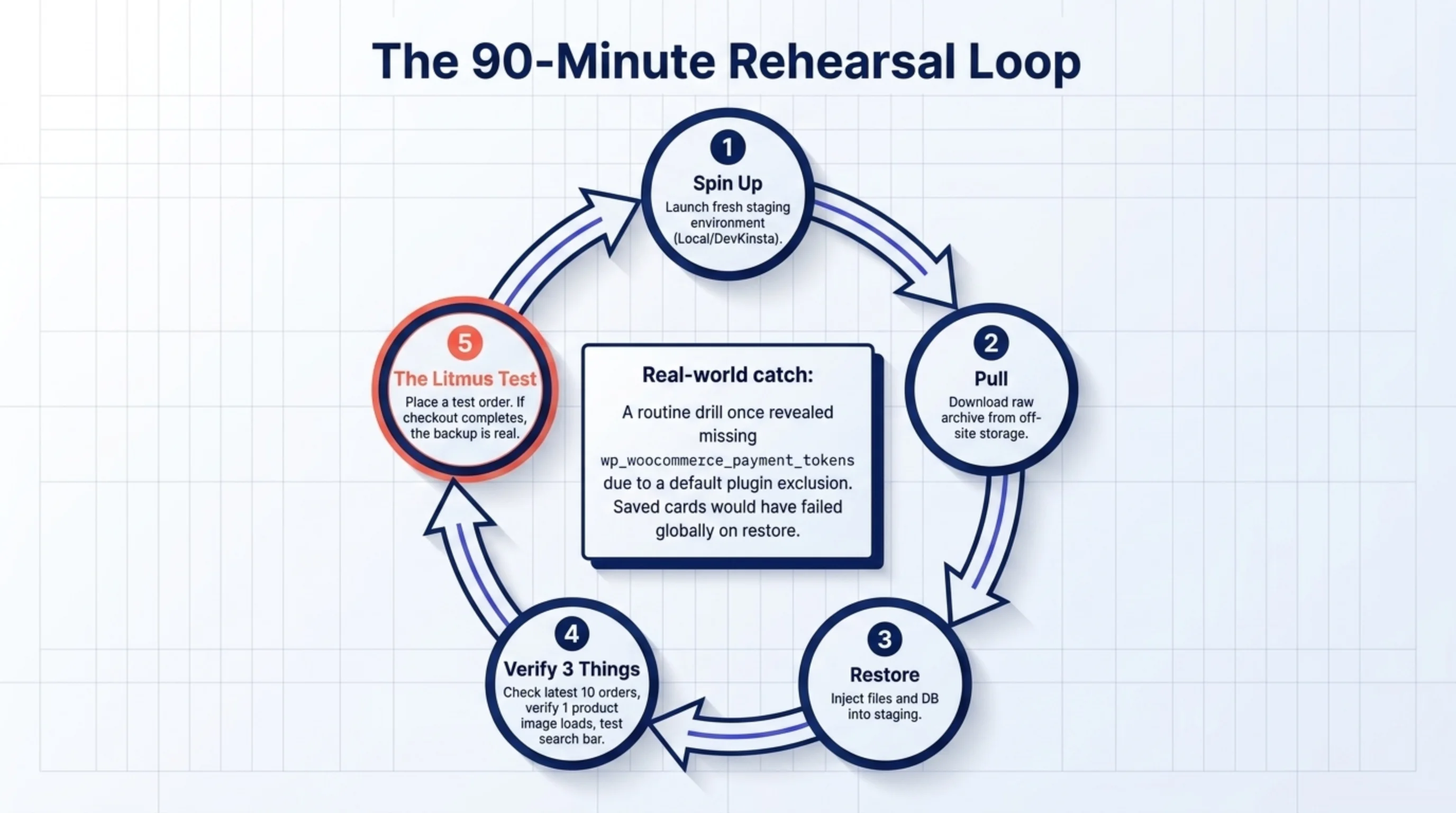
A restore drill I run every quarter on production stores:
- Spin up a fresh staging environment from scratch (Local, DevKinsta, or a new subdomain).
- Pull the most recent backup archive the same way the host or plugin would deliver it during an incident.
- Restore files and database into the staging environment.
- Log in. Check three things: the most recent 10 orders are present, product images load on at least one product page, search returns results.
- Place a test order with the test gateway. If checkout completes end-to-end, the backup is real.
Time investment: maybe 90 minutes per store. The first time I ran this on a store I had been managing for two years, the restore was missing wp_woocommerce_payment_tokens because the backup tool I had configured used a default table-exclude list that I had never reviewed. Tokens missing means saved cards do not work post-restore. Exactly the kind of silent data loss you only see when a real customer tries to check out.
Picking a backup tool when you know how to backup a WooCommerce site properly
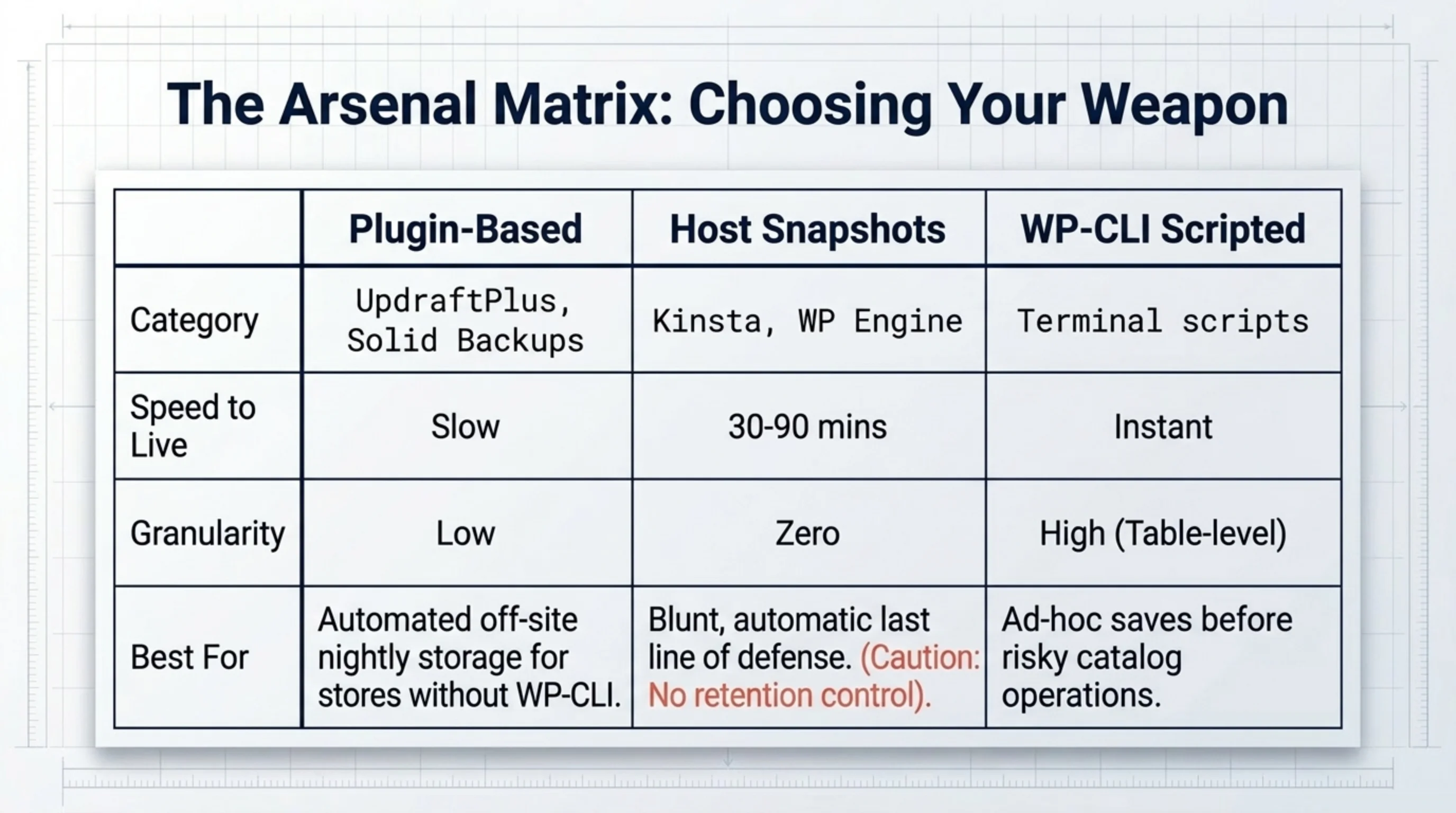
Once you understand the moving parts, picking the tool is easier than the listicles make it sound. Three categories:
- Plugin-based: UpdraftPlus, BlogVault, Solid Backups (formerly BackupBuddy). Run inside WordPress, write to off-site storage. Easiest path for stores without WP-CLI access. UpdraftPlus is what most of the kinsta.com/blog/wordpress-backup-plugins write-ups recommend, and on default settings it covers files and database both.
- Host-level snapshots: Kinsta, WP Engine, SiteGround, and most managed WP hosts take automatic ones. Fine as a last line of defense. Restore time can be an hour from request to live, and you do not control retention.
- WP-CLI scripted:
wp db exportplustar -czfonwp-content/, written to S3 by a cron job. Free, fast, scriptable. My default on stores with SSH access.
The combination I run on most production stores: nightly plugin-based off-site backup, ad-hoc WP-CLI scoped dumps before any risky operation, host snapshots as the third layer. Three layers because backups fail more often than people admit, and overlap is what saves you.
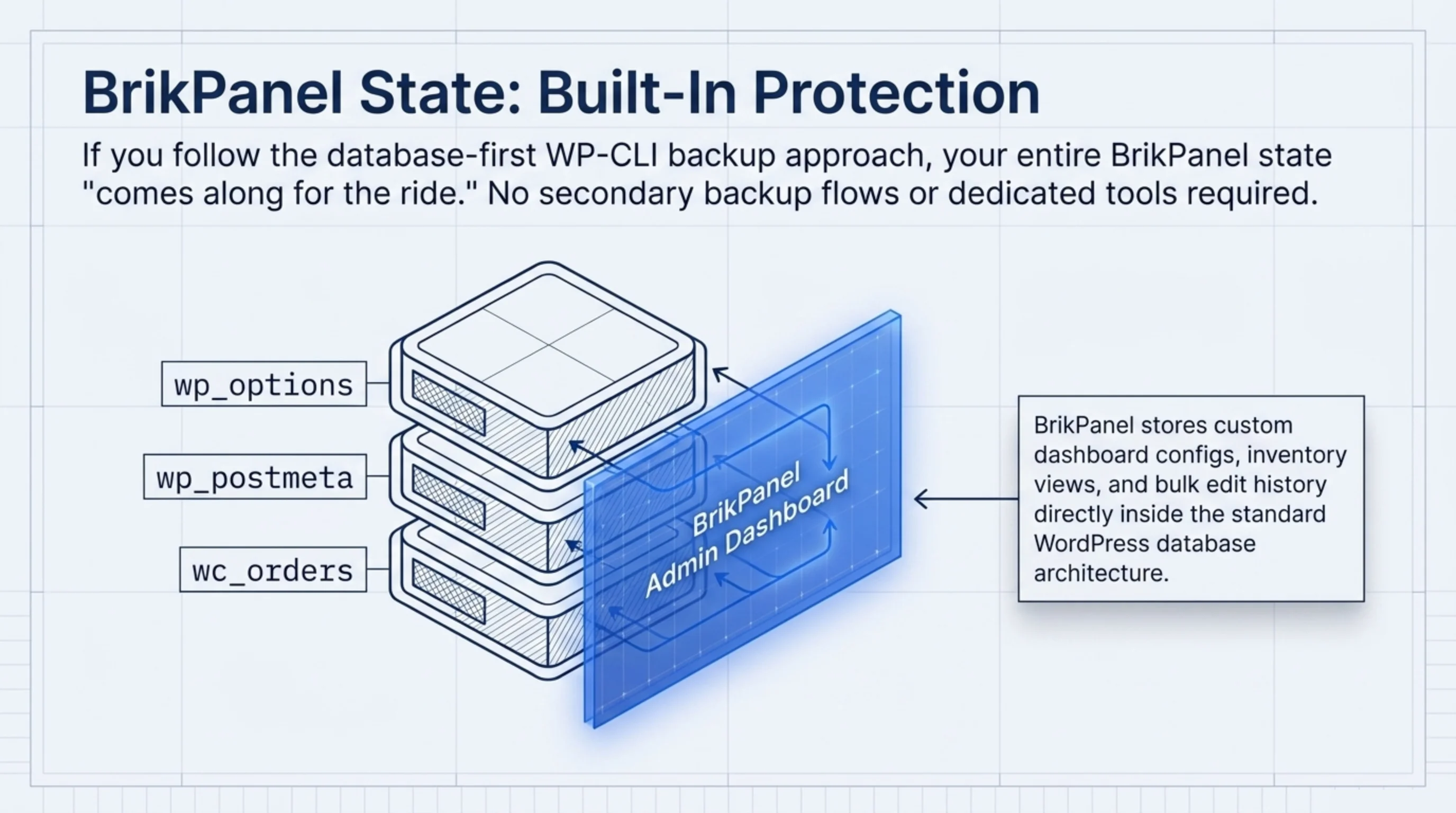
A note on BrikPanel and backups. BrikPanel does not handle backup itself; that is a separate problem domain best left to dedicated tools. But the data BrikPanel stores (custom dashboard configs, inventory views, bulk edit history) lives in the same WordPress database as everything else, so any backup that covers the standard wp_options, wp_postmeta, and the WooCommerce tables already covers BrikPanel state. If you are running BrikPanel (wordpress.org/plugins/brikpanel-admin-panel-dashboard-for-woocommerce) and following the database-first backup approach above, BrikPanel state comes along for the ride. No separate backup step required.

FAQ
About BrikPanel
BrikPanel is a free WordPress admin plugin that gives you a single grid view for inventory, bulk edits, and variation management. The operations that most often need a quick backup before you run them. It does not replace a backup tool, but combined with the WP-CLI scoped dumps above, it is what most operators reach for first when figuring out how to backup a WooCommerce site before risky catalog work. Install from wordpress.org/plugins/brikpanel-admin-panel-dashboard-for-woocommerce and pair it with the WP-CLI export commands from the database section.
Daily at minimum, with a database-scoped dump running before any bulk operation on top of that. Knowing how to backup a WooCommerce site properly means treating the database as continuously valuable. Every hour your store takes orders is data that does not exist anywhere else. For stores doing more than 50 orders a day, every six hours is closer to the right cadence, and a real-time replication target like a read replica starts to make sense once you cross 200 orders a day.
No. Host snapshots are slow to restore (often 30 to 90 minutes from request to live) and you do not control retention or what is included in the snapshot. They are a useful last line of defense, but a backup strategy that relies only on them is a strategy that has never been tested under pressure.
Use wp db export from WP-CLI or mysqldump with the --single-transaction flag. Both produce a consistent snapshot without locking tables for write. Backup plugins like UpdraftPlus do this internally as well. The site stays online during the export, including checkout.
A scoped dump of wp_posts, wp_postmeta, wp_terms, wp_term_taxonomy, and wp_term_relationships. This covers products, variations, attributes, and categories. It excludes orders, so use it only as a rollback for catalog changes, not for order recovery.
Not separate, but make sure your backup tool’s table list includes wc_orders, wc_order_addresses, wc_order_operational_data, and wc_orders_meta. Some older plugins skip them by default. They produce backups that look complete but are missing every order on restore.
Technically yes, by importing only the relevant wp_posts and wp_postmeta rows for that product ID and its variations. In practice, this is brittle and easy to get wrong. Faster path: restore the scoped products dump to a staging environment, copy the rows over manually, and verify on the live site before pushing the change to production.
Sources Used
- woocommerce.com/document/high-performance-order-storage — cited for the HPOS table schema (
wc_orders,wc_order_addresses,wc_order_operational_data,wc_orders_meta) that backup tooling must cover. - developer.wordpress.org/cli/commands/db/export — cited for the
wp db exportcommand and the--add-drop-tableand--tablesflags used in the scoped backup examples. - developer.wordpress.org/cli/commands/db/import — cited as the paired command for restoring a
wp db exportdump. - kinsta.com/blog/wordpress-backup-plugins — cited for general WordPress backup plugin context and the UpdraftPlus recommendation.
- wordpress.org/documentation/article/wordpress-backups — cited as the official WordPress documentation that separates files and database as distinct backup domains.
- dev.mysql.com/doc/refman/8.0/en/mysqldump.html — cited for the
mysqldumpworkaround when Bluehost cPanel exports hit the 60-second timeout on large stores. - wordpress.org/plugins/brikpanel-admin-panel-dashboard-for-woocommerce — cited as the install location for BrikPanel.
